
How to Build a Browser AI Assistant Extension: Summarize Any Webpage in One Click
Chapter 1: What Browser Extensions and Chrome Extension Development Are
In this tutorial, we will complete a full closed loop: build an AI-driven Chrome browser extension from scratch. It can read the content of any webpage you are browsing, then use AI to generate a one-click summary. You will personally complete the extension development, debugging, and learn how to publish it to the Chrome Web Store.
For this tutorial, you should at least have:
- Chrome browser (version 138+ recommended if you want to use built-in AI)
- A code editor (VS Code / Cursor / Trae)
- (Optional) An OpenAI or Claude API Key
1.1 What Is a Browser Extension?
You have definitely used browser extensions before: ad blockers, translation tools, password managers... They are like "extra gear" for your browser, giving you superpowers while browsing the web.
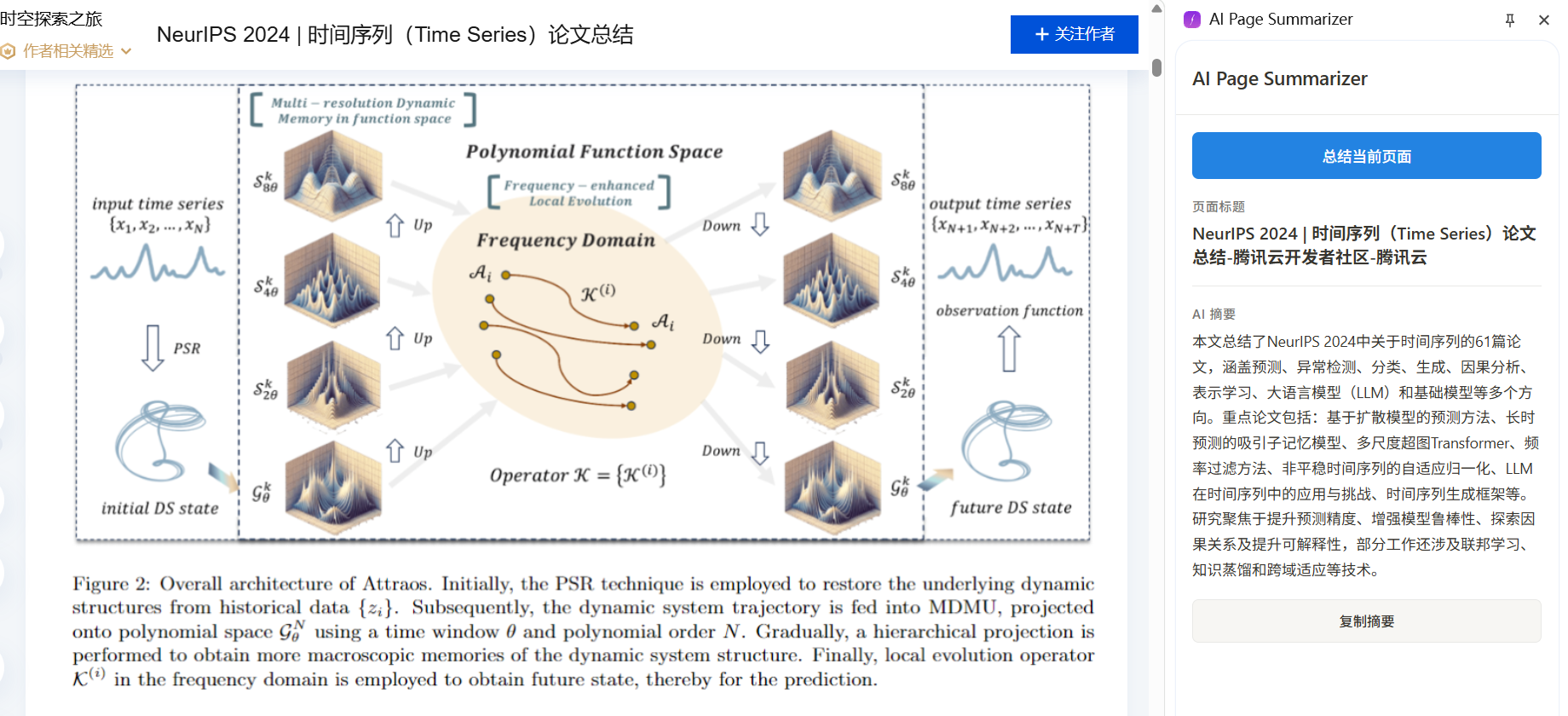
Imagine this: you open a 5,000-word technical blog post, click the extension button once, and a few seconds later a concise Chinese summary appears in the side panel. That is exactly what we are going to build.
1.2 The Basic Architecture of a Chrome Extension
Chrome extensions (based on Manifest V3) consist of several core parts, each with its own role:
- Manifest file (
manifest.json): the extension's "ID card," declaring its name, permissions, entry files, and more. - Service Worker (background script): the extension's "brain," handling events and calling APIs in the background. It does not run continuously, but starts when needed.
- Content Script: the extension's "eyes," injected into webpages and able to read DOM content.
- Side Panel: the extension's "face," showing UI on the right side of the browser where users see AI summary results.
- Options Page: lets users configure API Key and related settings.
Their workflow looks like this:
User clicks the extension icon
    -> Side panel opens
    -> User clicks the "Summarize" button
    -> Side panel notifies the Service Worker
    -> Service Worker asks Content Script to read page text
    -> Content Script returns page content
    -> Service Worker sends content to AI API
    -> AI returns the summary
    -> Service Worker sends the summary back to the side panel for display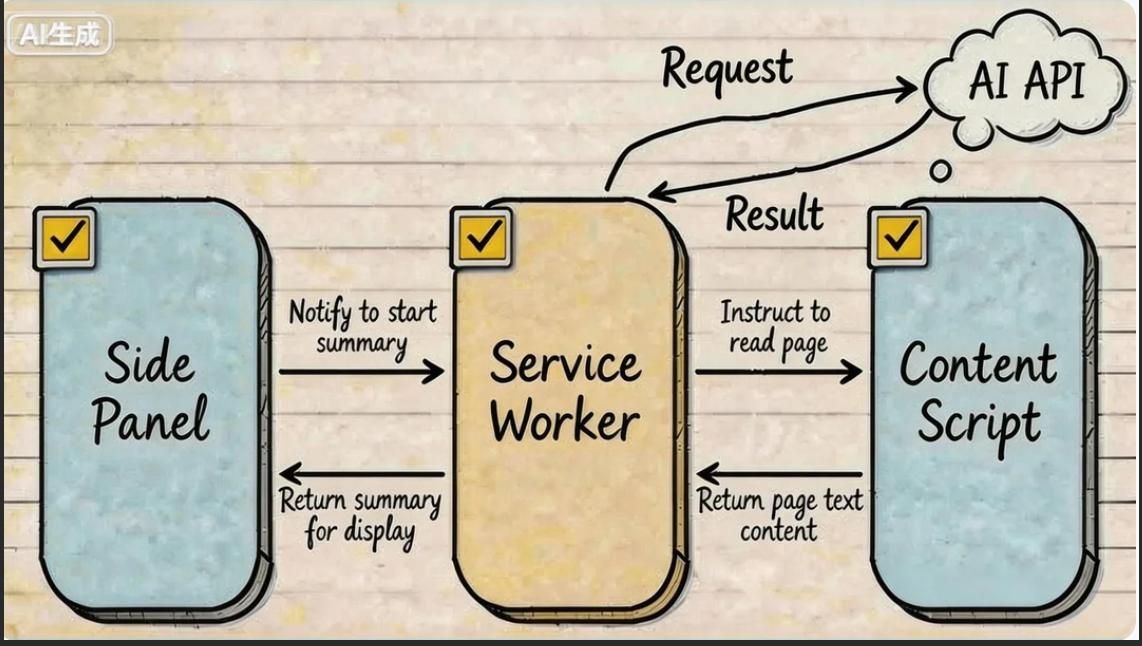
1.3 Two AI Options: Cloud API vs Built-in Browser AI
Our extension has two ways to access AI capability:
Option A: Call cloud AI APIs (OpenAI / Claude)
- Pros: powerful model capability, supports all devices
- Cons: needs an API Key, requires internet, has usage cost
- Best for: high-quality summaries and handling more complex content
Option B: Use Chrome built-in AI (Summarizer API)
Starting from Chrome 138, Google built AI capability based on Gemini Nano directly into the browser. One of them is the Summarizer API - it runs entirely locally, requires no API Key, no internet, and is completely free.
- Pros: free, privacy-friendly, no API Key needed
- Cons: requires Chrome 138+, better hardware (4GB+ VRAM or 16GB+ RAM), model capability is weaker than cloud AI
- Best for: users who care about privacy, do not want to pay, and have sufficient hardware
This tutorial will implement both options, and you can choose based on your own situation.
1.4 Tutorial Roadmap
We will build a Chrome extension called "AI Page Summarizer" from scratch, following these steps:
- Build the extension skeleton: create a Manifest V3 project structure and load it into Chrome
- Implement the core feature: Content Script reads the page + Service Worker calls AI API + side panel shows results
- Integrate Chrome built-in AI: use Summarizer API to provide free local summarization
- Testing and debugging: learn Chrome extension debugging techniques
- Publish to Chrome Web Store: package and submit for review
Chapter 2: Build the Extension Skeleton
2.1 Create the Project Structure
Open your AI coding assistant (Cursor / Trae / Claude Code), create an empty folder named ai-page-summarizer, then enter the following in the chat box:
Please help me create a Chrome browser extension project using Manifest V3.
The project name is ai-page-summarizer, and its function is to summarize webpage content with AI.
Please create the following file structure:

ai-page-summarizer/
├── manifest.json          # MV3 manifest file
├── background.js          # Service Worker background script
├── content.js             # Content script (reads webpage text)
├── sidepanel.html         # Side panel HTML
├── sidepanel.js           # Side panel logic
├── sidepanel.css          # Side panel styling
├── options.html           # Settings page
├── options.js             # Settings page logic
└── icons/                 # Icons folder

Requirements for manifest.json:
1. manifest_version: 3
2. Permissions: storage, activeTab, scripting, sidePanel
3. Use service_worker: "background.js" for background
4. Configure side_panel with default path sidepanel.html
5. Configure default icon and title for action
AI will generate the full project skeleton for you. Let us look at what each file does.
2.2 manifest.json: The Extension's "ID Card"
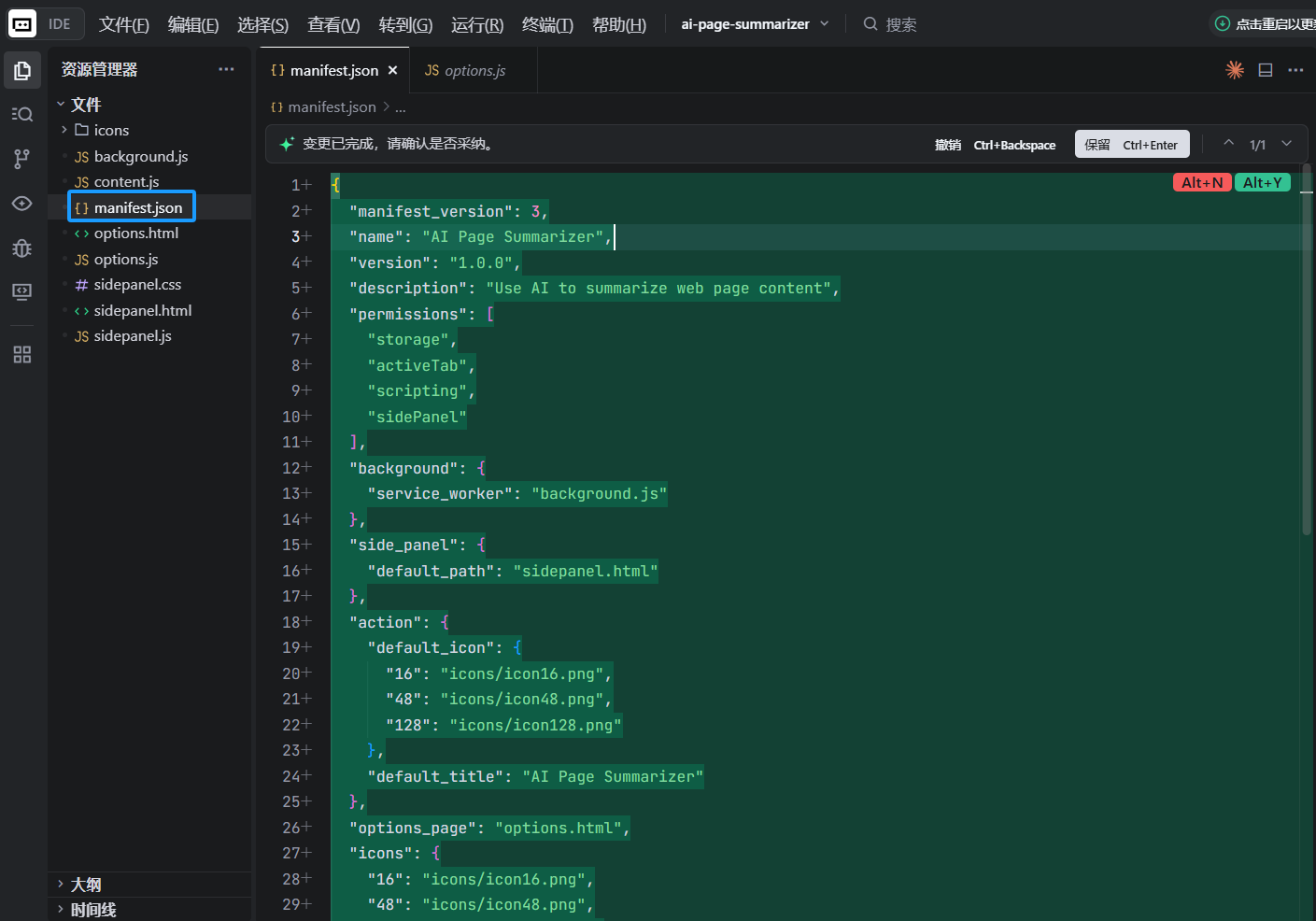
This is the most important file in a Chrome extension. It tells the browser what the extension is, what permissions it needs, and which components it contains:
{
  "manifest_version": 3,
  "name": "AI Page Summarizer",
  "version": "1.0",
  "description": "Use AI to summarize any webpage in one click",
  "permissions": ["storage", "activeTab", "scripting", "sidePanel"],
  "background": {
    "service_worker": "background.js"
  },
  "action": {
    "default_title": "AI Page Summarizer",
    "default_icon": {
      "16": "icons/icon-16.png",
      "48": "icons/icon-48.png",
      "128": "icons/icon-128.png"
    }
  },
  "side_panel": {
    "default_path": "sidepanel.html"
  },
  "options_page": "options.html",
  "icons": {
    "16": "icons/icon-16.png",
    "48": "icons/icon-48.png",
    "128": "icons/icon-128.png"
  }
}
Permission explanation:
storage: lets the extension store data such as the user's API KeyactiveTab: lets the extension access the current tab the user is viewing (only after user interaction, so it is very safe)scripting: lets the extension inject scripts into pages to read contentsidePanel: lets the extension use Chrome side panel API
2.3 Prepare Icons
Chrome extensions need icons in three sizes: 16x16, 48x48, and 128x128. You can ask AI to generate them:
Please help me generate three simple Chrome extension icons (16x16, 48x48, 128x128),
with a rounded rectangle, gradient purple background, and a white AI lightning symbol in the center.
Save them in the icons/ directory as icon-16.png, icon-48.png, and icon-128.png.
2.4 Load the Extension into Chrome
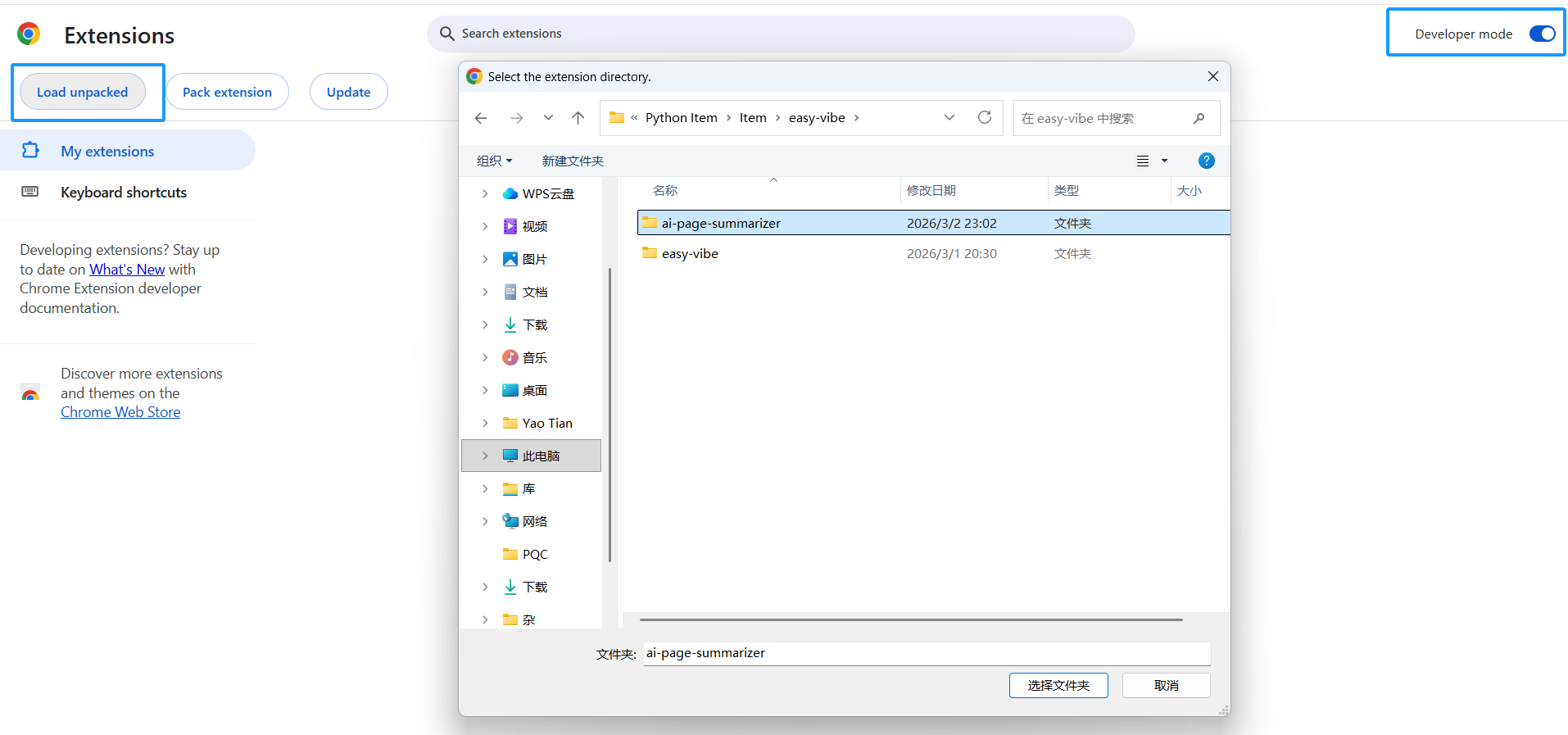
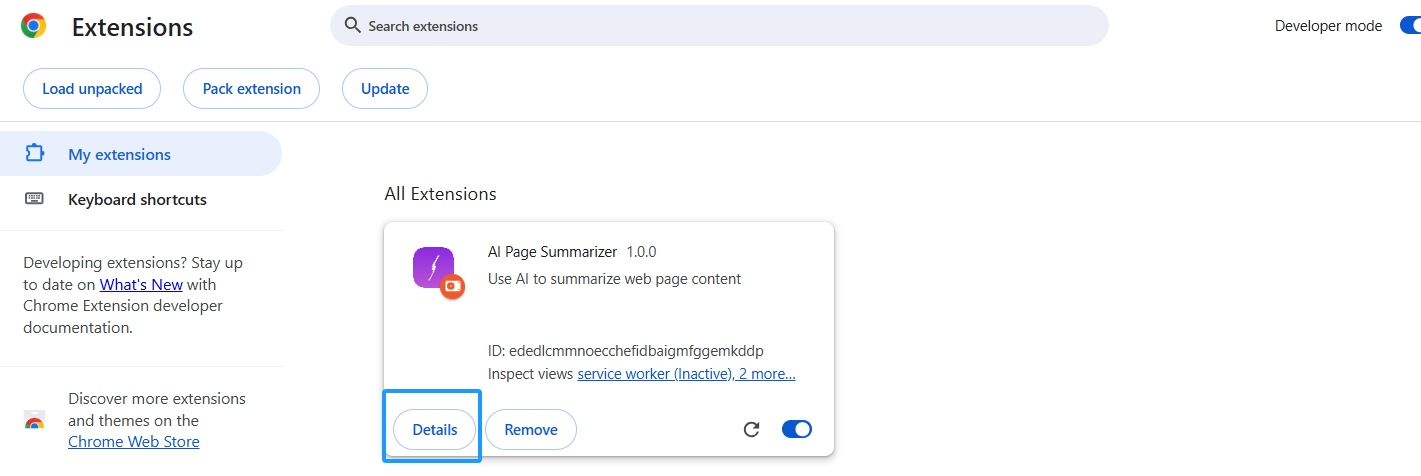
Before writing code, let us first load this "empty shell" extension into Chrome, so every later change can be previewed immediately:
- Open Chrome and enter
chrome://extensions/in the address bar - Turn on Developer mode in the top-right corner
- Click Load unpacked
- Select your
ai-page-summarizerfolder
You will see the extension appear in the list, and its icon will show up in the Chrome toolbar.
Tip: after every code change, go back to
chrome://extensions/and click the refresh button (🔄) on the extension card to update it.
Chapter 3: Implement the Core Feature - Read Page + AI Summary
3.1 Content Script: Read Page Text
Content Script is a script injected into the webpage. It can directly access the page DOM. We use it to extract page text.
Ask AI to write content.js:
Please help me write content.js with the following functions:
1. Listen for messages from Service Worker
2. When receiving a "getPageContent" message, extract the current page text content
3. Extraction logic: get document.body.innerText, and also get the page title and URL
4. Return the extracted content via sendResponse
AI will generate code like this:
// content.js
chrome.runtime.onMessage.addListener((request, sender, sendResponse) => {
  if (request.action === 'getPageContent') {
    const content = document.body.innerText || document.body.textContent
    sendResponse({
      content: content.trim(),
      title: document.title,
      url: window.location.href
    })
  }
  return true // Keep the message channel open
})
3.2 Service Worker: Call AI API
Service Worker is the extension's "brain." It coordinates communication among components and calls external AI APIs.
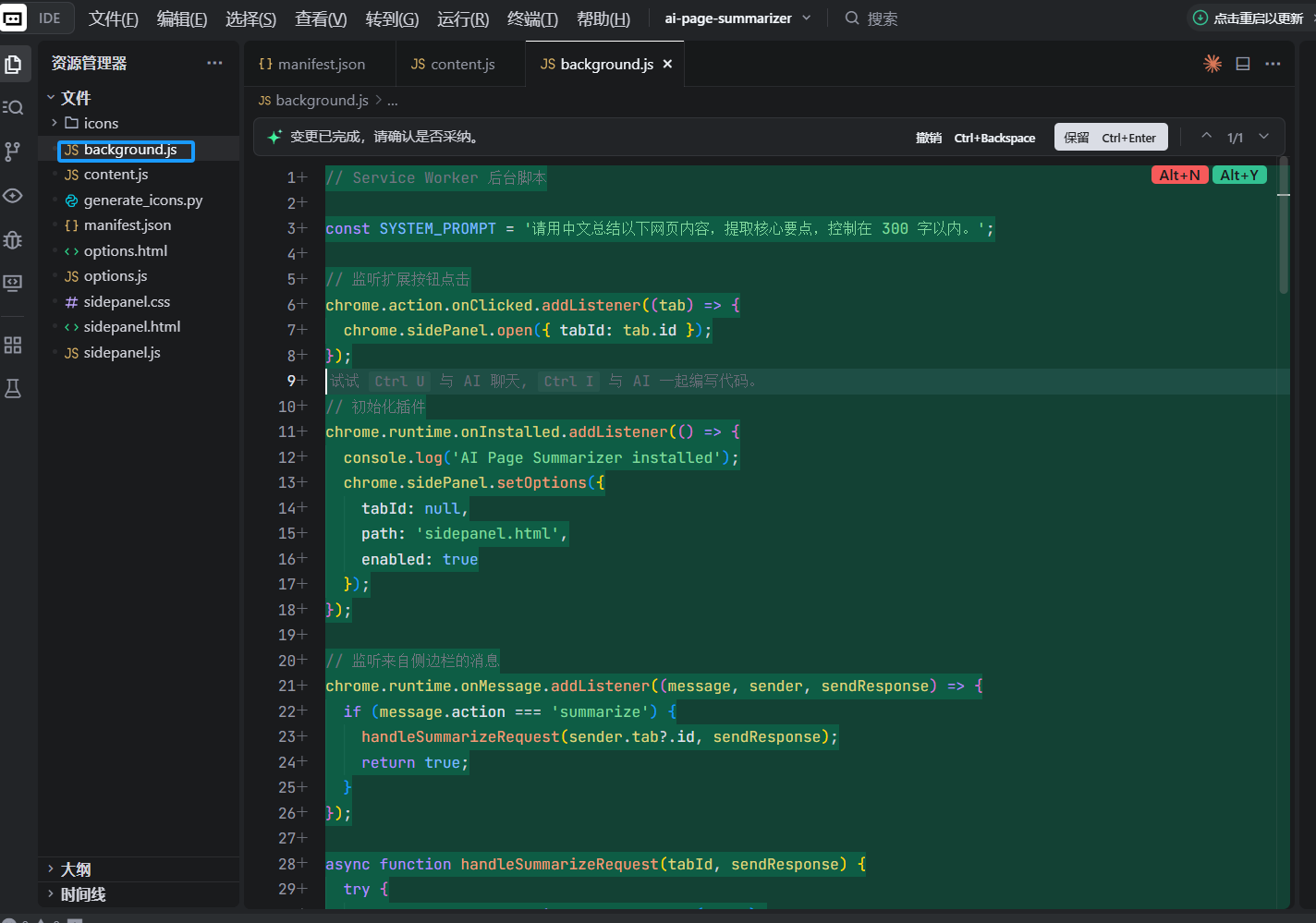
Ask AI to write background.js:
Please help me write background.js with the following functions:
1. When the user clicks the extension icon, open the side panel
2. Listen for "summarize" messages from the side panel
3. After receiving the message, send "getPageContent" to the content script in the current tab to get page content
4. After receiving the page content, read the user's configured API Key and model selection from chrome.storage.local
5. Call the corresponding AI API according to the configuration (support OpenAI and Claude)
6. Send the AI summary back to the side panel

For OpenAI, call https://api.openai.com/v1/chat/completions and use model gpt-4o-mini
For Claude, call https://api.anthropic.com/v1/messages and use model claude-sonnet-4-20250514
System prompt: Please summarize the following webpage content in Chinese, extract the key points, and keep it within 300 Chinese characters.
Core code looks like this:
// background.js

// Open the side panel when the user clicks the icon
chrome.sidePanel.setPanelBehavior({ openPanelOnActionClick: true })

// Listen for messages from the side panel
chrome.runtime.onMessage.addListener((request, sender, sendResponse) => {
  if (request.action === 'summarize') {
    handleSummarize(request.tabId).then(sendResponse)
    return true // Async response
  }
})

async function handleSummarize(tabId) {
  // 1. Get page content
  const [response] = await chrome.tabs.sendMessage(tabId, {
    action: 'getPageContent'
  })

  // 2. Read user settings
  const { apiKey, provider } = await chrome.storage.local.get([
    'apiKey', 'provider'
  ])

  if (!apiKey) {
    return { error: 'Please configure your API Key in the settings page first' }
  }

  // 3. Call AI API
  const summary = provider === 'claude'
    ? await callClaude(response.content, apiKey)
    : await callOpenAI(response.content, apiKey)

  return { summary, title: response.title }
}
3.3 Side Panel UI: Show Summary Result
The side panel is the main interaction UI for users. Ask AI to write the HTML, CSS, and JS for the side panel:
Please help me write these three files for the side panel:

sidepanel.html:
- Show the plugin name "AI Page Summarizer" at the top
- A blue "Summarize Current Page" button
- A loading animation area (hidden by default)
- A result display area showing the page title and AI summary
- A "Copy Summary" button at the bottom

sidepanel.css:
- Clean modern design, similar to Notion typography
- Width adapts to the side panel
- Buttons have hover effects
- Loading animation implemented with CSS

sidepanel.js:
- When clicking the "Summarize" button, get the current tab ID
- Send a summarize message to background.js
- Show loading animation
- Hide loading and display summary after receiving result
- Use navigator.clipboard.writeText in the "Copy" button to copy text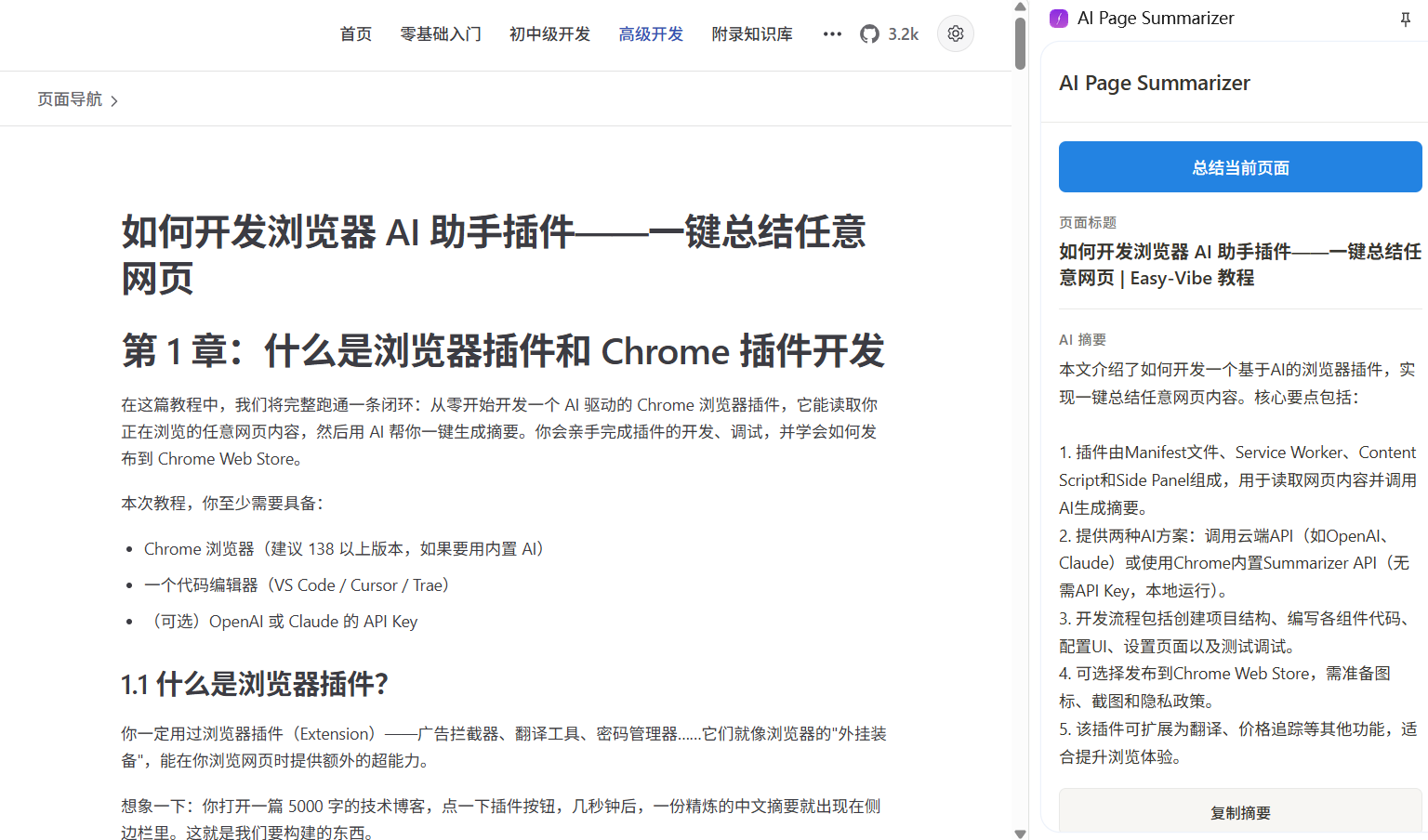
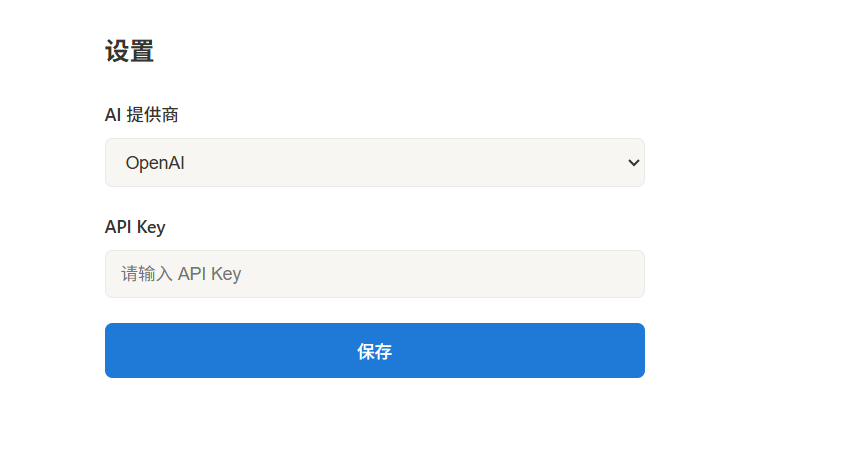
3.4 Settings Page: Configure API Key
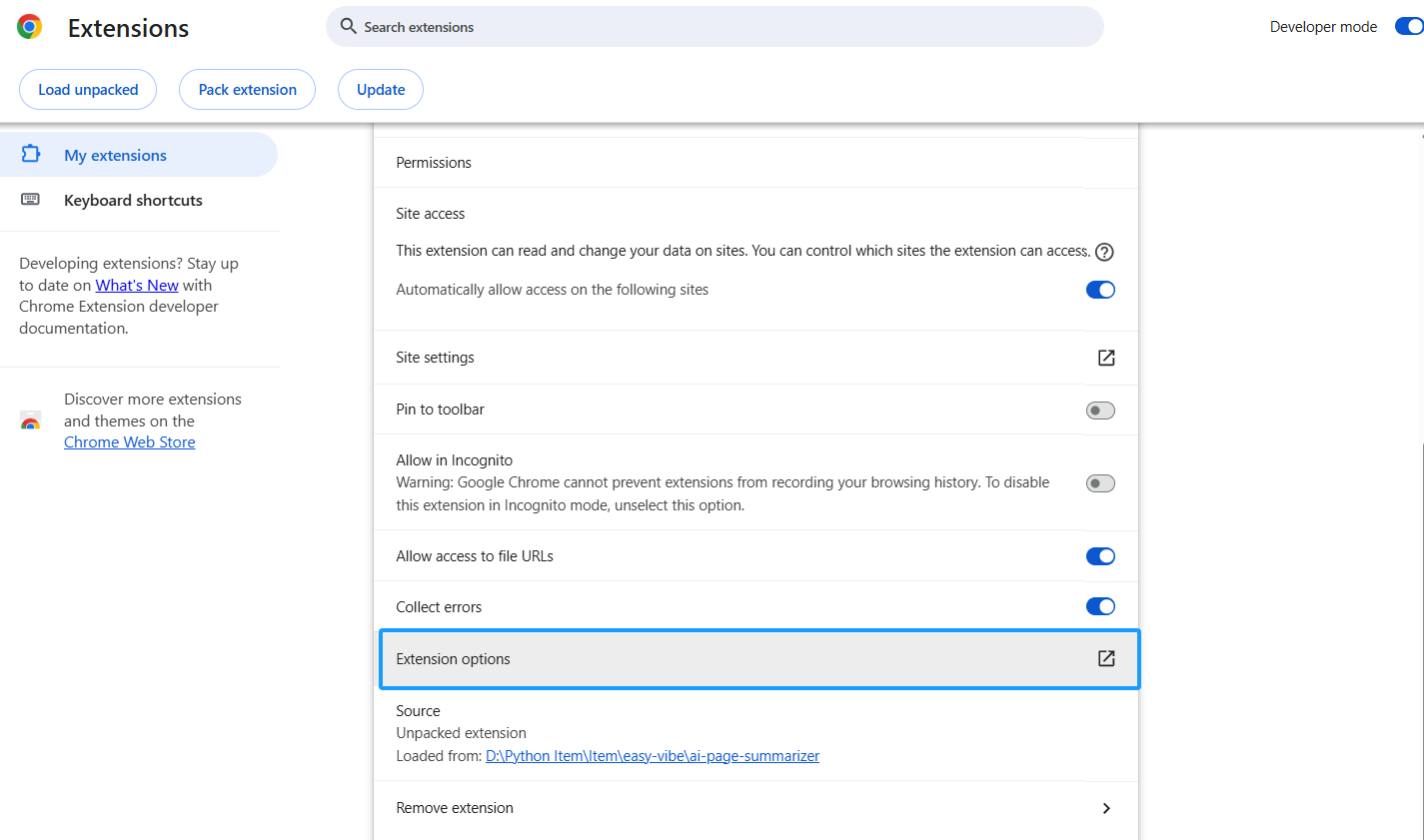
Users need a place to enter their own API Key. Ask AI to write the settings page:
Please help me write options.html and options.js:
- A dropdown to choose AI provider (OpenAI / Claude)
- A password input for API Key (type="password")
- A "Save" button
- Save config with chrome.storage.local.set
- Read saved config from storage and fill the form on page load
- Show "Settings saved" after saving
Security reminder: the API Key is stored in
chrome.storage.localand only kept on the local device. But if you want to publish this extension to the Chrome Web Store for others to use, a safer approach is to build a backend proxy server so the API Key is not exposed directly on the client side.
Chapter 4: Use Chrome Built-in AI (No API Key Needed)
Starting from Chrome 138, Google built AI capability based on Gemini Nano directly into the browser. The one best suited for our case is the Summarizer API - it runs entirely locally, needs no API Key, needs no internet, and is free.
4.1 Check Browser Support
Built-in AI has hardware requirements:
- Desktop Chrome 138+ (Windows 10+, macOS 13+, Linux, ChromeOS)
- 22 GB available storage space (for model download)
- 4GB+ GPU VRAM, or 16GB+ system RAM with 4+ CPU cores
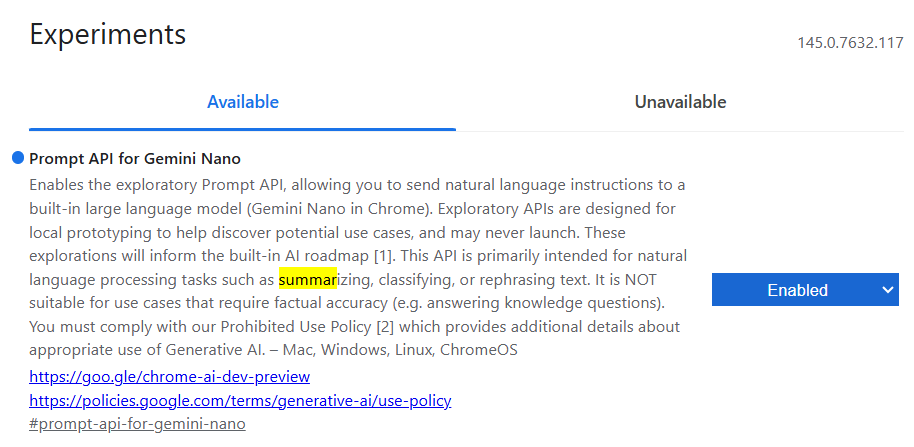
Enter chrome://flags in Chrome address bar, search for the flag related to Summarization, and ensure it is Enabled.
- In Chrome 131-137, this switch is called Summarization API.
- In Chrome 138-144, it was renamed to Summarization API for Gemini Nano.
- In Chrome 145+, Summarization API for Gemini Nano was removed, and its summarization function was integrated into Prompt API for Gemini Nano.
4.2 Use Summarizer API
Ask AI to add built-in AI support in background.js:
Please help me add Chrome built-in Summarizer API support in background.js:
1. Add a summarizeWithBuiltinAI function
2. First check whether Summarizer.availability() returns 'readily-available'
3. If available, create a summarizer instance, configure type as 'key-points', format as 'markdown', and length as 'medium'
4. Call summarizer.summarize() to summarize
5. In handleSummarize, add a branch for provider === 'builtin'
Core code:
async function summarizeWithBuiltinAI(text) {
  // Check availability
  const availability = await Summarizer.availability()
  if (availability !== 'readily-available') {
    throw new Error('Chrome built-in AI is not available. Please check browser version and hardware requirements.')
  }

  // Create summarizer
  const summarizer = await Summarizer.create({
    type: 'key-points',
    format: 'markdown',
    length: 'medium'
  })

  // Run summary
  const summary = await summarizer.summarize(text, {
    context: 'This is a webpage article'
  })

  return summary
}
4.3 Update the Settings Page
Add a "Chrome Built-in AI (Free, No API Key Needed)" option to the provider dropdown in options.html. When users choose it, hide the API Key input because it is no longer needed.
Please help me modify options.html and options.js:
1. Add an option "Chrome built-in AI (free, no API Key needed)" to the provider dropdown, with value "builtin"
2. Hide the API Key input when builtin is selected
3. Show the API Key input when OpenAI or Claude is selected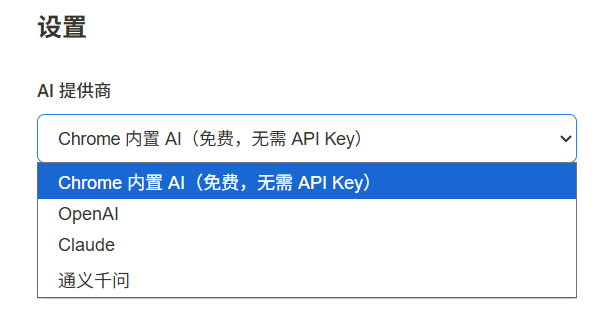
Chapter 5: Testing and Debugging
5.1 Local Testing Workflow
Debugging Chrome extensions is a bit different from debugging normal webpages:
Debug Service Worker:
- Open
chrome://extensions/ - Find your extension and click the Service Worker link
- A dedicated DevTools window opens where you can see
console.logoutput and network requests
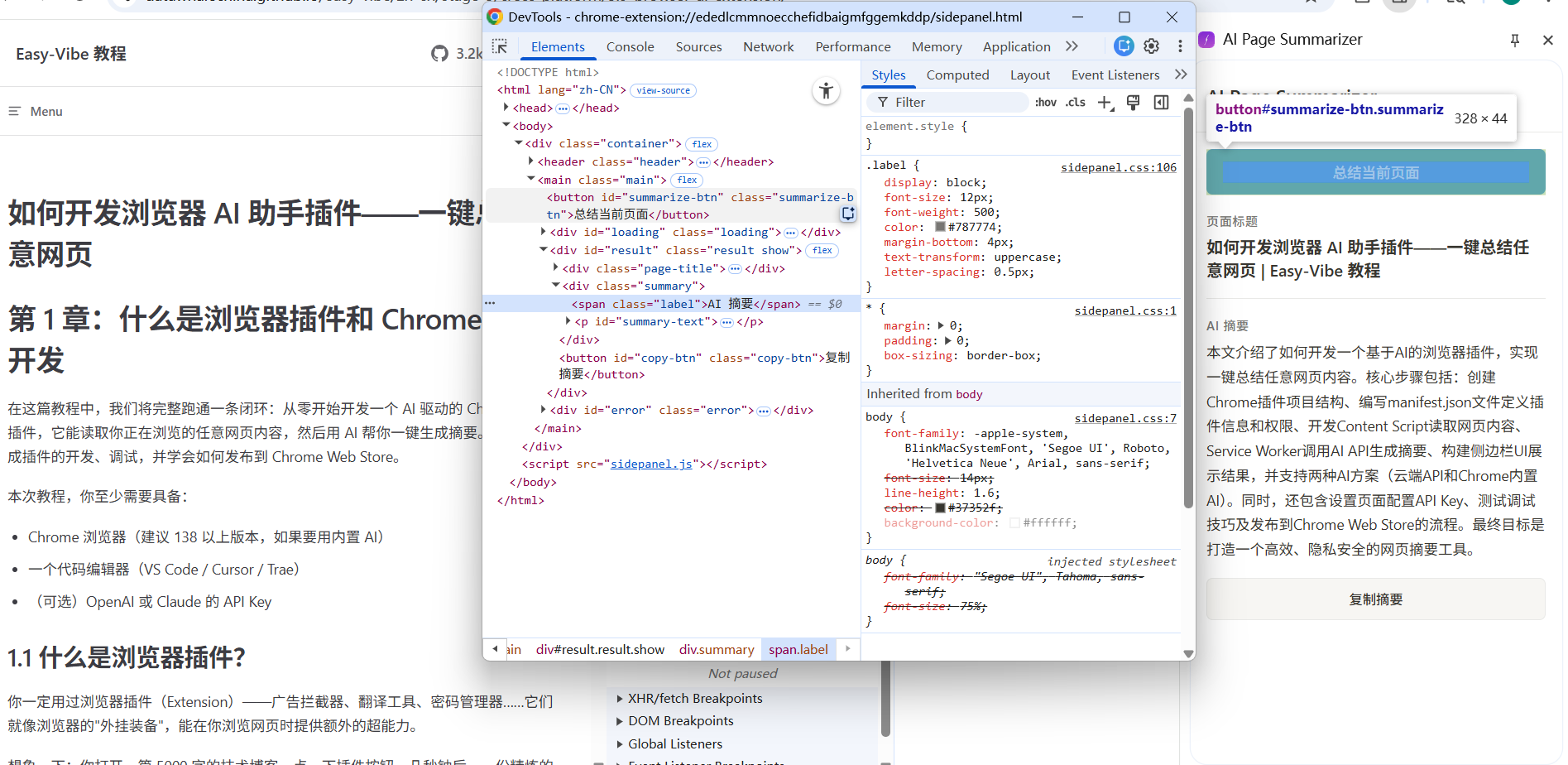
Debug Side Panel:
- Open the side panel
- Right-click inside the side panel content
- Choose Inspect
- This opens DevTools for the side panel
Debug Content Script:
- Open DevTools with F12 on any webpage
- In the Console panel, click the execution context dropdown in the top-left
- Select your extension name
- Then you can see
consoleoutput from the Content Script
5.2 Common Troubleshooting
| Problem | Possible Cause | Solution |
|---|---|---|
| Clicking the icon does nothing | Service Worker error | Check the Service Worker DevTools Console |
| Cannot get page content | Content Script not injected | Refresh the page and try again, check matches config in manifest |
| API call fails | API Key is wrong or expired | Re-enter the API Key in the settings page |
| Side panel is blank | sidepanel.html path is wrong | Check side_panel.default_path in manifest |
Chapter 6: Publish to Chrome Web Store (Optional)
If you want to share the extension with others, you can publish it to the Chrome Web Store.
6.1 Prepare for Publishing
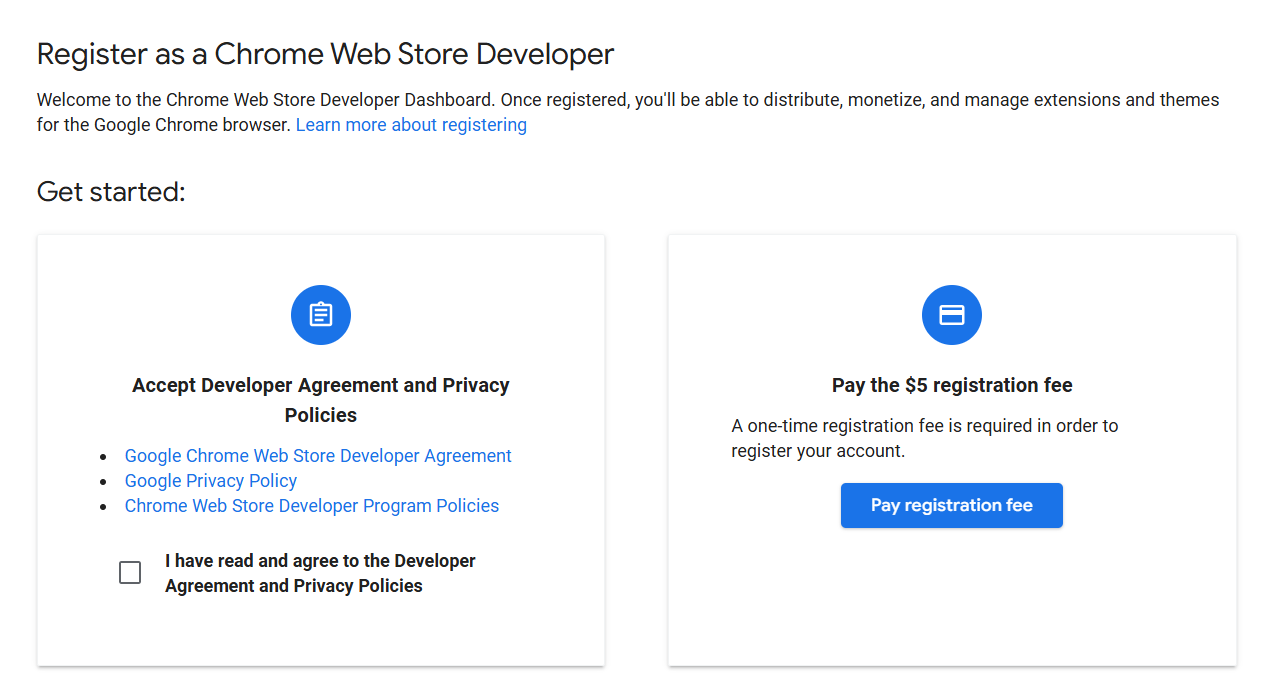
- Register a developer account: visit Chrome Web Store Developer Dashboard and pay the one-time $5 registration fee
- Enable 2-Step Verification: your Google account must enable 2-Step Verification before publishing
- Prepare assets:
- Extension icon: 128x128 PNG
- At least one screenshot: 1280x800 recommended
- Detailed functional description
- Privacy policy explanation (if your extension processes user data)
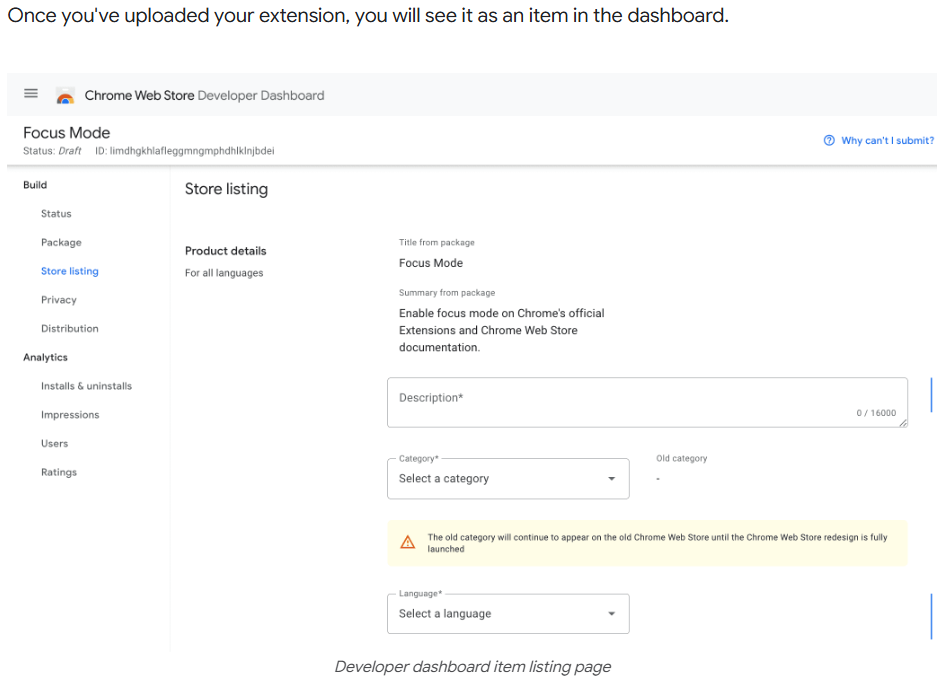
6.2 Package and Upload
- Compress the extension folder as a
.zipfile (not.crx) - Click New Item in Developer Dashboard
- Upload the
.zipfile - Fill in store information (name, description, screenshots, category, etc.)
- Fill in privacy practices (declare what user data your extension collects)
- Click Submit for Review
Google will review submitted extensions, which usually takes several business days. The fewer permissions you request and the clearer your description is, the faster the review usually goes.
Chapter 7: Final Notes
Congratulations! You have built an AI-driven browser extension from scratch. Let us review what we did:
- Understood the Manifest V3 architecture of Chrome extensions
- Used Content Script to read webpage content
- Used Service Worker to call AI APIs and generate summaries
- Used Side Panel to display the summary result
- Also learned how to use Chrome built-in AI without any API Key
Browser extension development is a very interesting field - it lets you "enhance" any webpage on the internet. Besides summarizing pages, you can build many more things with a similar architecture:
Advanced directions:
- Translation assistant: translate foreign webpages into Chinese in one click
- Reading annotations: highlight and annotate pages, then save to the cloud
- Price tracking: monitor price changes on e-commerce pages and notify users
- Code explainer: select code on GitHub and let AI explain it automatically
The arrival of Chrome built-in AI lowers the barrier even further - you do not even need an API Key to build AI-powered extensions. As browser AI capabilities continue to grow, the imagination space in this field will only get larger.
Go give your browser some superpowers!