
How to Build the Simplest WeChat Mini Program
1. What WeChat Mini Programs and Mini Program Development Are
In this tutorial, we will complete a full closed loop: from an idea in your mind to a real mini program that can be searched and opened by QR code inside WeChat.
Before we start building, we need to establish two basic understandings.
The first is essence: what exactly is a WeChat mini program? How is it different from a normal app or website? Why do so many products choose this format? Only when you understand the core logic can you judge whether your idea fits a mini program.
The second is path: when you say "I want to build a mini program," what does the full path from zero to launch look like? What are the key nodes on that path - what to think about during ideation, how to set up environment, how AI-assisted development improves efficiency, what pitfalls appear in simulator debugging, and what test accounts vs formal release each solve. If you run through this process mentally first, you will not get lost during implementation.
After these two questions are clear, we can formally enter development. Let us start with the first question: what exactly is a WeChat mini program?
1.1 WeChat Mini Program
A WeChat mini program can be seen as an app living inside WeChat. You do not need to search in an app store, download, or install. Users can search by name in WeChat, scan a QR code, or open a shared card and use it immediately. After use, they just close it. It does not permanently occupy phone home screen or storage.
For regular users, mini programs solve many "small tasks": checking delivery, ordering coffee, viewing orders, playing a quick game. Fast startup and unified entry inside WeChat are its biggest experience traits.
For companies and developers, mini programs are a searchable and shareable "small app format." As long as you register on WeChat Official Platform, complete settings, and pass review, your mini program can open to all WeChat users. Compared with traditional apps, it is easier to get the first batch of users because people are already used to doing many tasks in WeChat.
In this tutorial, we will not build a complex business system. We choose a classic example: Snake game. It is small and logically clear, yet includes the complete elements a mini program should have: multiple pages, simple interactions, state changes, score recording, etc. It is perfect as your first project.
1.2 WeChat Mini Program Development
After understanding "what mini programs are," the next question is: what does developing one actually involve?
You need a clear goal (for example, a Snake game users can play anytime), design the interface users will see, define what should happen under different actions, and finally publish it.
In traditional development, programmers usually lead all these steps and write a lot of code. In AI-assisted development, this can be split more clearly: you explain what you want, and AI helps with most implementation details. That means for beginners, the most important skill is no longer memorizing syntax, but clearly describing requirements and understanding AI output.
1.3 Several Ways to Develop WeChat Mini Programs
In real projects, people use different technical routes. To avoid overwhelming you with terms at the beginning, we will only do a rough classification so you understand the common paths.
The first way is using official native capabilities directly. After creating a project in WeChat DevTools, you will see a fixed set of file types used to describe page structure, styles, and logic. This way stays close to official docs and gives strong control, but for first-time frontend learners, the learning curve is a bit steeper.
The second way is using cross-end frameworks, such as uni-app. You mainly write web-like code locally (for example .vue files), and the framework converts this code to formats WeChat mini programs can run. The advantage is unified structure. If you later publish to other platforms (such as H5 or App), changes are relatively smaller.
Based on these two methods, this tutorial focuses on mini program SOP using AI-assisted tools. For example, open the whole project in Trae and tell built-in AI directly: "Please add a homepage with title and button in this file" or "Please create a game page that shows snake and score." AI will generate new code snippets or modify/refactor existing code based on current project context.
These three ways are not mutually exclusive. You can absolutely build in a uni-app project while using Trae AI for most coding work. The key is not picking one method, but knowing where you are now and what tools are available.
1.4 WeChat Mini Program Steps Covered in This Article (High-level Preview)
This tutorial follows a rhythm from environment to final product. Around the Snake example and Trae vibecoding style, we split the process into a reusable route. In later chapters, you will go through these stages:
- Build conceptual foundation: understand what mini programs are, what common development methods exist, and who this Snake mini program is for and in what scenarios it is used.
- Prepare environment: register mini program account, install HBuilderX, Trae, and WeChat DevTools, then create a basic project skeleton with HBuilderX that can run in WeChat DevTools and show the simplest page first.
- Enter formal development: open project in Trae, use vibecoding dialog with AI to generate homepage and game page layout step by step, and implement core gameplay such as snake movement, eating food, and game over.
- After core features run, learn to use AI as a "debugging and refactoring partner": ask it to diagnose bugs, tidy structure when code gets messy, and gradually add details such as start/pause, high-score record, and UI polishing.
- Enter publishing: build project into WeChat-recognizable version, preview and test on real devices in WeChat DevTools, launch first with test account and experience version for process validation, then complete filing and review before formal release so others can search and play your mini program.
This section only draws the full map and does not expand commands or code details yet. For now, remember these 5 steps: Understand -> Setup environment -> Vibecoding development -> Debug and polish -> Build and release. Later chapters will zoom into each step, showing what to prepare, what to say to AI, and what results you should see on screen at each stage.
2. Environment Preparation
Before writing any line of code, let us prepare the environment first.
The goal of this part is to make sure you no longer get stuck on where to download tools and why things cannot run, so you can focus directly on AI dialog and requirement implementation.
If you can open a browser, download files, and double-click installers, you can complete this section.
2.1 Three Tools Used in This Tutorial
For Snake mini program development, we use three tools together, each with different responsibilities:
- The first is Trae. Think of it as an AI-integrated code editor. It can open project files like a normal IDE and also let you chat with AI in natural language to generate, modify, and explain code. Most "build mini program with AI" operations in this tutorial happen in Trae. Download latest version from https://www.trae.cn .
- The second is HBuilderX. It has strong support for Vue and uni-app, and offers ready-made mini program templates. We use it to "one-click generate" a base mini program project - this is laying the foundation before handing it to Trae + AI for further iteration. Download from https://www.dcloud.io/hbuilderx.html .
- The third is WeChat DevTools. This official tool is used to develop and preview mini programs. It runs your project on desktop and supports real-device debugging on mobile. Download from https://developers.weixin.qq.com/miniprogram/dev/devtools/download.html .
In short: HBuilderX creates base project quickly, Trae helps you code with AI, and WeChat DevTools shows the actual running mini program.
2.2 Register WeChat Official Platform Account and Get AppID
With tools ready, you still need a mini program identity, which is created on WeChat Official Platform.
If you have never registered a mini program before, follow this order:
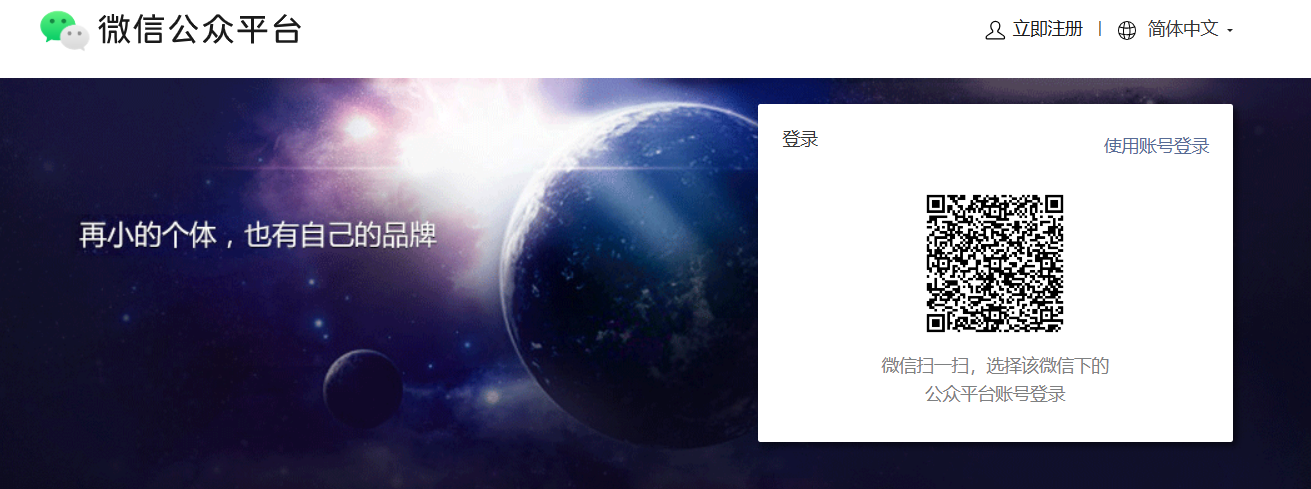
- Enter https://mp.weixin.qq.com in your browser, open WeChat Official Platform, and login by scanning QR code with WeChat.
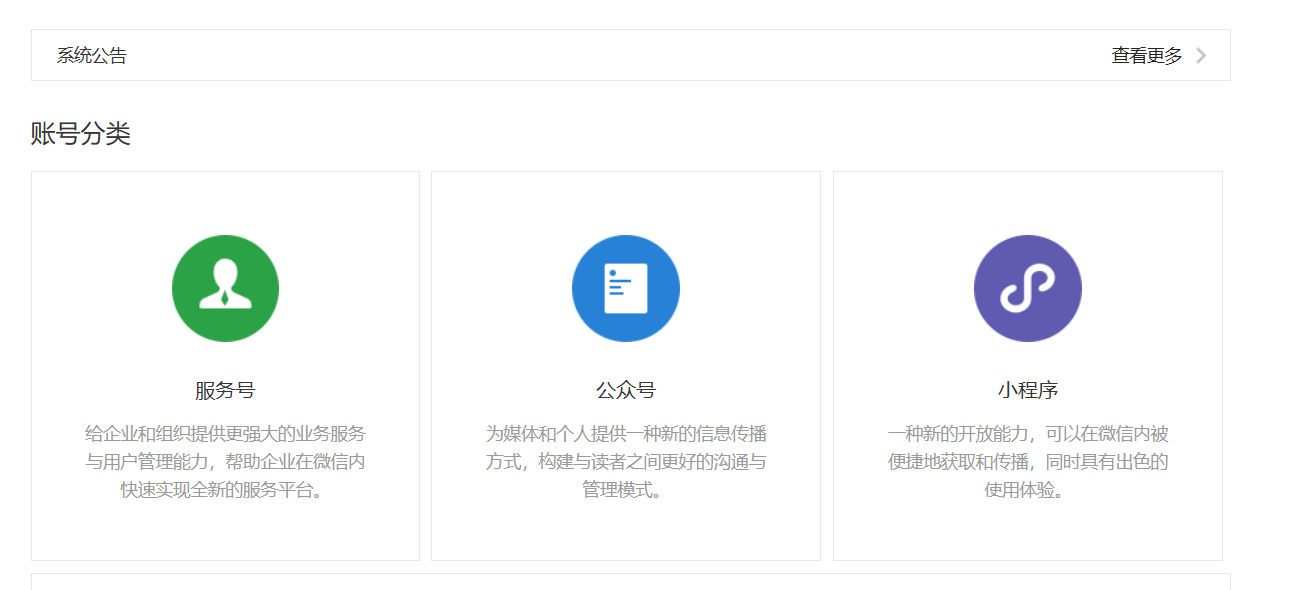
- Choose "Mini Program" on homepage and complete registration prompts, including email, phone number, and entity type (individual or enterprise).
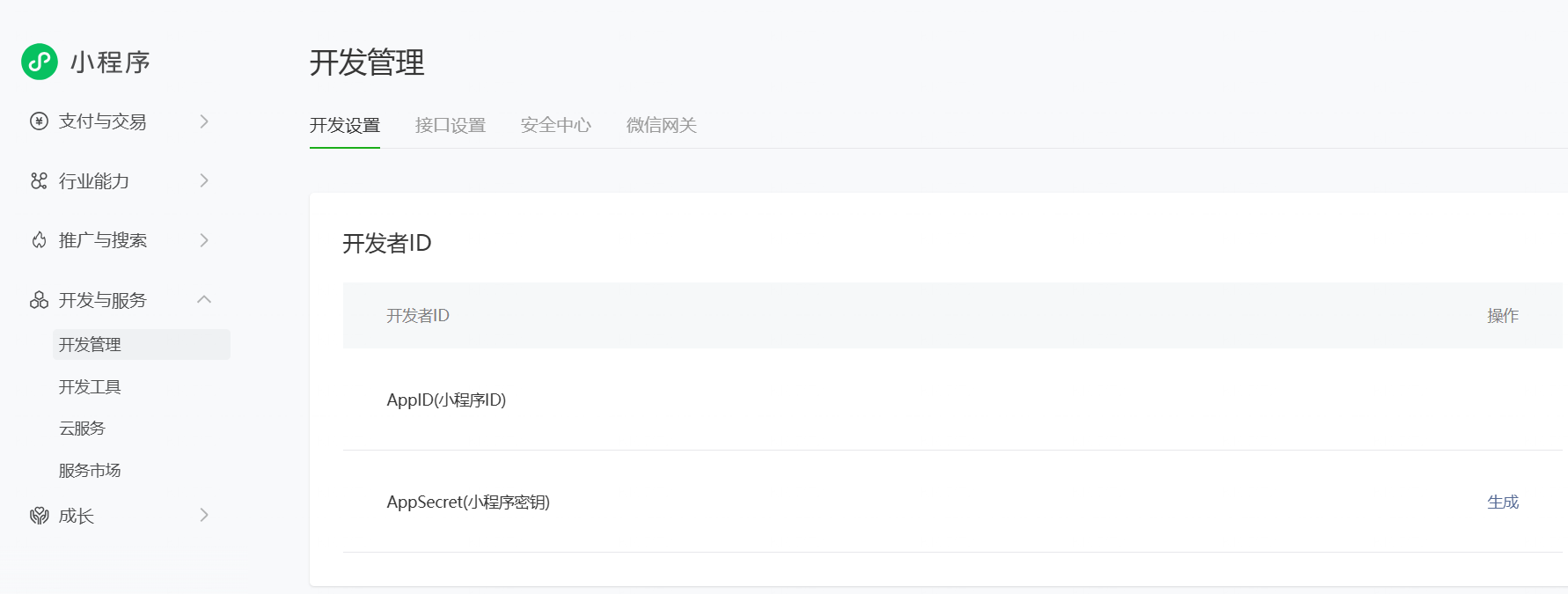
- After successful registration, enter backend, find "Development Management" or "Development Settings," and you will see a unique ID named AppID. This is your mini program identity and will be used in project config later.
It is recommended to save AppID where easy to find. In later sections, we will fill this value directly to map local project to your online mini program.
2.3 Install WeChat DevTools
Next we need a place to actually run and preview mini programs. That is exactly what WeChat DevTools is for.
- Visit download page https://developers.weixin.qq.com/miniprogram/dev/devtools/download.html .
On this page you will see versions for different operating systems. Usually choose the stable version matching your system, such as Windows 64-bit or macOS. - After download, double-click installer and follow wizard step by step. If unsure, keep default options.
- After installation, launch WeChat DevTools from desktop or start menu. On first launch, it shows a QR code and asks you to scan with WeChat. Scan and authorize to enter main interface.

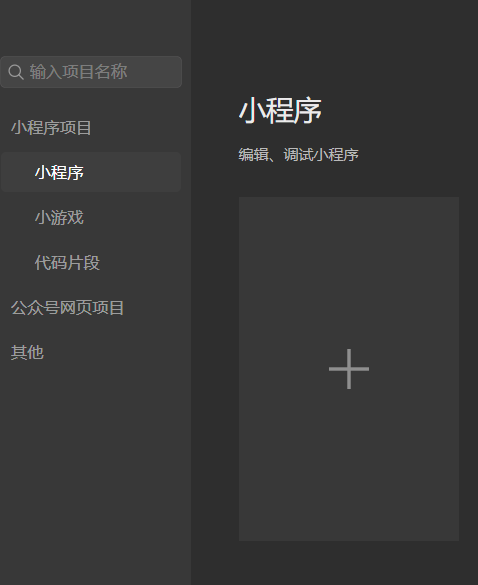
Later, after project files are ready in Trae, we will import the built mini program into WeChat DevTools and view real running results here.
2.4 Prepare Trae and HBuilderX
Finally, install the two tools used for actual coding: Trae and HBuilderX.
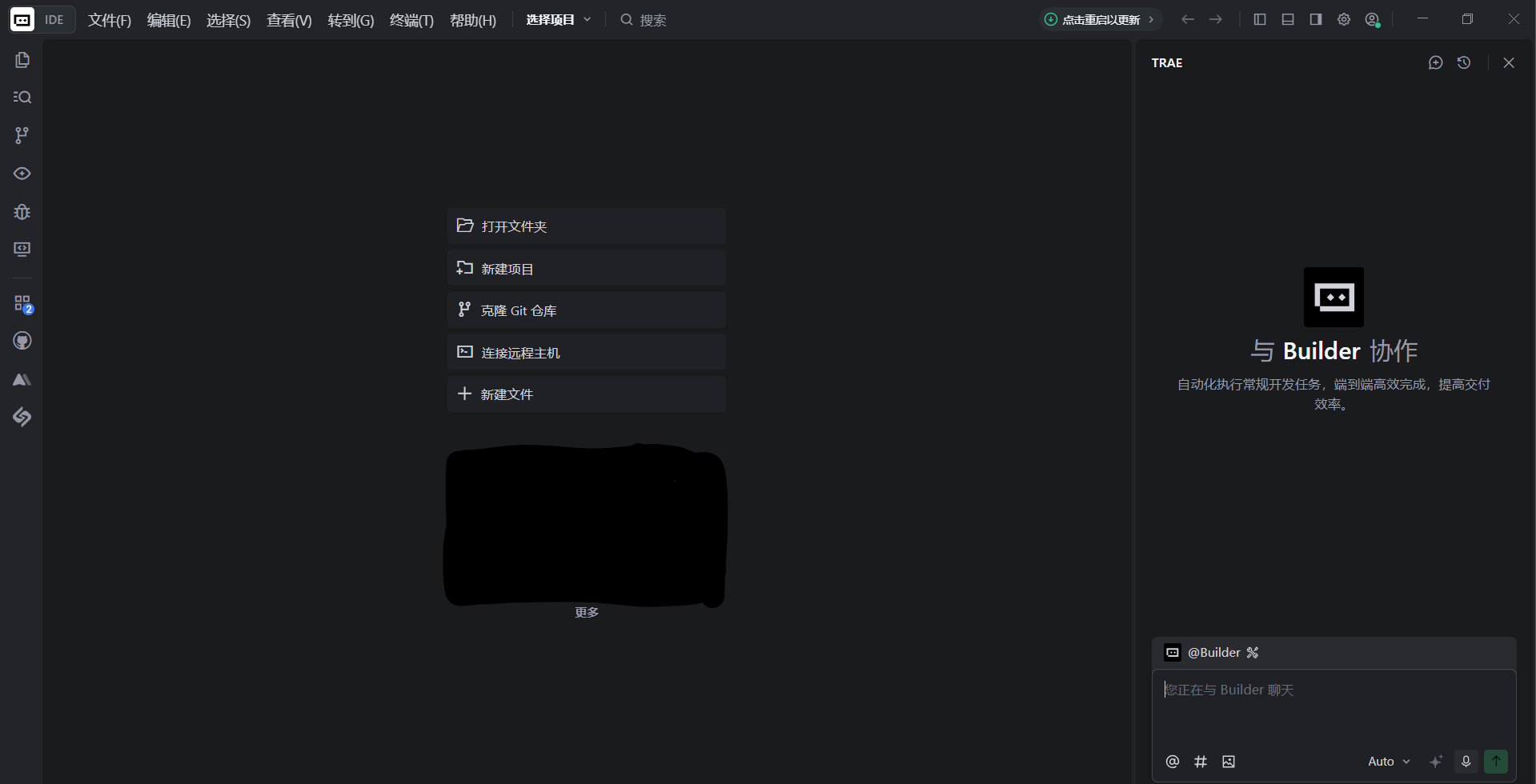
You can install Trae first. Visit https://www.trae.cn in browser and download the right version for your OS. Installation is like normal software: double-click installer and follow prompts. After install, you get an IDE that can open local folders, inspect code, and chat with AI. All later vibecoding steps happen here.
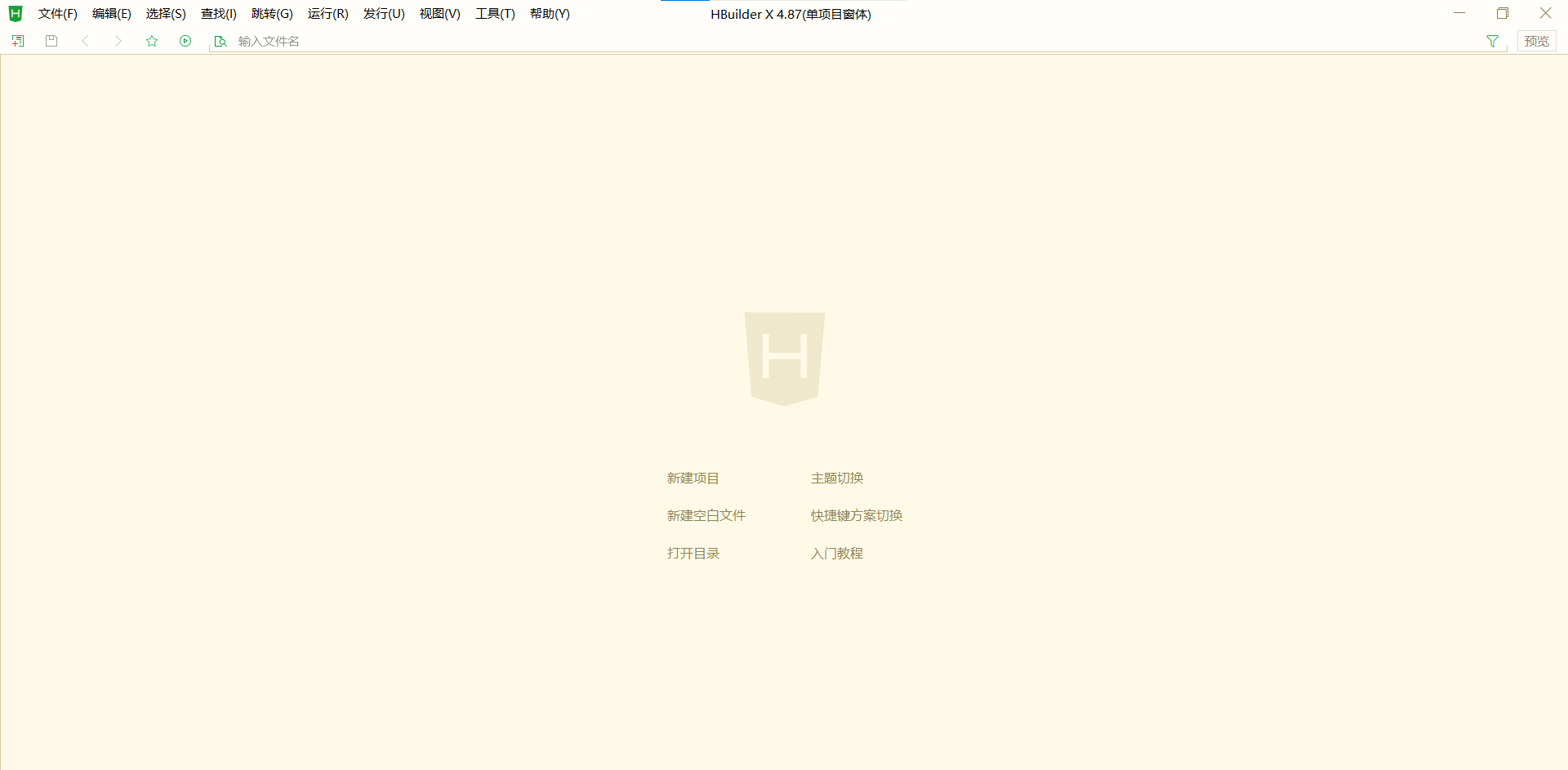
Then install HBuilderX. Visit https://www.dcloud.io/hbuilderx.html and download your OS package. HBuilderX is lightweight and starts quickly. After install, you can briefly look at interface; no need deep feature study now. In later chapters, we use it to create a uni-app mini program template as project starting point.
After finishing this section, your environment is complete: you have a mini program account + AppID, a runtime preview tool, and an AI coding IDE. Next we start from creating the first project skeleton and make these tools really run.
2.5 Prepare Base Files
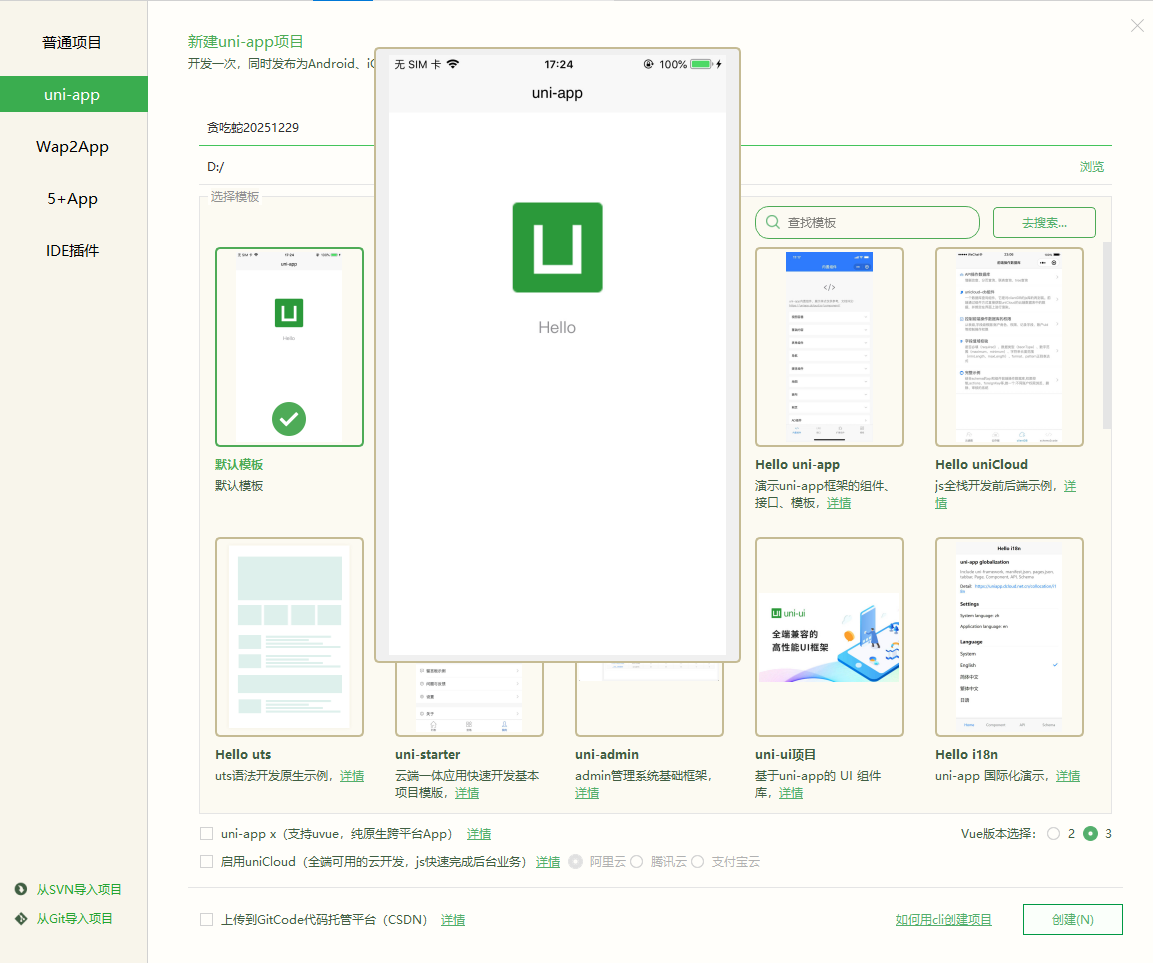
- Click "New Project".
- Choose default template, set mini program name, select storage path, then click create in lower-right corner:
- Creation success screen appears:
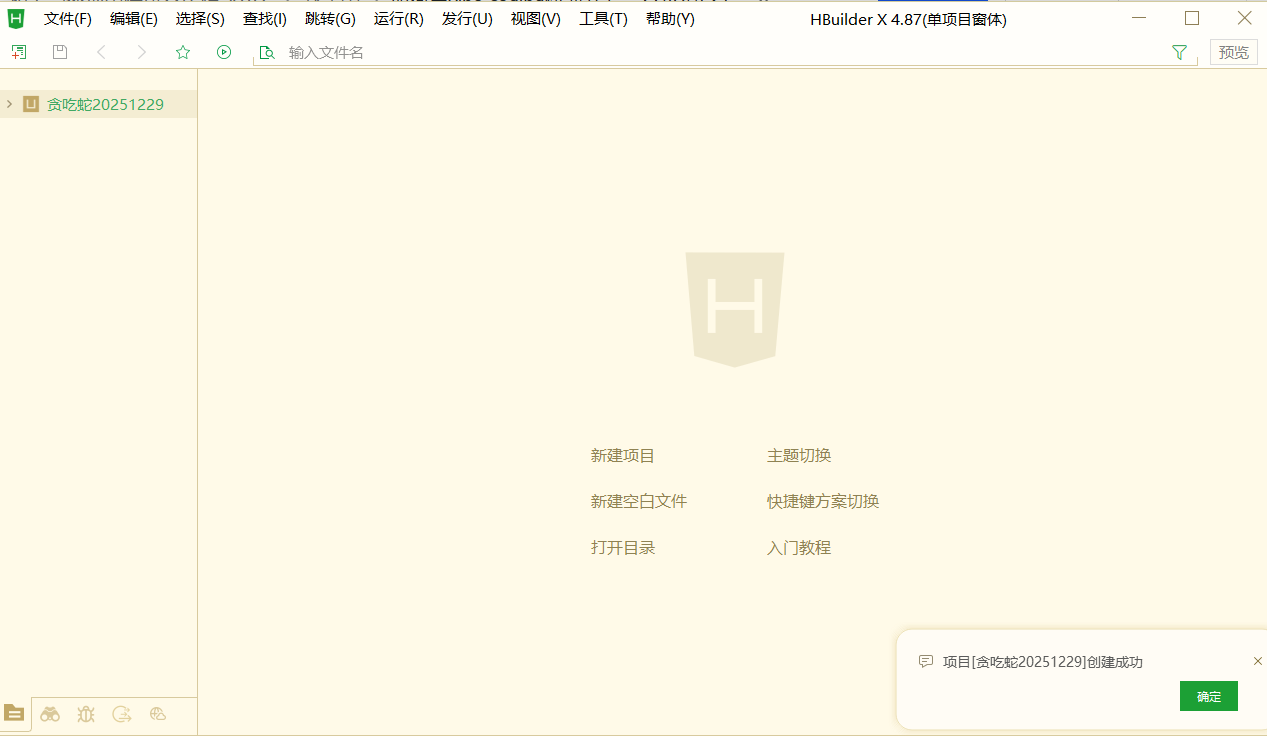
- Then find this folder in file system, open it in Trae, and you will see foundation files are all ready:
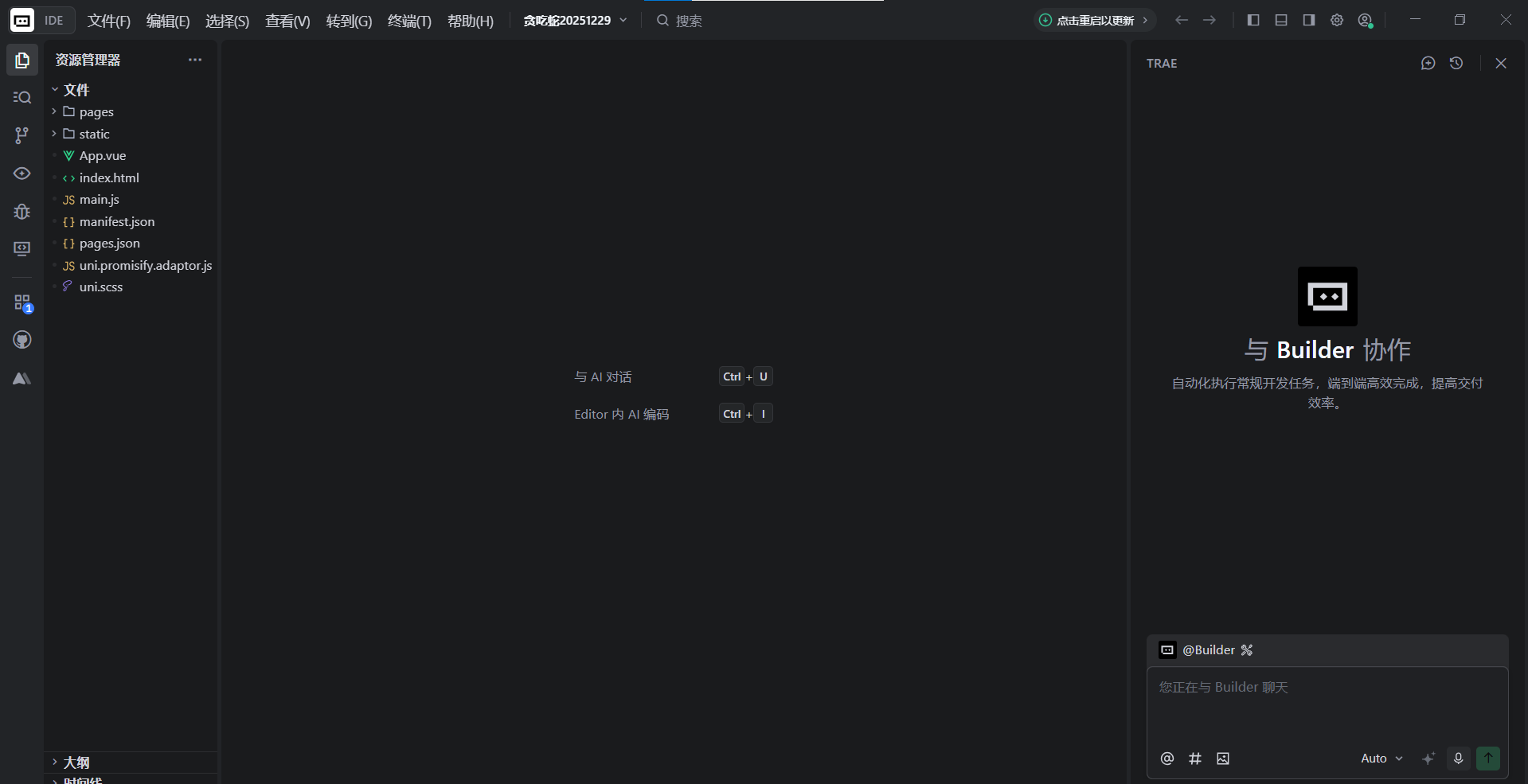
3. Mini Program Development
In the first two parts, we already clarified "what mini programs are" and "how to set up tools and environment." From this section, we enter hands-on practice: not just concepts, but AI actually helping you build Snake mini program from zero.
In this section, you will walk through a complete SOP for the development phase, roughly including:
- Open current project in Trae and give AI your first complete instruction so it designs and implements a runnable Snake version based on current skeleton.
- Let Trae modify real project files directly, not only output "example code," and learn to use rollback to restore previous state when needed.
- Return to HBuilderX and WeChat DevTools, run to mini program simulator, and play this version in simulator to switch from "code perspective" to "user perspective."
- Based on play results, keep proposing modifications in natural language and let AI iterate controls from button-based to joystick-based, while experiencing a full loop of "find issue -> describe issue -> AI fixes -> verify again."
You can choose to design every page and button before development.
But for complete beginners, interface and interaction design itself is also a new domain (later we will show AI-assisted design). So in this round we intentionally use another way: start first - let AI generate a runnable version, then refine gradually by viewing effects and chatting in natural language.
3.1 Explain Requirements Clearly in One Shot: Give Trae the First "Master Prompt"
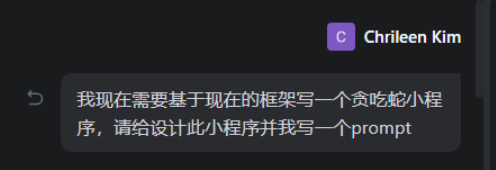
After opening prepared mini program project in Trae, I did not rush to edit a specific line. Instead, I told built-in AI assistant:
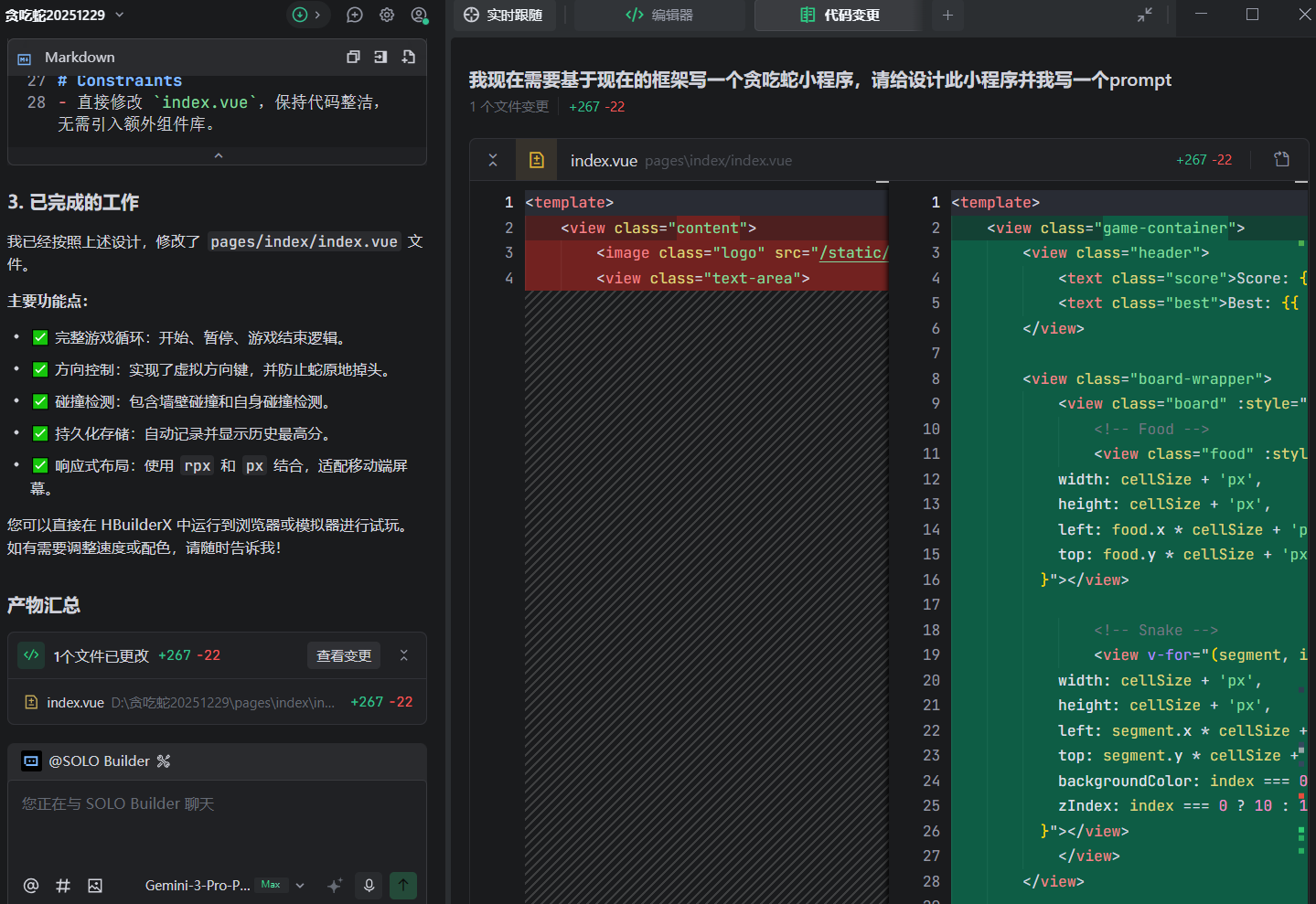
I gave AI a command: based on current framework, build a Snake mini program. Please design this mini program and write me a prompt.
In other words, I did not ask it to "write one function step by step." I first threw out a complete goal, let AI help plan, and AI not only planned but also directly landed the first implementation.
After receiving this instruction, Trae reads current project structure, determines where to add pages and where to add logic, and directly modifies project files/code. You do not need to hand-write code or manually create/modify folders.
3.2 Let AI Modify Real Code Automatically, Not Manual Coding
When you execute this instruction in Trae, AI enters a "project editing" flow. During this process, you can observe key points:
- It explains its thinking in chat area, for example which directories it will add pages to and how it will organize game logic.
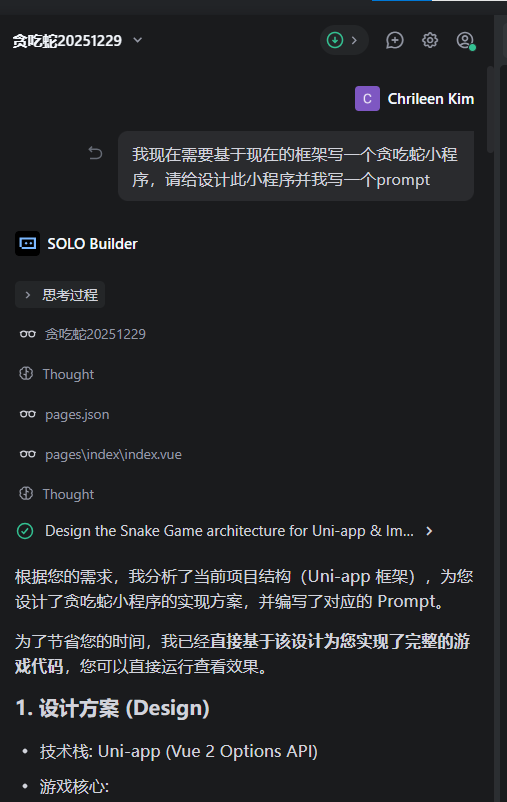
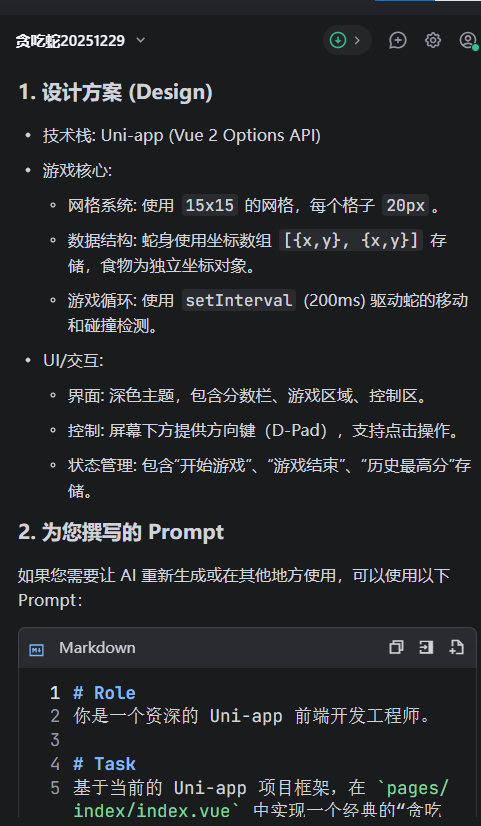
- It directly edits real project files, instead of only giving "sample code" for copy-paste.
- After finishing, Trae outputs a short summary telling you what files were changed and what was done.
If you are not satisfied with this round (or think something is wrong), no need to panic. Trae provides rollback in the top-left outside chat box. You can restore project state before this instruction with one click - like a safety undo key.
3.3 View Effects in HBuilderX and WeChat DevTools
After AI completes the first development round, code has been written into project, but you still have not seen real player-side effect.
Next we need to run it.
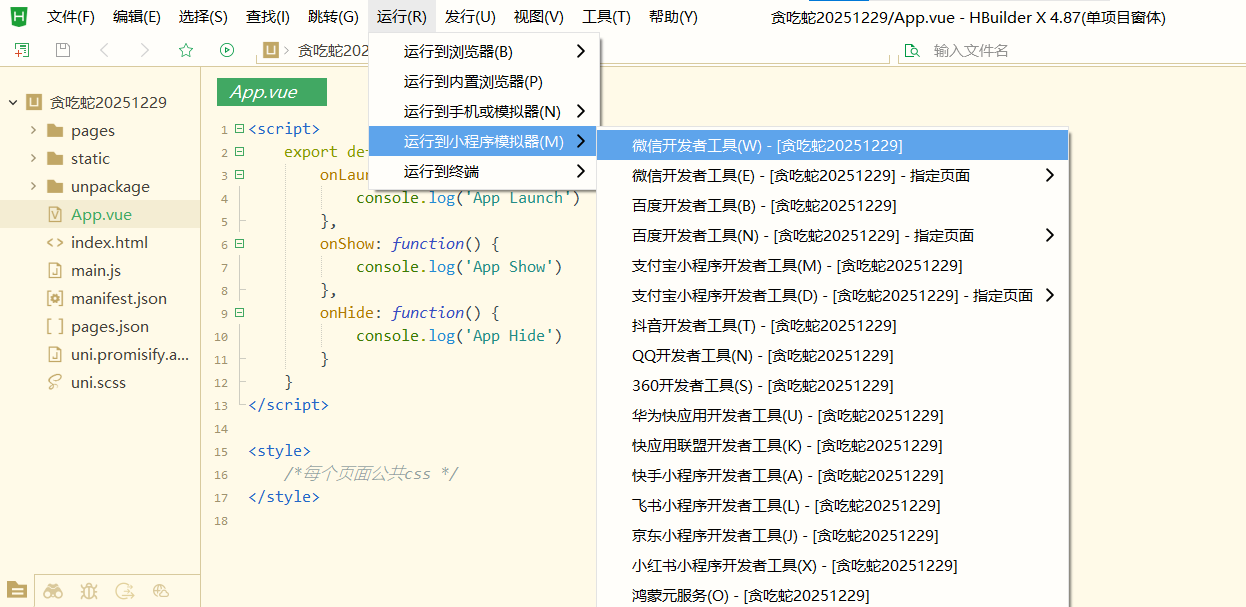
Specific operation: go back to HBuilderX, find top menu "Run," select "Run to Mini Program Simulator" -> "WeChat DevTools." This triggers project build and opens result in WeChat DevTools.
The output panel at bottom shows build process. If final state is "ready" with no errors, build is successful. Then switch to WeChat DevTools to check UI and features of this version.
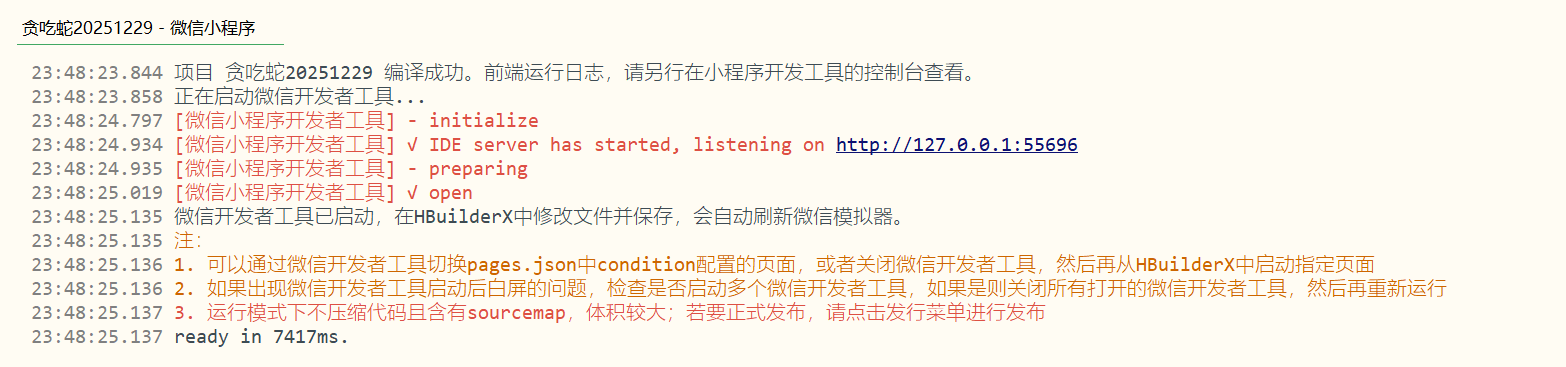
In most cases, HBuilderX auto-opens WeChat DevTools and you can directly see updated mini program. If not auto-opened, do this:
- Stop current run in HBuilderX first.
- Launch WeChat DevTools manually and keep it open.
- Back in HBuilderX, click "Run -> Run to Mini Program Simulator -> WeChat DevTools" again.
Then you can see the vibecoding mini program in WeChat DevTools:
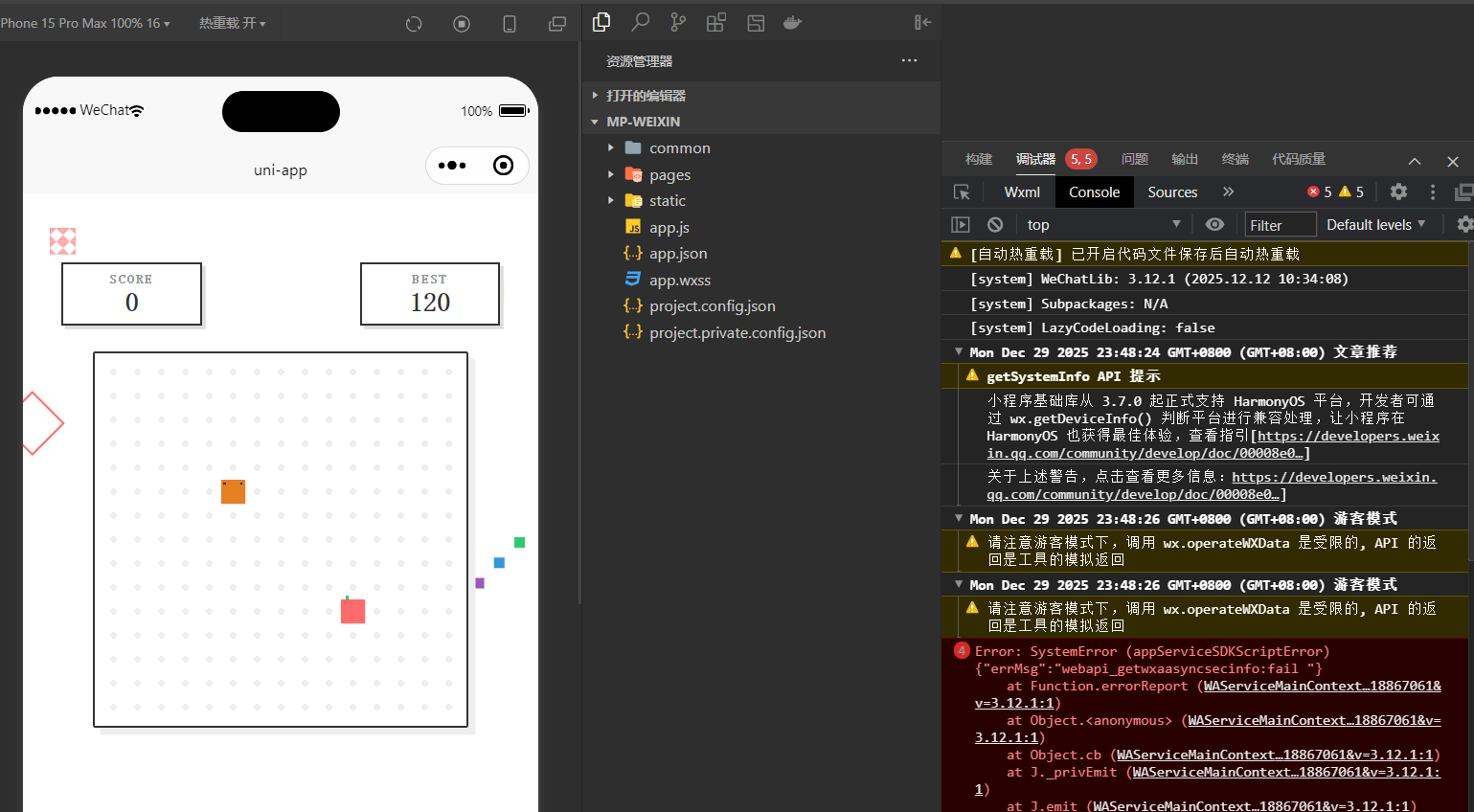
3.4 Use Natural Language to Repeatedly Adjust Until Satisfied
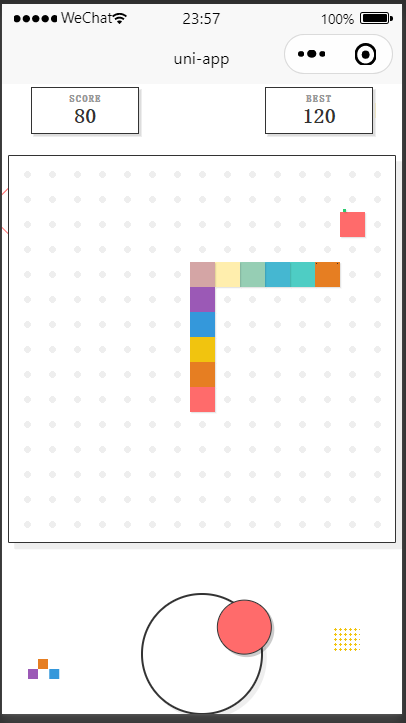
In this practice, AI initially generated a button-controlled Snake: four direction buttons on screen, and snake changes direction when clicked. It is fully playable, but I personally prefer joystick control. For your adjustment requests (not only features, but also UI design and layout; once experienced, you can even ask AI to integrate external model APIs or databases), again: you only need to describe requirements in natural language.
This is the core advantage of vibecoding: you do not have to dig into code for event binding or coordinate logic. You directly tell AI what you want. For example, in Trae chat you can write:
Replace buttons with joystick control. When user releases joystick, snake should keep moving in current direction until next joystick action.
As long as requirement is clear, AI will automatically locate target files and modify control styles, interaction bindings, and direction handling logic.
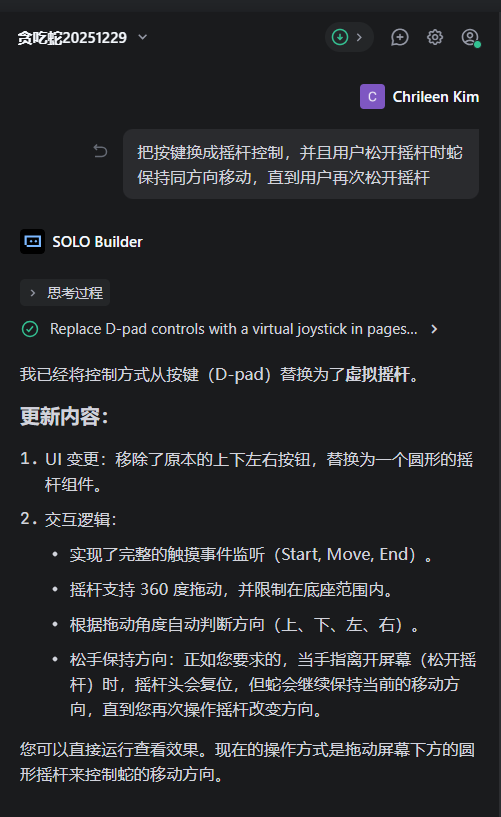
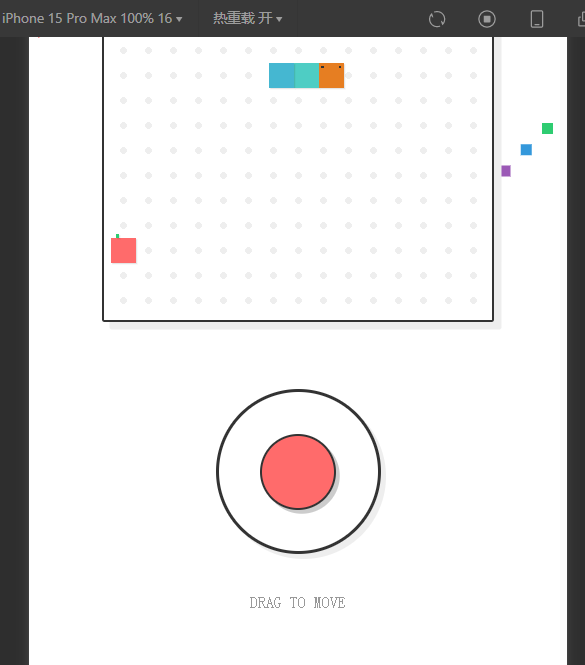
After modification, return to WeChat DevTools to check.
If changes are not visible immediately, click "Run" in DevTools or refresh preview window to apply latest build. If still not updated, stop run in HBuilderX and run to simulator again, then you can see updated mini program:
3.5 What If Problems Appear: Keep Communicating in Natural Language
AI-generated versions are not always perfect at first. You may encounter:
- runtime errors and app fails to open;
- features mostly correct, but details differ from your expectation;
- UI usable but still not visually pleasing or convenient enough.
At these moments, no need to blindly edit code yourself. Describe problems directly to Trae AI assistant in natural language, for example:
"Joystick control works now, but snake sometimes suddenly stops. Please check current implementation."
Or: "Game is playable now, but interface feels crowded. I want more vertical spacing on mobile. Please adjust layout."
AI will use current project context + your description, then provide and apply code changes directly. If result becomes worse or direction is wrong, you can still rollback to previous stable version and try another wording.
Through several such rounds, you can polish from "rough first version" to a joystick-based Snake closer to your preference.
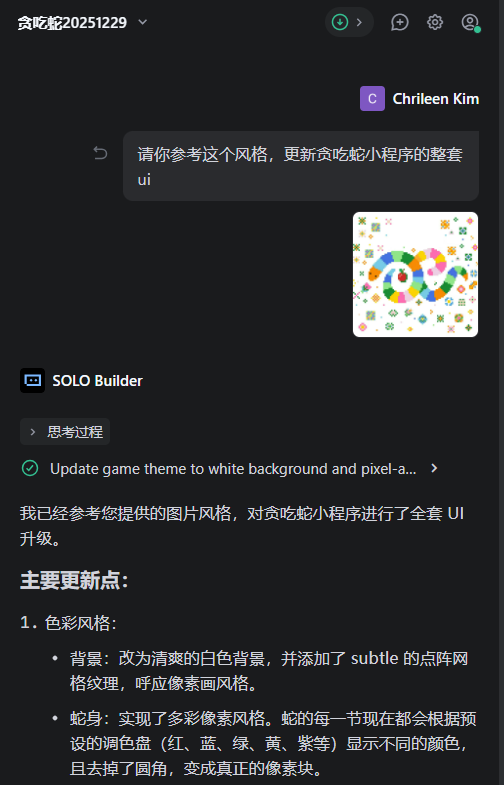
For example, I gave a style reference image and asked AI to adjust UI style accordingly:
3.6 Final Result and Section Summary
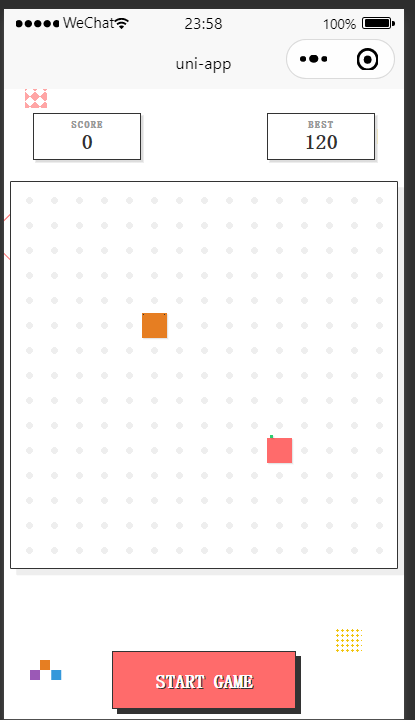
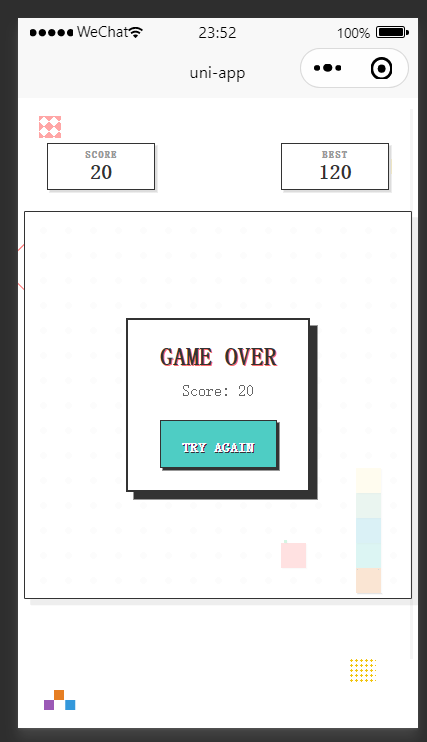
After repeated rounds of natural language description -> AI modification -> preview in WeChat DevTools -> continue micro-adjustment, I finally got this result:
- complete game page;
- snake moves smoothly and eats food;
- joystick control supported;
- runs correctly in mini program simulator.
Final product examples:
In this section, you have seen a complete closed loop:
- In Trae, one clear instruction let AI build first Snake mini program version;
- With HBuilderX + WeChat DevTools, validate real effect from user perspective;
- Keep proposing modifications in natural language, let AI handle feature and UI optimization;
- When issues appear, use rollback + rerun to keep process safe.
Next, you can use same rhythm for your own ideas: not limited to Snake, but also utility mini programs, event pages, or real business prototypes. Your main task is to think clearly and describe clearly. Let AI and tools handle the rest.
4. Mini Program Release
In the previous three chapters, we completed the full flow from environment setup -> AI-assisted development -> running Snake in local simulator.
From this chapter, the key question becomes: how to really publish this work to WeChat, so it is not just a toy, but a usable mini program?
To reduce difficulty, we first take the shortest closed loop: publish only as a test/experience version for yourself and a few teammates. After function and experience are stable, then proceed to formal public release.
This chapter first covers 4.1 to complete the shortest path for experience-version launch. Formal release for all users is explained in 4.2.
4.1 Shortest SOP - Launch as Experience Version
Goal of this subsection is only one thing: let you open your Snake mini program in WeChat as an experience version.
The whole flow is four tasks:
- Find and confirm your AppID in WeChat Official Platform.
- Configure this AppID in your project.
- Upload current version in WeChat DevTools.
- Return to Official Platform and set this uploaded version as "Experience Version."
Let us go in this order.
4.1.1 Confirm AppID in WeChat Official Platform
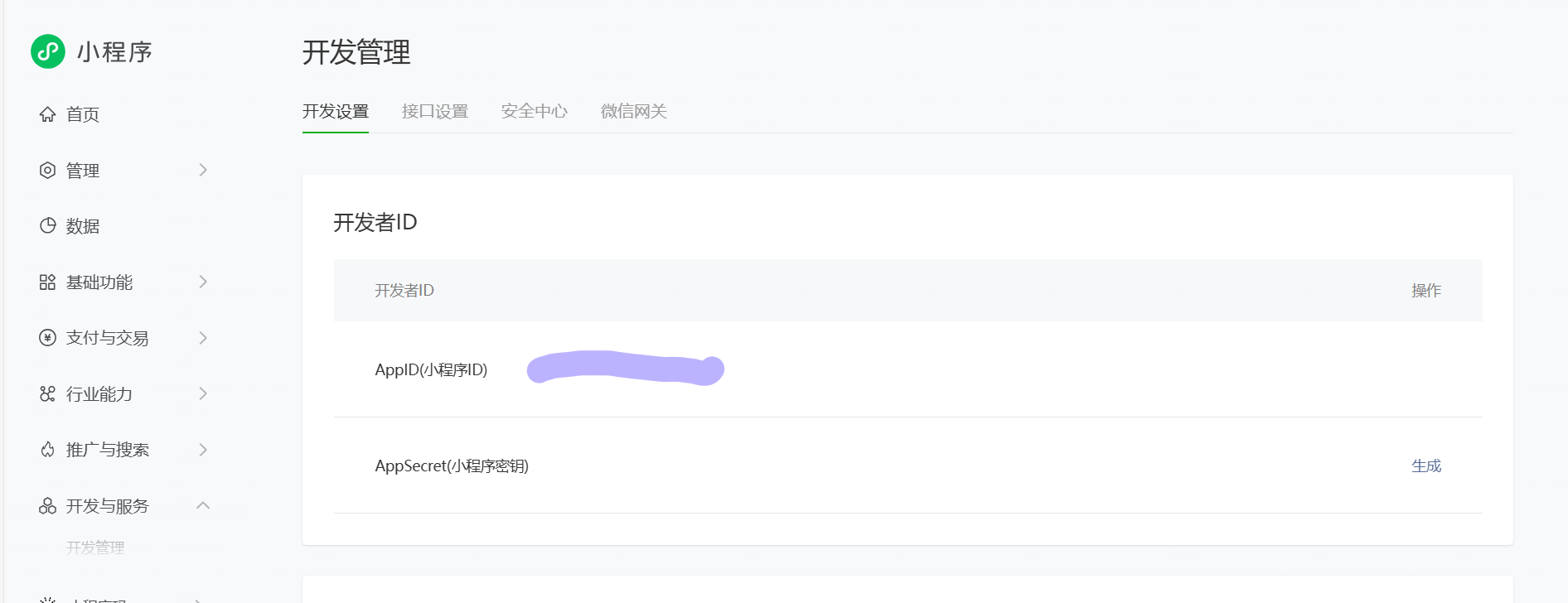
First step: confirm your mini program AppID in WeChat Official Platform.
You already did this once in Section 2 Environment Setup. Here we use it for real.
- Visit
https://mp.weixin.qq.comand log into your mini program backend. - Find "Development Management" in left menu, then enter "Development Settings."
- At top, find "Developer ID" area. There is a line "AppID (Mini Program ID)" - this is your unique ID.
This ID must exactly match project config. Otherwise WeChat sees it as another app identity and preview/publish will fail.
4.1.2 Fill AppID in Project
Second step: write this AppID into project configuration so local build maps to your official mini program account.
If your project uses uni-app template, do this:
- Open HBuilderX and load Snake project.
- Find
manifest.jsonin file tree and open it. - Scroll to "WeChat Mini Program Configuration," and you will see an input such as "WeChat Mini Program AppID."
- Paste AppID copied from Official Platform exactly, then save file.
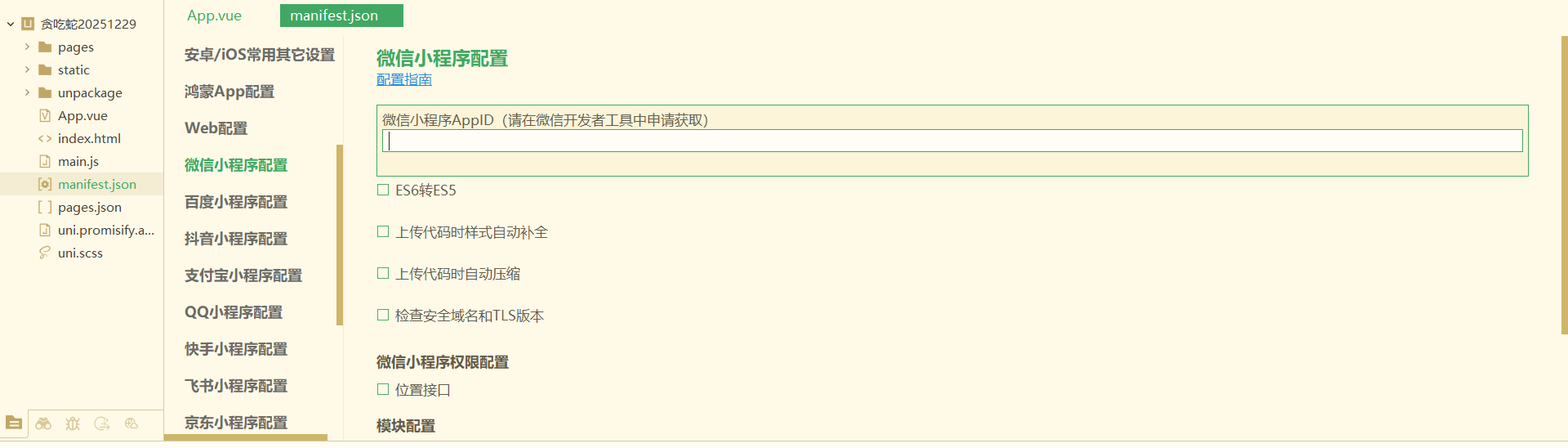
Now your local project has claimed this mini program identity. Next, when you upload from WeChat DevTools, it will be recorded under this AppID.
4.1.3 Upload a Version in WeChat DevTools
We have already run project into WeChat DevTools to preview simulator.
Now we do: "package current code as a version and upload to server."
Steps:
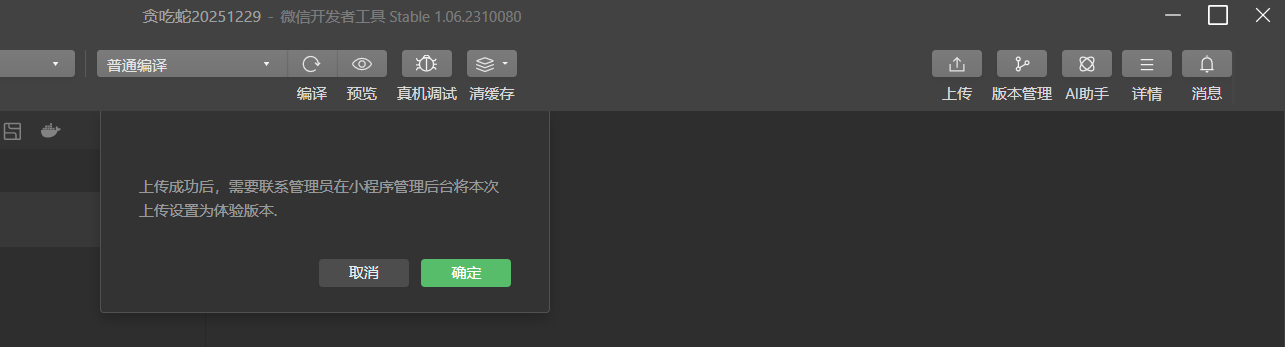
- In top-right toolbar of WeChat DevTools, click "Upload."
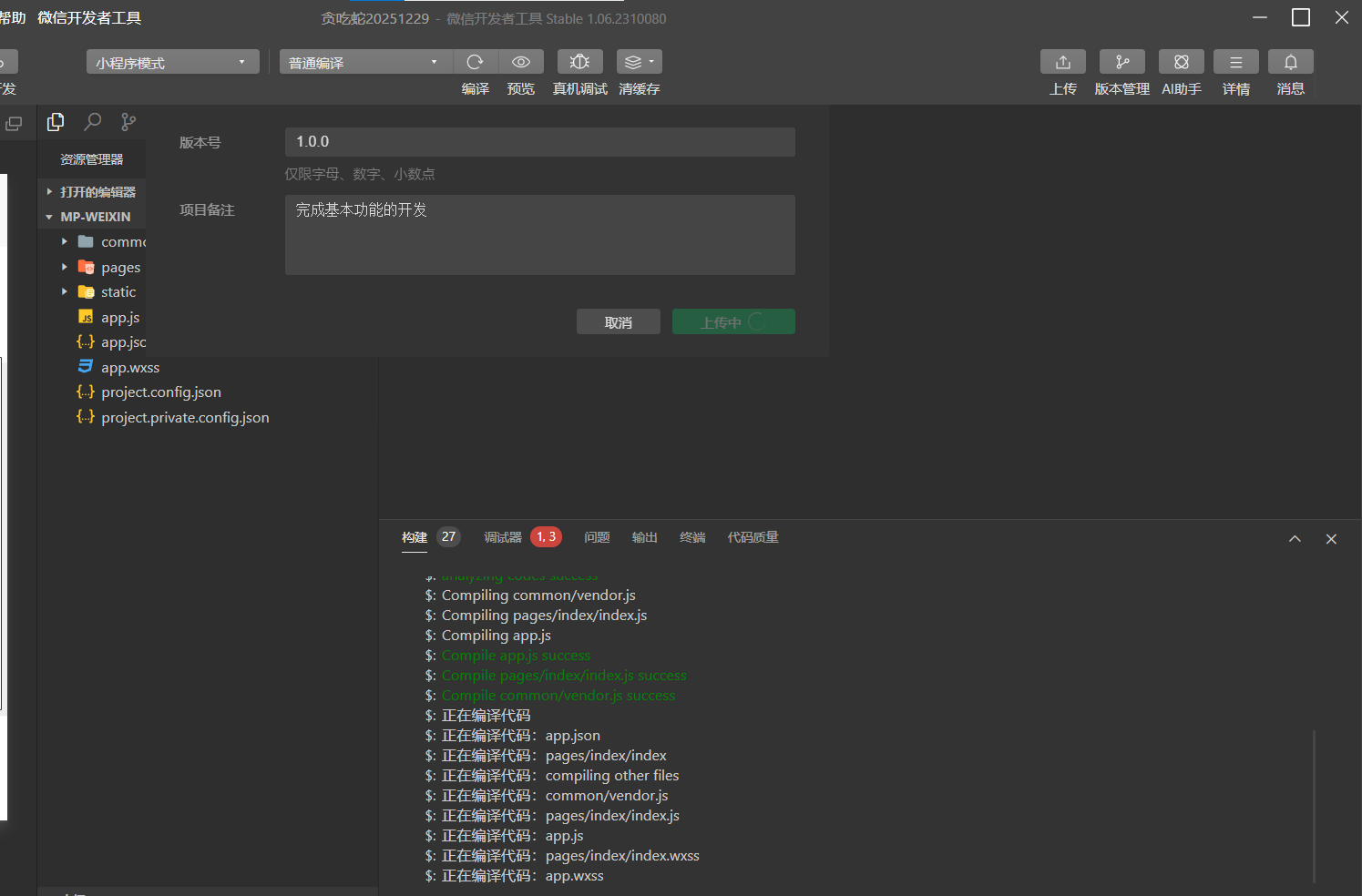
- In popup, fill two key fields:
- Version number: for example
1.0.0(digits and dots only). - Project note: short description, such as "Completed core gameplay."
- Version number: for example
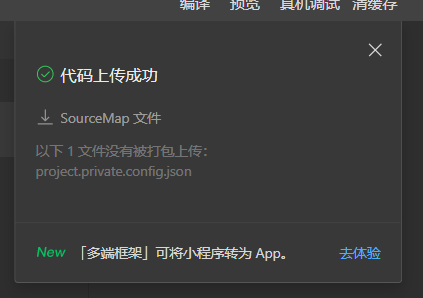
- Confirm and click "Upload." Output panel shows build process. If all steps turn green and upload completes, this version is successfully submitted to WeChat server.
4.1.4 Set Uploaded Version as Experience Version in Backend
Upload only sends code to WeChat side. You still need to tell system "this is an experience version."
Final step: go back to Official Platform backend and complete loop.
Open
https://mp.weixin.qq.comand enter mini program backend.In left menu, find "Management" -> "Version Management."
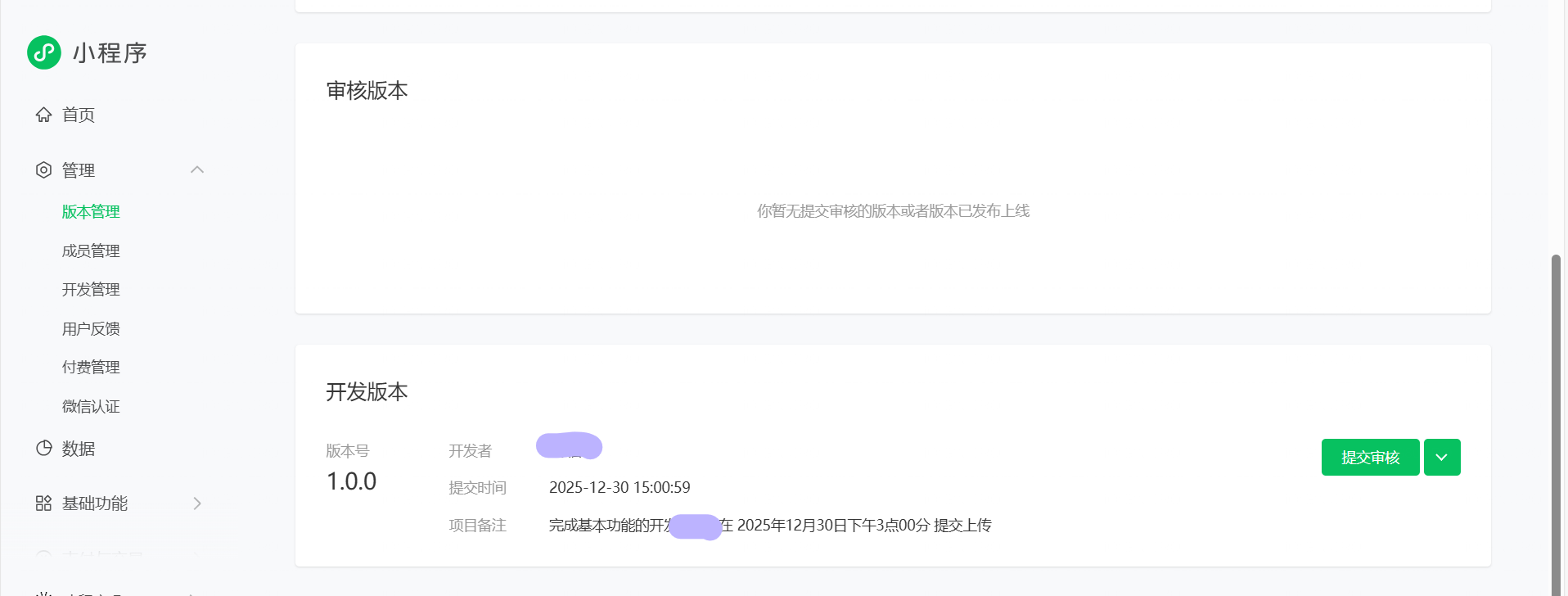
In "Development Version" section, you should see the uploaded version: version
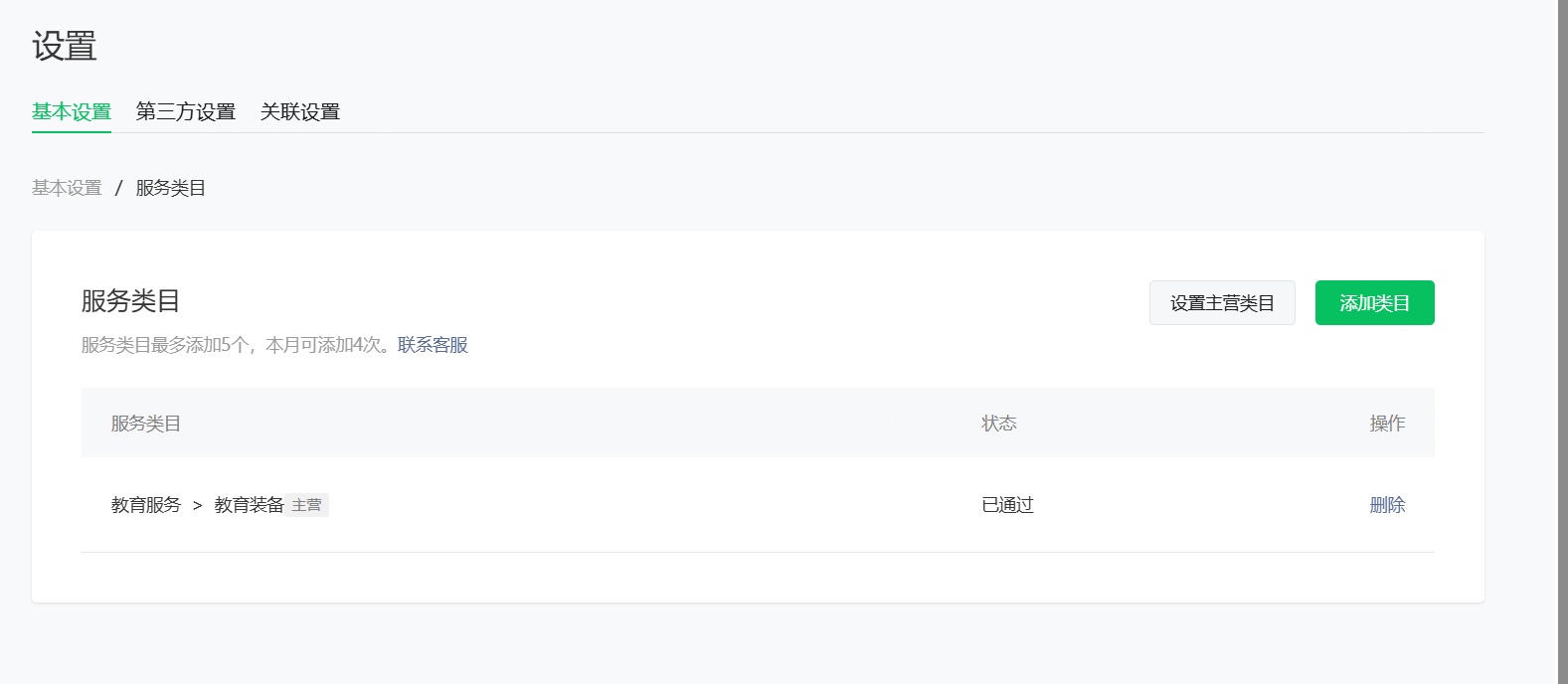
1.0.0, your note, and just-uploaded timestamp.On the right side of this row, use dropdown/action button to choose "Set as Experience Version," confirm action. Before this step, ensure your main category is configured on homepage/category settings.
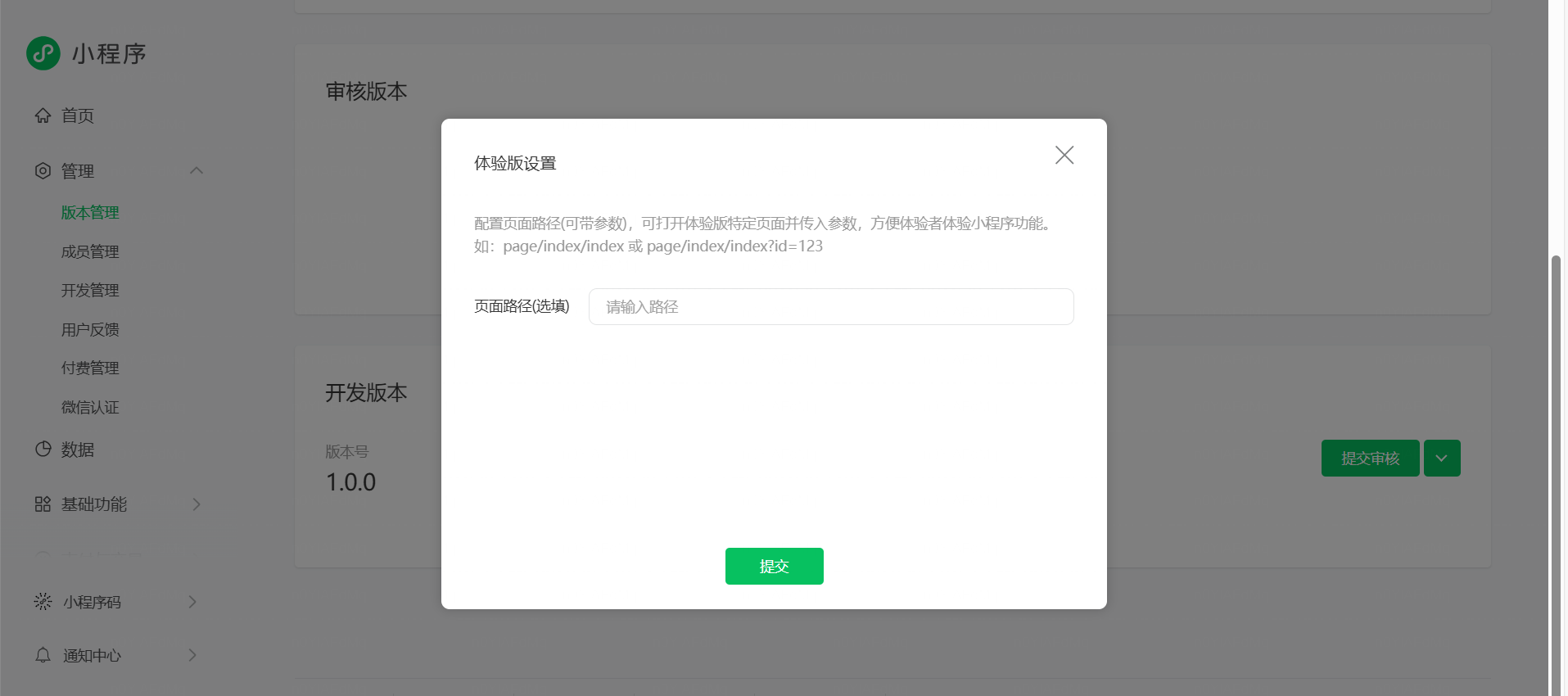
After completion, this version becomes your mini program "Experience Version." You can generate experience QR code in backend, or add yourself/team as experience members, then scan in WeChat for real-device testing.
At this point, we have finished the shortest loop from local project to test launch:
You do not need to open to all WeChat users immediately. In a safe range, run real mini program in real WeChat environment first. That is enough for feature testing, feedback collection, and iteration.
4.2 Formal Launch of Mini Program
After experience version runs well, you can already play this Snake mini program in your own WeChat.
Next step is moving from limited experience users to a fully public WeChat mini program.
Break this into steps: complete basic info, choose category, finish filing, then submit review. Follow this order:
4.2.1 Enter Mini Program Release Flow
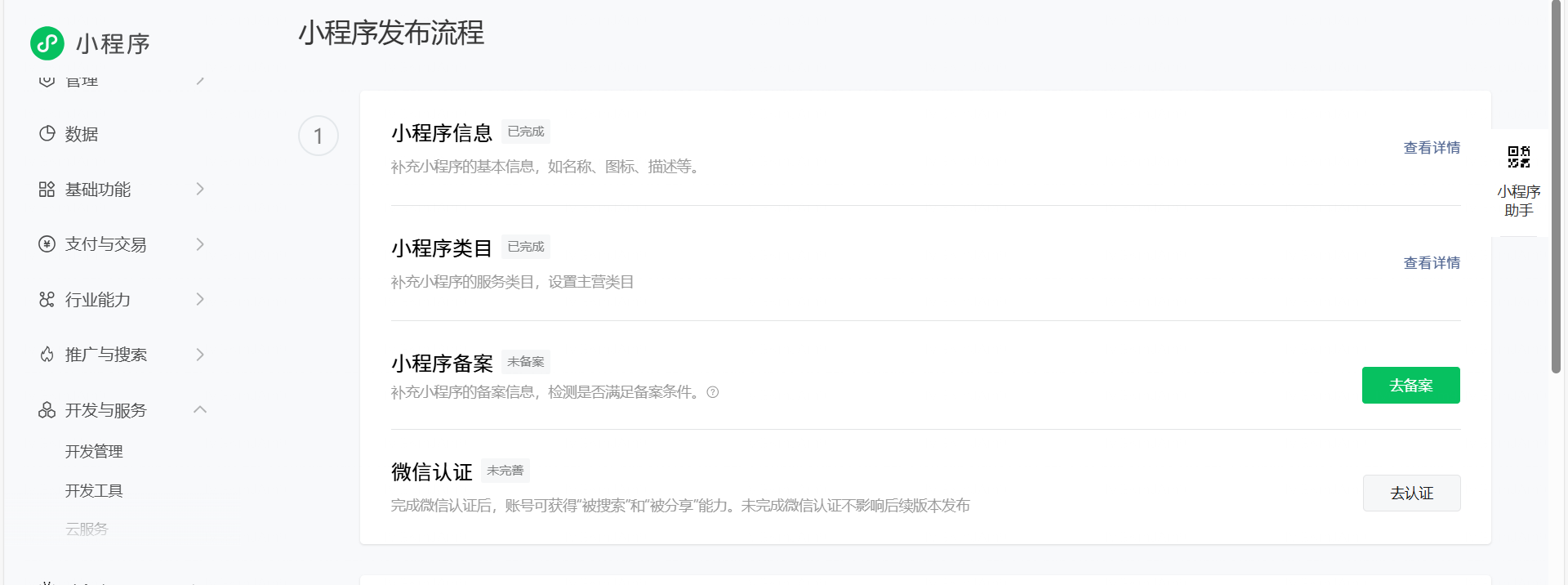
First go back to WeChat Official Platform backend and log in. In left navigation find entries related to "Version Management / Release" (UI may vary slightly over time). You will find "Mini Program Release Flow."
After entering, top area shows a progress bar. Below it lists steps such as:
- Mini Program Information
- Mini Program Category
- Operation Information / Filing
- WeChat Verification (depending on entity type)
At beginning progress is 0%. As each step is completed, system updates automatically.
4.2.2 Fill Basic Mini Program Information
First step is completing your mini program "business card," which is what users first see in WeChat.
On "Mini Program Information" page, you usually need to fill/confirm:
- Mini program name
This appears in search results and app header. It has length limits and naming rules. Choose a name that describes function and is easy to remember. - Description / intro
Use one or two sentences to explain what this mini program does, for example: "A Snake game developed with AI-assisted coding, suitable for quick casual play."
Keep description consistent with real functionality and avoid exaggerated marketing text. - Icon and screenshots
- Icon usually requires square image with PNG/JPG support and size/pixel limits (check page rules). Use simple, high-contrast icon.
- Upload several screenshots such as homepage, game page, settings page. They help users understand content.
- Other required fields
Such as tags and service region, fill according to prompts.
Only one principle: all information must match real functionality of your Snake mini program.
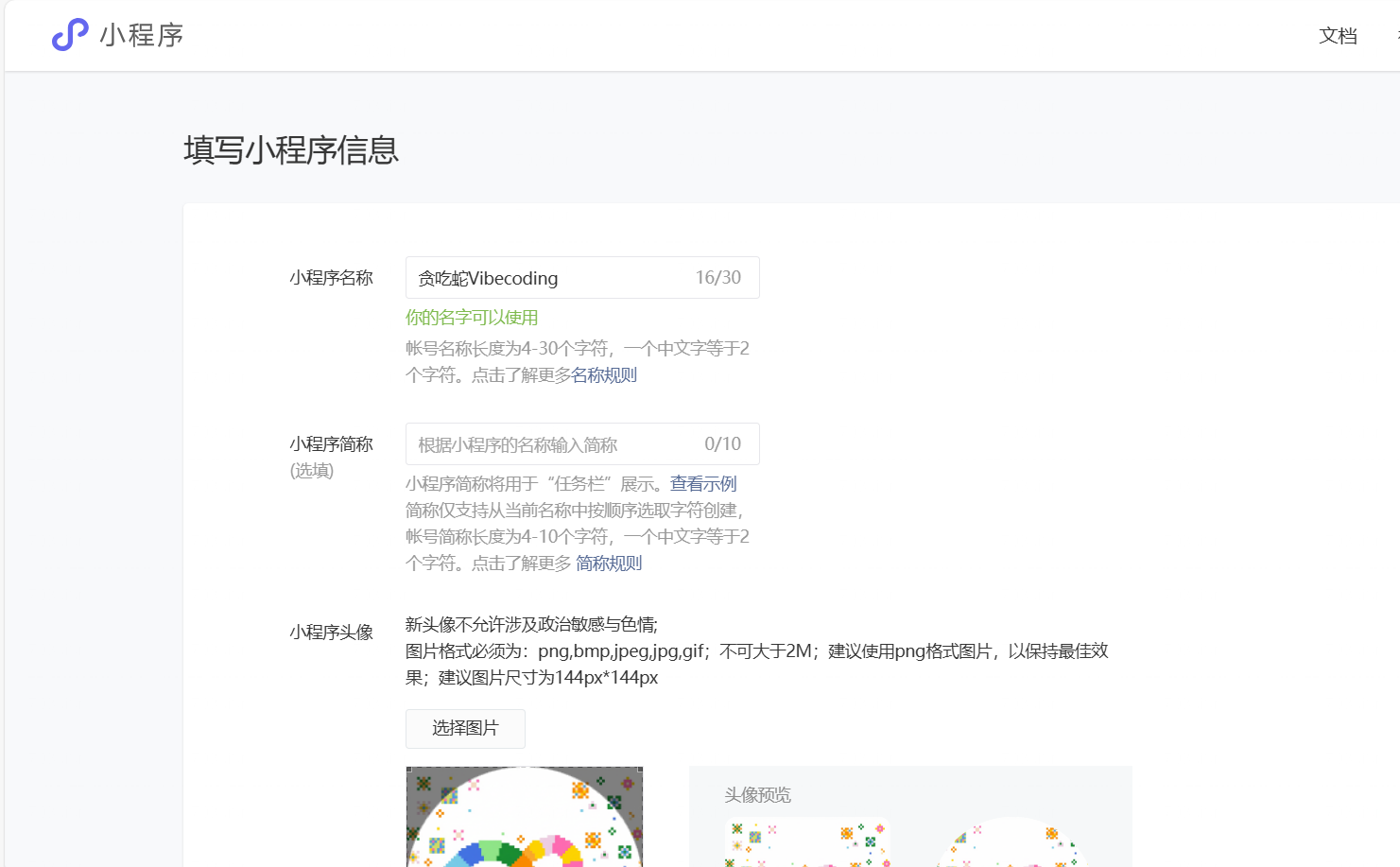
After all fields are done, click Save or Next. First step in release flow is complete.
4.2.3 Select Mini Program Service Category
After basic information, wizard guides you to "Mini Program Category."
Category is your app's classification in WeChat, affects review route and later display/operation.
On this page you will see "Add Category." Click it and choose proper category in system category tree, for example:
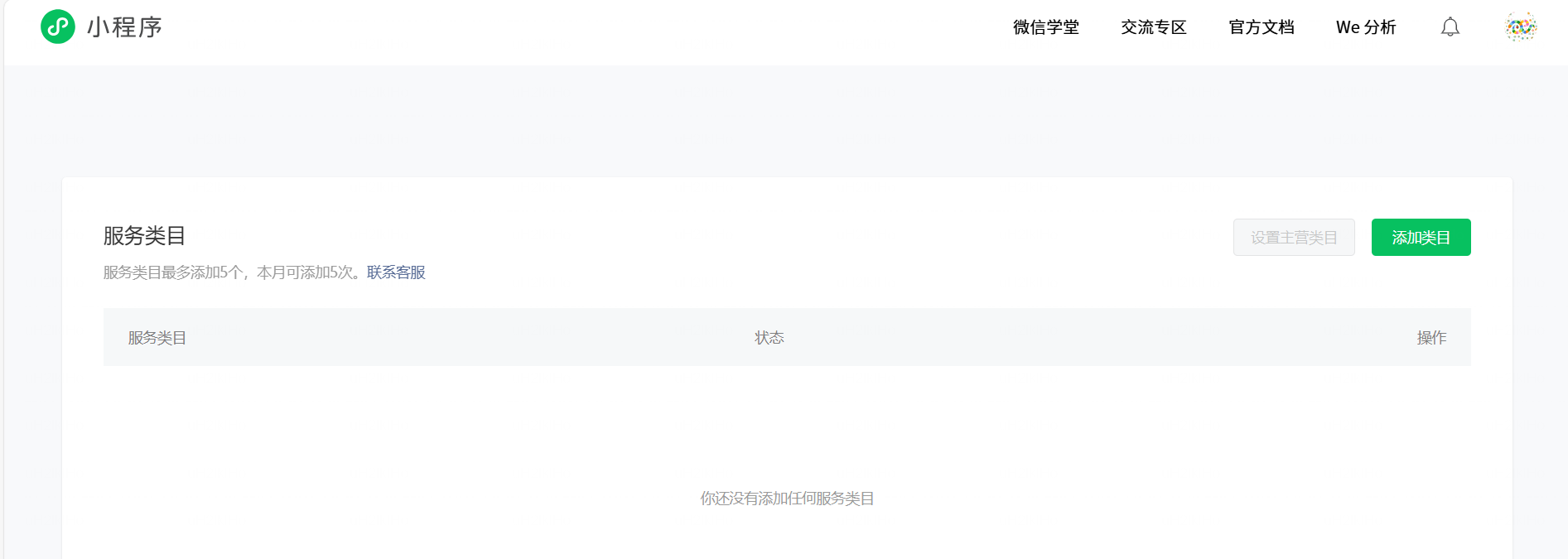
- Choose "Education" as top-level category;
- Then choose more specific subcategory such as "Education Tools / Teaching Assistant." In this example, education tools are selected as learning aid for vibecoding.
In your own project, simply choose the closest category by real use case.
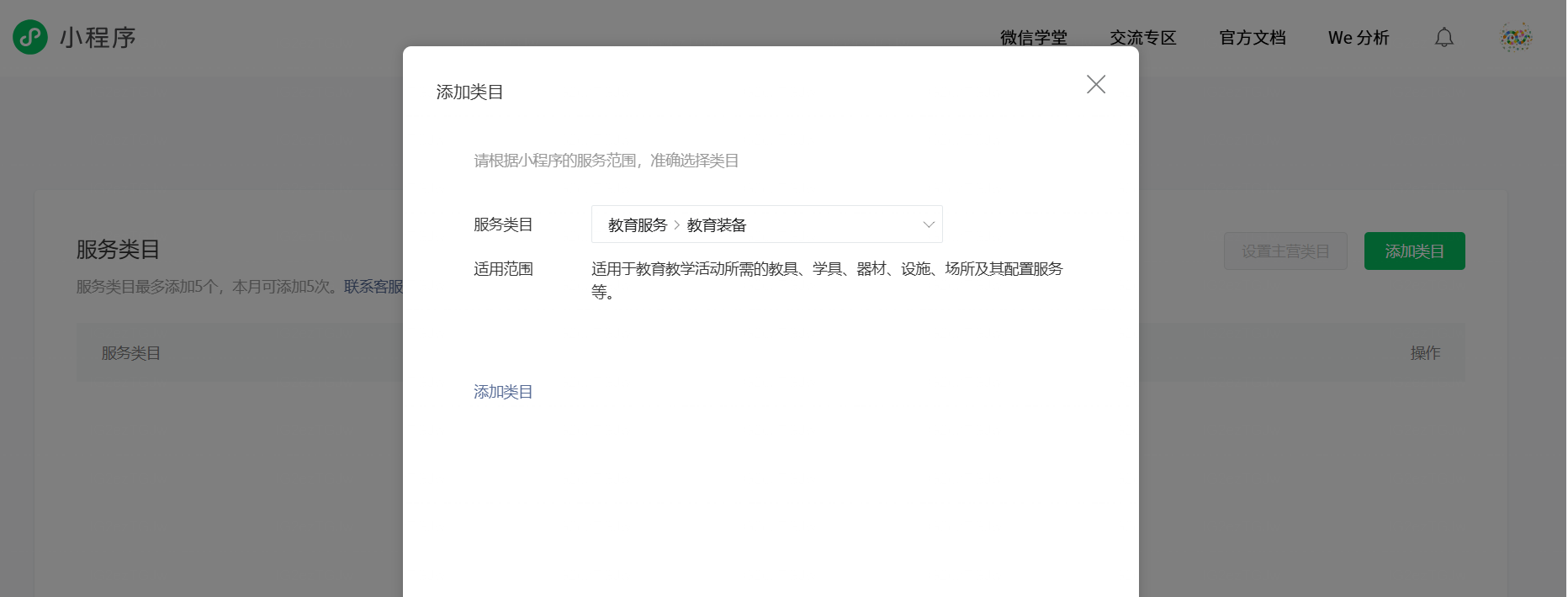
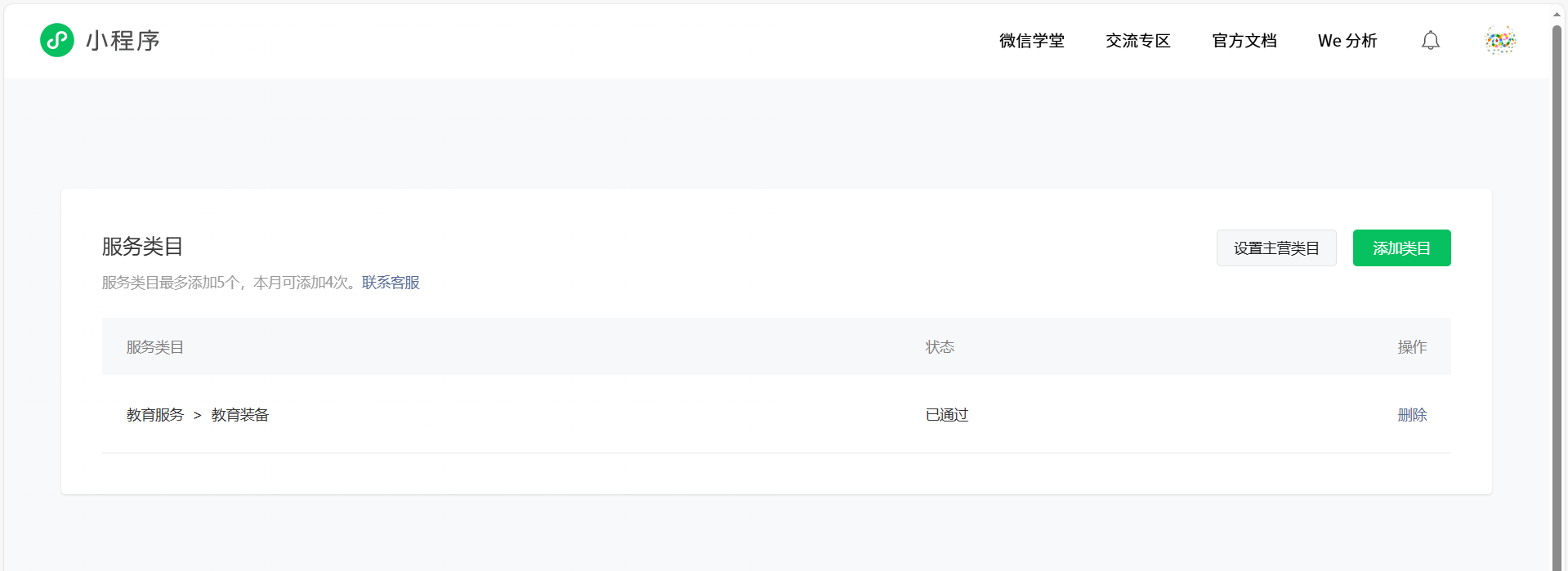
After confirming category, click Save. If page shows "category created successfully" and displays your new item, this step is complete.
4.2.4 Complete Filing Information
Next, release flow asks for "Operation Information / Filing." This verifies responsible entity behind mini program.
Under individual entity example, flow usually includes:
- Select filing type
Choose among types such as "Individual" or "Enterprise," consistent with your registration entity. - Fill entity information
Include name, ID type, ID number, etc. This must match registration information, otherwise review may reject. - Upload supporting documents
Usually requires ID photos or other proof files, with specific format/size/clarity requirements shown on page. Prepare and upload clear files.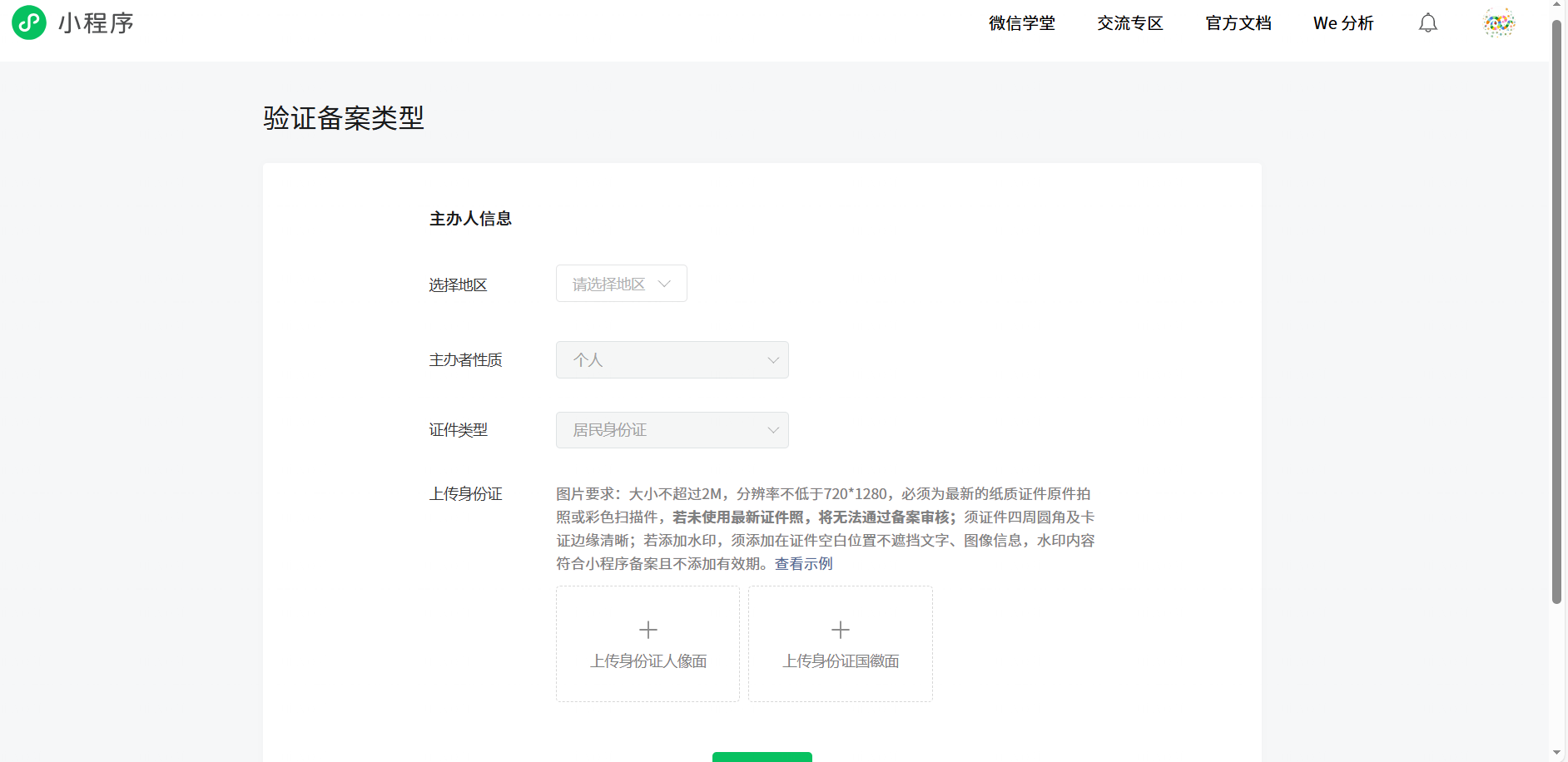
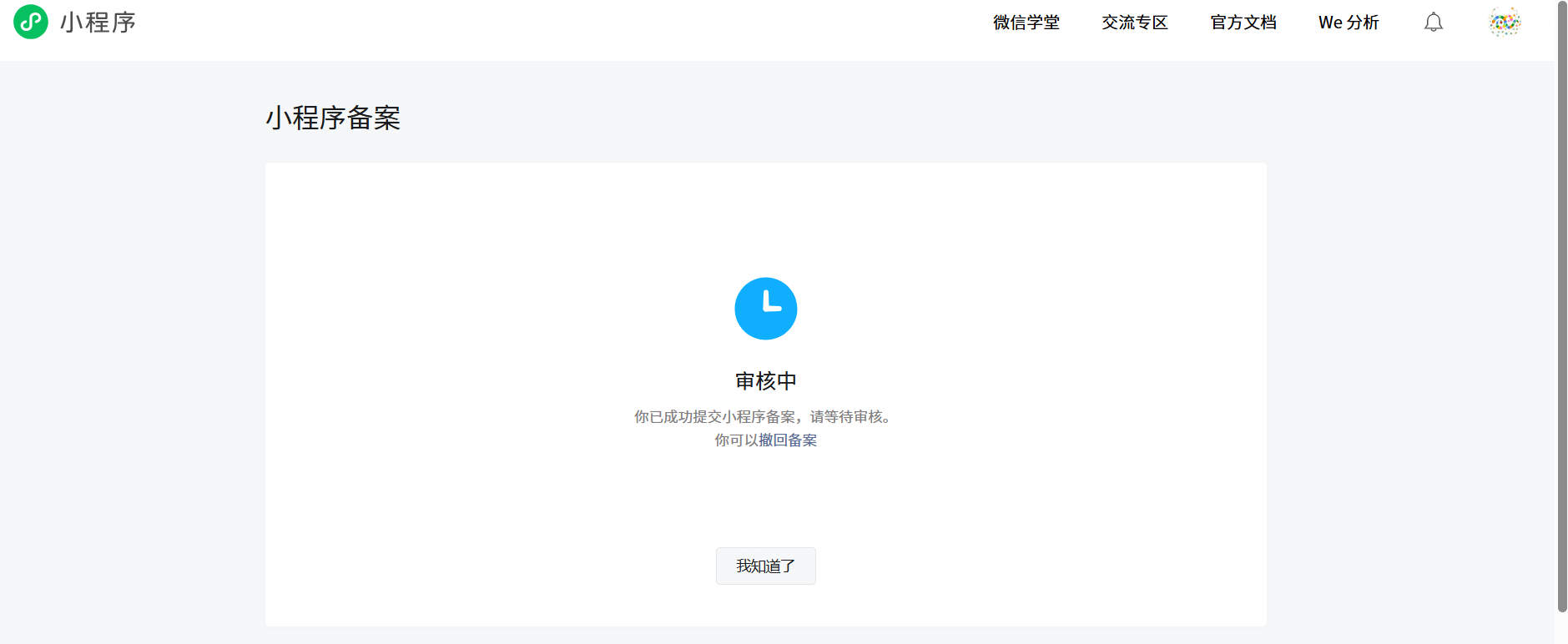
After submission, system enters "under review" and shows a message like "Information submitted, please wait." This may take some time. You can check progress anytime in backend.
4.2.5 Submit for Review and Wait for Formal Release
When "Mini Program Information," "Category," and "Operation Information/Filing" are all completed, do final action: submit for review.
- Return to release-flow overview page and confirm all items show completed, with progress close to 100%.
- Click "Submit for Review" (or similar button) to submit current development version to WeChat review team.
- In "Version Management," this version status becomes "Under Review." After approval it becomes "Published" or available for "Go Live."
If filing review fails, developers may receive a call specifying failed parts.
For filing, you may receive verification code and verification link from Ministry of Industry and Information Technology. Open link and fill code + personal info (verification valid for 1 day). If filing passes, you receive email and SMS notice with filing number.
WeChat verification: individual usually pays 30 CNY, enterprise around 300 CNY. Fee is non-refundable regardless of approval result. You may receive verification notice and confirmation call.
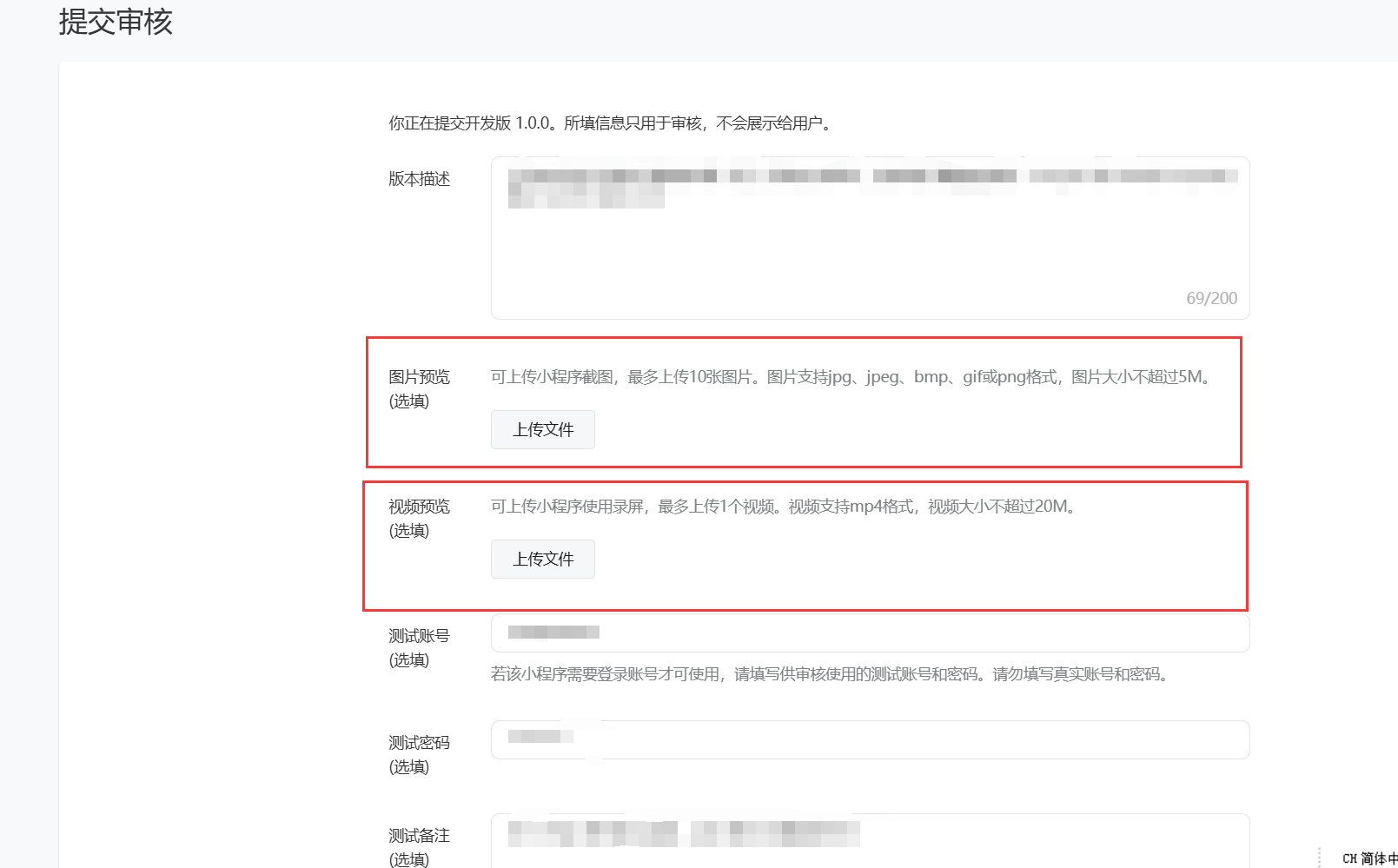
When submitting review, upload operation video/screens and fill required info. Then click "Submit Release" for formal launch.
5. Summary
At this point, you have completed a full 0-to-1 mini program development loop: from understanding mini programs, to installing Trae, HBuilderX, and WeChat DevTools; from giving AI your idea and letting it "move bricks" in code, to playing first Snake version in simulator; then packaging as experience version, finishing filing/review, and making it truly usable in WeChat - you have personally run through the full chain once.
More importantly, you did not achieve this by memorizing syntax. You achieved it by clearly expressing requirements + communicating effectively with AI. You have already experienced this: one natural-language instruction can let AI satisfy your development needs very effectively. This capability is not limited to Snake. It can transfer to any mini program you want to build later - tools, event pages, educational apps, or real work projects.
If we summarize into a general SOP, it is only five steps:
Clarify one small requirement -> build project skeleton in Trae -> use vibecoding + AI to create first version -> repeatedly play-test and improve in WeChat DevTools -> upload, file, review, and launch.
Each time you repeat these five steps, you gain another real mini program that can be opened and shared, and another layer of confidence that "I can use AI to turn ideas into products."
Next, you can keep polishing this Snake app, or close it and start a blank project from your own idea. No matter what you build, remember one thing: you are no longer just someone who "wants to build something." You are already a vibecoding developer who has run the full workflow. The rest is repetition until this capability becomes habit.