
Chapter 5: Git Internals
5.0 Introduction
This chapter is relatively independent and will take you through how Git works internally from the ground up.
You may have noticed a hidden directory named .git in your local repository. This chapter will guide you through the file structure and contents within this directory.
Command Operation Notes:
- The commands demonstrated in this chapter use the git bash tool in a Windows 10 environment;
- Lines with the '$' symbol are demonstration commands;
- If there is output, it will be displayed below the line with the '$' symbol.
5.1 Directory Structure of .git
Create a new repository named test
$ mkdir test
$ cd test
$ git initThe new repository will automatically create a .git directory, which contains almost everything Git stores and operates on. If you want to back up or copy a repository, simply copy this directory to another location.
The directory structure is as follows (directories marked with * will be introduced in detail in subsequent sections):
├── *config               Configuration information (e.g., whether local repo is case-sensitive, remote repo URL, username, email, etc.)
├── description           No need to worry about this (only used by GitWeb program)
├── *HEAD                 Currently checked out branch
├── index                 Stores staging area information
│
│
├── hooks/                Hook scripts (automatically execute specific operations when running Git commands)
├── info/                 Contains a global exclusion file
│   └── exclude           Stores ignore patterns that you don't want recorded in .gitignore file
├── logs/                 Records all operations
├── *objects/             Stores all data content
│   ├── SHA-1/            Directory that stores git objects (three types: commit, tree, and blob)
│   ├── info/
│   └── pack/
└── *refs/                Stores pointers to commit objects for data (branches, remote repositories, tags, etc.)
    ├── heads/
    ├── remotes/
└── tags/5.2 objects Directory — Object Storage
After initializing the repository: the objects directory only contains subdirectories pack and info, both of which are empty.
Run the following commands to create two files and commit them
# Created blob1
$ echo "version1" > test.txt
$ git add .

# Created blob2
$ mkdir folder1
$ echo "file inside folder1" >folder1/file.txt
$ git add .

# Created tree1, tree2, and commit
$ git commit -m "test"
[master (root-commit) 67f0856] test
 2 files changed, 2 insertions(+)
 create mode 100644 folder1/file.txt
create mode 100644 test.txtAt this point, checking the objects directory, you'll find 5 new subdirectories.
.git/objects
├── 40
│   └── fa006a9f641b977fc7b3b5accb0171993a3d31
├── 5b
│   └── dcfc19f119febc749eef9a9551bc335cb965e2
├── 67
│   └── f0856ccd04627766ca251e5156eb391a4a4ff8
├── 87
│   └── db2fdb5f60f9a453830eb2ec3cf50fea3782a6
├── ac
│   └── f63c316ad27e8320a23da194e61f45be040b0b
├── info
└── packLet's learn some key concepts to answer the following questions.
- What do these long strings of numbers mean?
- Why did 5 subdirectories suddenly appear, and what do they represent?

(The info and pack directories will be introduced in the next subsection)Key Concepts
1. What are objects?
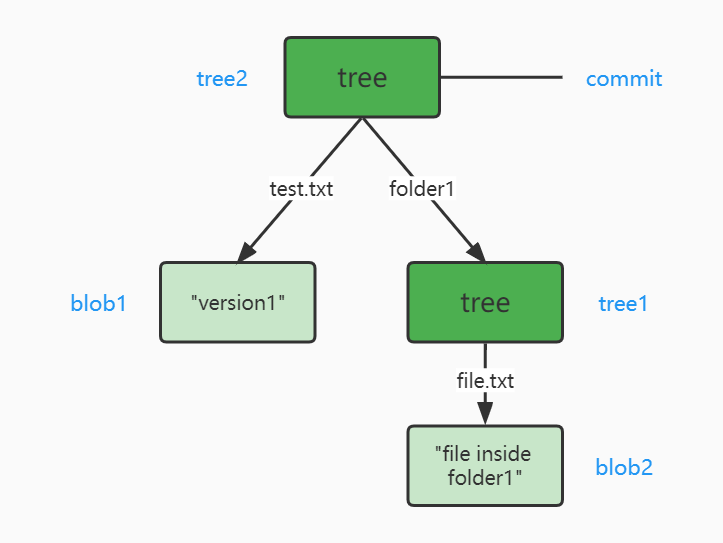
The objects directory stores three types of objects: blob objects (blob), tree objects (tree), and commit objects (commit).
The meaning of the 5 subdirectories is shown in the diagram below: 2 blobs, 2 trees, and 1 commit
2. How does Git store objects?
Git generates a SHA-1 hash value based on the object content (called the file's checksum)
For example:
40fa006a9f641b977fc7b3b5accb0171993a3d31Extract the first two characters of the checksum => used to name the subdirectory
For example:
40The remaining 38 characters of the checksum => used for the filename
For example:
fa006a9f641b977fc7b3b5accb0171993a3d31Store the object content in
subdirectory/filename
3. [Extension] How to view the stored content of objects
You can view the stored content and object type based on the checksum
# View file type
$ git cat-file -t 40fa006a9f641b977fc7b3b5accb0171993a3d31
blob

# View file content
$ git cat-file -p 40fa006a9f641b977fc7b3b5accb0171993a3d31
file inside folder15.3 objects Directory — Packfile Storage Mechanism
Git saves file snapshots by default, meaning it saves the complete content of each version of each file. But suppose you only changed one character in a large file—wouldn't it be inefficient to save the entire content twice?
Git initially stores objects on disk using a "loose" object format; however, to save space and improve efficiency, Git occasionally packs multiple objects into what's called a "packfile."
Git performs packing when there are too many "loose" objects in the repository, when you manually execute the git gc command, or when you push to a remote server.
Run the following command to manually pack
$ git gc
Enumerating objects: 113, done.
Counting objects: 100% (113/113), done.
Delta compression using up to 8 threads
Compressing objects: 100% (92/92), done.
Writing objects: 100% (113/113), done.
Total 113 (delta 15), reused 102 (delta 13), pack-reused 0At this point, checking the objects directory, you'll find many subdirectories have disappeared, while the info and pack directories are no longer empty.
.git/objects
├── info
│   ├── commit-graph
│   └── packs
└──  pack
    ├── pack-XXX.idx
└── pack-XXX.pack- Packfile
pack-XXX.pack: Contains the content of all objects that were just removed from the file system; - Index file
pack-XXX.idx: Contains offset information for the packfile. Through the index file, you can quickly locate any specified object
5.4 refs Directory — References
Git stores some commonly used SHA-1 values in files and uses filenames to replace them. These aliases are called references. There are three types of references: heads, remotes, and tags.
Run the following commands to update the content in the refs directory
# Create a new branch test based on the current commit
git branch test

# Tag based on commit
git tag -a v1.0 <commitId>

# Connect to remote repository
git remote add origin https://github.com/datawhalechina/faster-git.git
git fetch

# Modify local file, then run git stash
echo "version2" > test.txt
git stashAt this point, checking the refs directory, the content is as follows
.git/refs
├── heads         Records the last commit of local branches
│   ├── master
│   └── test
├── remotes       Records the last commit of each branch in remote repositories
│   └── origin
│         └── main
├── tags
│   └── v1.0
└── stash5.4.1 HEAD Reference
There are two types of HEAD references
| Storage Location | Represents | File Content | |
|---|---|---|---|
| Branch Level | .git/refs/heads directory | Last commit of local branches - There are as many HEAD references with the same name as there are branches | commitHash |
| Repository Level | .git/HEAD file | Represents the current branch the code is on; Extension: Can also represent commitHash (called detached HEAD) | Symbolic reference - e.g., ref: refs/heads/master |
5.4.2 Remote References
- Storage Location:
.git/refs/remotesdirectory - Represents: Last commit of each branch in remote repositories
- Note: Used to record remote repositories; files are read-only, modifying them will cause issues
5.4.3 Tag References
Tags are mainly used for release version management: after a version is released, we can tag git with v1.0, v2.0, ... and so on
- Storage Location:
.git/refs/headsdirectory - Represents: Tags can point to any type (more often pointing to a commit, giving it a more friendly name)
- File Content: SHA-1 value
5.4.4 stash
- Storage Location:
.git/refs/stashfile - Represents: When you want to switch to other branches for other work but don't want to discard currently modified code - stash can temporarily store current modifications
5.5 config File — Refspec
Run the following commands to connect to a remote repository
git remote add origin https://github.com/datawhalechina/faster-git.git
git fetchAt this point, checking the .git/config file, you'll find a new section has been added:
[remote "origin"]
	url = https://github.com/datawhalechina/faster-git.git
fetch = +refs/heads/*:refs/remotes/origin/*Refspec is automatically generated by the git remote add origin command
- Fetches all references under
refs/heads/from the remote - Writes them to the local
refs/remotes/origin/ - Updates the local
.git/configfile
Some commonly used commands:
| Command | |
|---|---|
| Connect to remote repository | git remote add <remote-name-origin> <url> |
| Fetch branch | git fetch <remote-name-origin> <remote-branch-name>:<local-branch-name> |
| Fetch remote main branch to local mymaster branch | git fetch origin main:mymaster |
| Push local master branch to remote topic branch | git push origin master:topic |
| Delete remote branch topic | Method 1: Leave <src> emptygit push origin :topic Method 2: Git v1.7.0 new syntax git push origin --delete topic |
5.6 config File — Environment Variables
Git has three types of environment variables:
- System Variables
- Scope: Applies to all users
- Command Option:
git config --system
- User Variables
- Scope: Applies only to the current user
- Command Option:
git config --global
- Local Project Variables
- Scope: Applies only to the current project
- Command Option:
git config --local - Storage Location:
.git/config
Some commonly used commands:
| Command | |
|---|---|
| View all configurations | git config --list |
| Configure username | git config --global user.name "your-username" |
| Configure email | git config --global user.email "your-email" |
5.7 Practice Exercises
5.7.1 Remote Branch Push
Tom wants to push his local branch feature1 (which is also currently HEAD) to the remote branch feature. What command should he execute?
A. git push origin/feature1:feature
B. git push origin feature1:feature
C. git push origin HEAD:feature
D. git push origin :feature5.7.2 Email Configuration
Tom works on multiple Git projects, most of which belong to his company and use his work email for commits.
Today he created a personal project and wants to use his personal email for commits. Which command is most appropriate for him to run?
A. git config --system user.email "tom@personal-email"
B. git config --global user.email "tom@personal-email"
C. git config --local user.email "tom@personal-email"
D. All of the above options work5.7.1 Answer: B C
5.7.2 Answer: C (Only applies to the current project)