Chapter 11: Web Interfaces and Clients
Terminal too hardcore? This chapter covers the various graphical interfaces for the claw — web-based, desktop, and terminal UI. There's something for everyone.
Prerequisites: You have completed Chapter 2: Manual OpenClaw Installation and the Gateway is running.
0. Pick the Interface You Like
Four native interfaces, all connected to the same Gateway. Switch between them freely or use them simultaneously:
| Interface | How to Open | One-Line Description | Platform |
|---|---|---|---|
| Dashboard | openclaw dashboard | Control panel for managing config and viewing conversation history | All platforms |
| WebChat | Open Gateway address in browser | Zero-configuration, chat right out of the box | All platforms |
| Control UI | Open OpenClaw.app | Native macOS desktop experience | macOS |
| TUI | openclaw tui | Chat directly in the terminal, ultra-lightweight | All platforms |
Not sure which to pick? Want to manage config → Dashboard; want to chat → WebChat; macOS user → Control UI; SSH remote → TUI.
1. Web Dashboard
The Dashboard is OpenClaw's primary management interface, running in the browser. It covers configuration, conversation history, channel status, skills, scheduled tasks, and everything else.
Starting
openclaw dashboardThe browser opens http://localhost:18789 automatically. If it doesn't, navigate there manually.
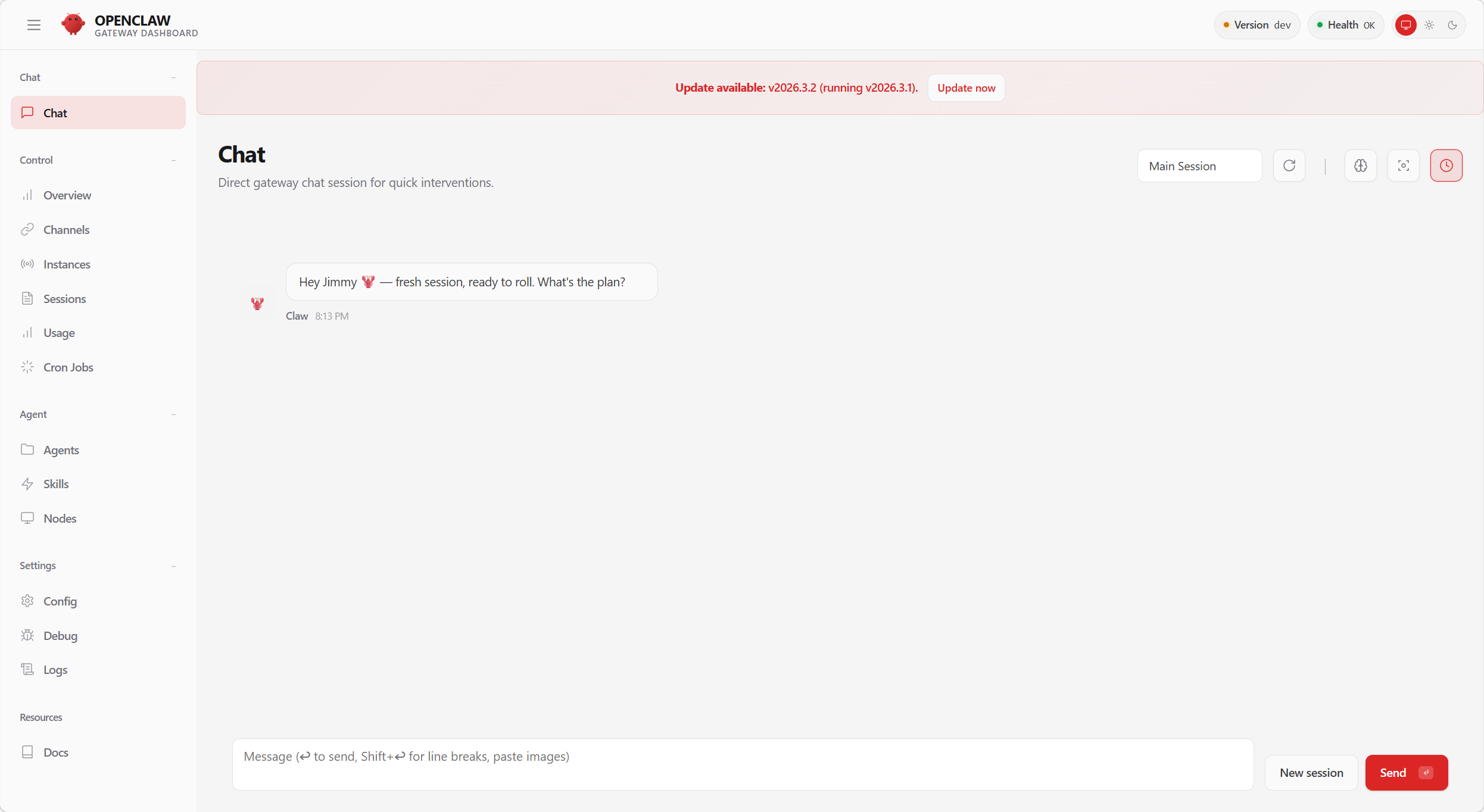
Dashboard sections at a glance
| Section | Description |
|---|---|
| Config | Visually edit configuration; changes take effect on save |
| Conversations | View conversation history, message details, and tool call records |
| Channels | View the status of connected channels |
| Sessions | Manage active sessions and context |
| Skills | Browse skills by status filter (All / Ready / Needs Setup / Disabled); click for details, install dependencies, and set API keys |
| Cron | View and manage scheduled tasks |
| Logs | View the Gateway log stream in real time |
The Config tab provides a visual configuration editor — it has exactly the same effect as openclaw config set <key> <value> (see Chapter 8: Configuration Management).
Remote Access
When the Gateway is on a remote server, use an SSH tunnel to forward the port to your local machine (see Chapter 9: Remote Access):
# Run this on your local machine
ssh -N -L 18789:127.0.0.1:18789 user@remote-server
# Then open http://localhost:18789 in your browser
Dashboard authentication
If the Gateway is configured with authentication (token or password mode), you will be prompted for credentials when opening the Dashboard:
- Token mode: Enter the value of the
OPENCLAW_GATEWAY_TOKENenvironment variable - Password mode: Enter the value of the
OPENCLAW_GATEWAY_PASSWORDenvironment variable - Tailscale mode: If
allowTailscale: trueis enabled, access from within the Tailscale network requires no password
// Authentication configuration example
{
  gateway: {
    auth: {
      mode: "token",             // token | password
      token: "${OPENCLAW_GATEWAY_TOKEN}",
      allowTailscale: true,      // Tailscale devices bypass authentication
    },
  },
}
Security reminder: The Dashboard has full administrative access. Always set up authentication, especially when the Gateway is not running on loopback (see Chapter 10: Security).
Changing the Dashboard port
If the default port 18789 conflicts with another service:
{
  gateway: {
    port: 19000,   // change to another port
  },
}
Or specify it at startup:
openclaw gateway --port 19000After the change, the Dashboard address becomes http://localhost:19000.
2. WebChat (Built-in Web Chat)
The Gateway's built-in chat interface — zero configuration, works out of the box. No platform account registration required.
Opening
Open http://localhost:18789 in your browser, or click the Chat entry in the Dashboard.
WebChat is best suited for initial testing and skill debugging. Send /status to quickly check the Gateway status.
WebChat vs. Telegram / Discord: which should I use?
| Dimension | WebChat | Telegram | Discord |
|---|---|---|---|
| Registration required | None | Bot creation required | Bot creation required |
| Public internet required | No | Webhook requires it | No |
| Mobile | Browser access | Native App | Native App |
| Group chat | Not supported | Supported | Supported |
| Push notifications | Page must stay open | System notifications | System notifications |
If you need mobile push notifications or group chat, pair with Telegram or Discord (see Chapter 4).
Third-party web chat clients
Community clients (e.g. PinchChat: github.com/pinchchat/pinchchat) communicate with OpenClaw via the Gateway's HTTP API. You need to enable the endpoint before use:
{
  gateway: {
    http: {
      endpoints: {
        chatCompletions: { enabled: true },
      },
    },
  },
}
Point the client's API address to http://127.0.0.1:18789/v1/chat/completions, using the Gateway authentication token as the API Key (see Chapter 8: HTTP API Endpoints).
3. Control UI (macOS Desktop Client)
A native desktop application exclusive to macOS (OpenClaw.app): lives in the menu bar, sends native notifications, and lets you manage the Gateway without a terminal. The config interface uses a collapsible tree sidebar for navigation, and the agent workspace supports expandable inline Markdown file preview.
Installation
Usually included when installed via AutoClaw. You can also install it separately:
brew install --cask openclawFind OpenClaw.app in Applications and double-click to open it.
Connecting to a Remote Gateway
Settings → General → "OpenClaw runs" → select Remote over SSH → enter the server address. The app automatically manages the SSH tunnel and WebChat works out of the box (see Chapter 9: Remote Access).
What's the difference between Control UI and Dashboard?
| Dimension | Control UI | Dashboard |
|---|---|---|
| Platform | macOS only | All platforms (browser) |
| Installation | App download required | Built into Gateway |
| System integration | Menu bar, notifications, shortcuts | None |
| Remote connection | Built-in SSH management | Manual tunnel required |
| Recommended for | Heavy macOS users | Cross-platform and remote management |
Both can be used at the same time — Control UI manages the Gateway lifecycle while Dashboard handles fine-grained configuration.
4. TUI (Terminal Chat)
No browser needed, no GUI needed — chat directly in the terminal. Works anywhere a terminal is available: SSH remotes, servers, Docker containers.
Starting
openclaw tuiInteractive mode: type a message and press Enter to send. Or send a one-off message:
openclaw agent --message "Write me a Python hello world"Advanced TUI usage: specifying agents and piped input
Specify thinking level:
openclaw agent --message "Analyze the security of this code" --thinking highSpecify an agent (see Appendix G for multi-agent configuration):
openclaw agent --message "Check today's schedule" --agent home
openclaw agent --message "Review this PR" --agent work
Piped input:
# Have the claw explain a piece of code
cat script.py | openclaw agent --message "Explain this code"

# Have the claw analyze logs
openclaw logs --limit 50 --plain | openclaw agent --message "Any anomalies?"
5. Interface Selection Guide
| What you want to do | Recommended |
|---|---|
| First install — confirm everything works | openclaw tui |
| Day-to-day config management | Dashboard |
| Chat in a browser | WebChat |
| Chat over SSH remote | openclaw tui |
| Full macOS experience | Control UI |
| Debug skills | WebChat + Dashboard (inspect tool calls) |
| Call the claw from a script | openclaw agent --message |
| macOS desktop | Control UI + Dashboard |
| Windows / Linux desktop | Dashboard + WebChat |
| Cloud server / Docker | TUI |
| Phone / tablet | WebChat (browser) |
All four interfaces connect to the same Gateway and can be used simultaneously — conversations started in WebChat are also visible in Dashboard's Conversations view.
6. Additional Platform Features
Control UI
- Rounded corner slider: Customize the interface corner radius, from sharp to fully rounded
Android
- Dark mode: System-following dark mode covering all screens — onboarding, chat, and voice pages
Browser Integration
- Connects directly to Brave, Edge, and other Chromium-based browsers via
userDataDir
Sandbox System
- Pluggable backends: Sandbox supports Docker, OpenShell, and SSH backends — no longer tied to Docker alone
7. Frequently Asked Questions
Dashboard shows a connection failure?
First confirm the Gateway is running: openclaw gateway status. If not, run openclaw gateway restart.
Port 18789 is already in use?
# macOS / Linux
ss -tlnp | grep 18789
# Windows
netstat -ano | findstr 18789
To change the port, see the "Changing the Dashboard port" section above.
WebChat messages get no reply?
Check in order: ① Run openclaw status to confirm the Gateway and Agent are healthy; ② run openclaw logs --follow, send a message, and check for errors; ③ confirm your API Key is valid (see Chapter 5).
Can I use WebChat on a remote server?
Yes. After setting up an SSH tunnel, open http://localhost:18789 in your local browser. Tailscale users can access it directly via the Tailscale IP (see Chapter 9).
Is Control UI only available on macOS?
Yes. Windows / Linux users should use the Dashboard, or the community desktop client ClawX.