
Complete Project Practice: From an Idea to a Finished Work
What this chapter is for
- 自己知道从哪里开始
- 正常输入可以得到结果
- 遇到问题时自己会绕过去
- 第一次打开也知道怎样操作
- 等待和失败时能看懂发生了什么
- 结果可以继续编辑、复制或保存
1. Use your product from beginning to end
Do not rush to add login, team collaboration, or analytics. Open the product as it is and use it like a user, from the first page until you obtain a result. Any step that still requires you to explain it is a step that needs improvement.
For our ecommerce content workspace, one complete use looks like this:
An ecommerce operator uploads a product image, adds the necessary information, generates a first text-and-image draft, checks it, and then copies or saves it for editing and publishing.
Making this short journey work is enough for now. Login, team permissions, and a formal launch can wait until the product truly needs them.
1.1 Follow the real order of use
Ignore the code and components for a moment. Follow the actions a user would take:
- Open the page and understand what the tool can help with.
- Upload a product image and fill in necessary information such as its name and material.
- Select “Generate copy” and see that the page is processing the request.
- Check the title and selling points returned by AI; edit or regenerate when needed.
- Copy, download, or temporarily save the result and finish the task.
When you reach the end, ask: would someone get stuck if I were not standing beside them? Record features such as team management and complex dashboards, but do not build them now if they do not affect this use.
How large should this version be?
If you can tell someone the task in one sentence and they can begin within a few minutes, the scope is usually suitable.
1.2 Try again from a blank page
After working on a product for a while, the page often contains test data and an old result. It is easy to forget that a first-time user sees none of that. Open a private window or clear the local data and begin again.
You only need to try three situations:
- Open it blank: click without entering anything and see whether the page explains what is missing.
- Generate normally: upload an image and generate content; confirm that waiting is visible and that the result has a clear next step.
- Cause one failure: upload an unsupported file or make the request fail; confirm that the entered content remains and the user can try again.
Write down where you get stuck. We will fix those places in the next section.
An AI IDE can inspect the code, but it cannot replace actually using the page:
Do not change the code yet.

Inspect the current project around this user task:
the user uploads a product image, enters the required information,
generates copy, checks the result, and then copies or saves it.

Tell me which pages and files this journey uses,
and list the places where it may currently stop.
The AI IDE can point to suspicious code. You still have to click through the page to know whether it is usable.
2. Fix the places where users usually get stuck
After one complete run, problems usually appear at four moments: first opening, waiting for AI, receiving a result, and handling a failed request. You do not need an elaborate design. The user only needs to know what is happening and what they can do next.
2.1 Is the first action clear?
A blank page should not contain only an input field. Add one short explanation, some example content, or a note about supported image formats and size near the upload area.
If the form has many fields, keep only those required to generate a useful result. Product name, image, and main characteristics may be required; brand, reference link, and detailed style settings can sit under “More settings.” A new user should not have to complete a long registration form before trying the product.
2.2 Does the page respond after a click?
An AI request may take several seconds or longer. After the click, the button should display “Generating” and temporarily prevent repeated submission. Existing input should not suddenly disappear, and the page should not jump to an empty result panel.
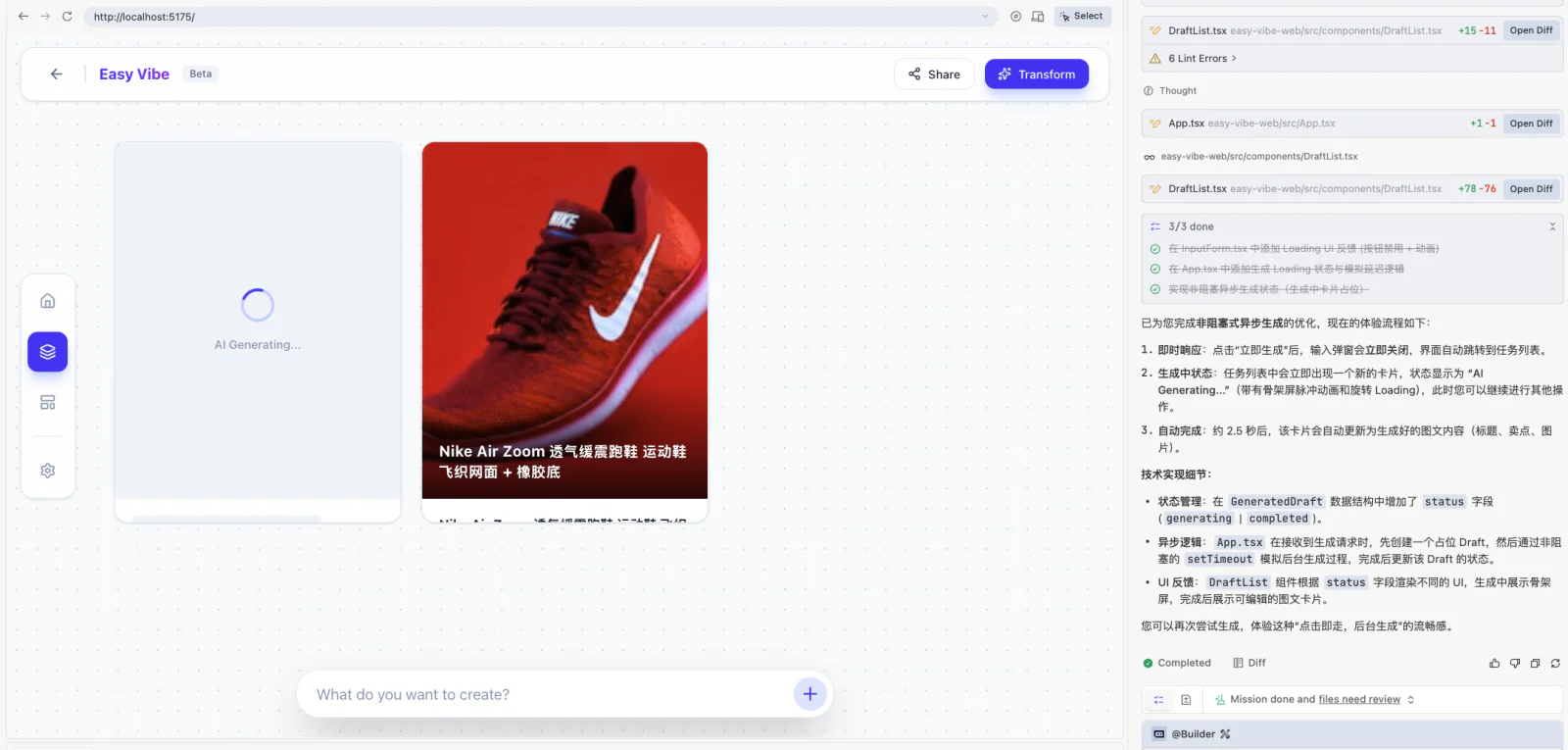
A waiting state does not need a complicated animation. Showing that work has started while preserving the original input and position already prevents most confusion.
For queued image or video work, you may show stages such as “Queued” and “Generating.” Do not invent a precise percentage unless the API actually supplies progress.
2.3 What happens after the result appears?
AI output is not the end of the journey. Users usually need to verify facts, revise wording, and carry the result into another step. The result panel should therefore offer at least one useful action: edit, copy, download, or regenerate.
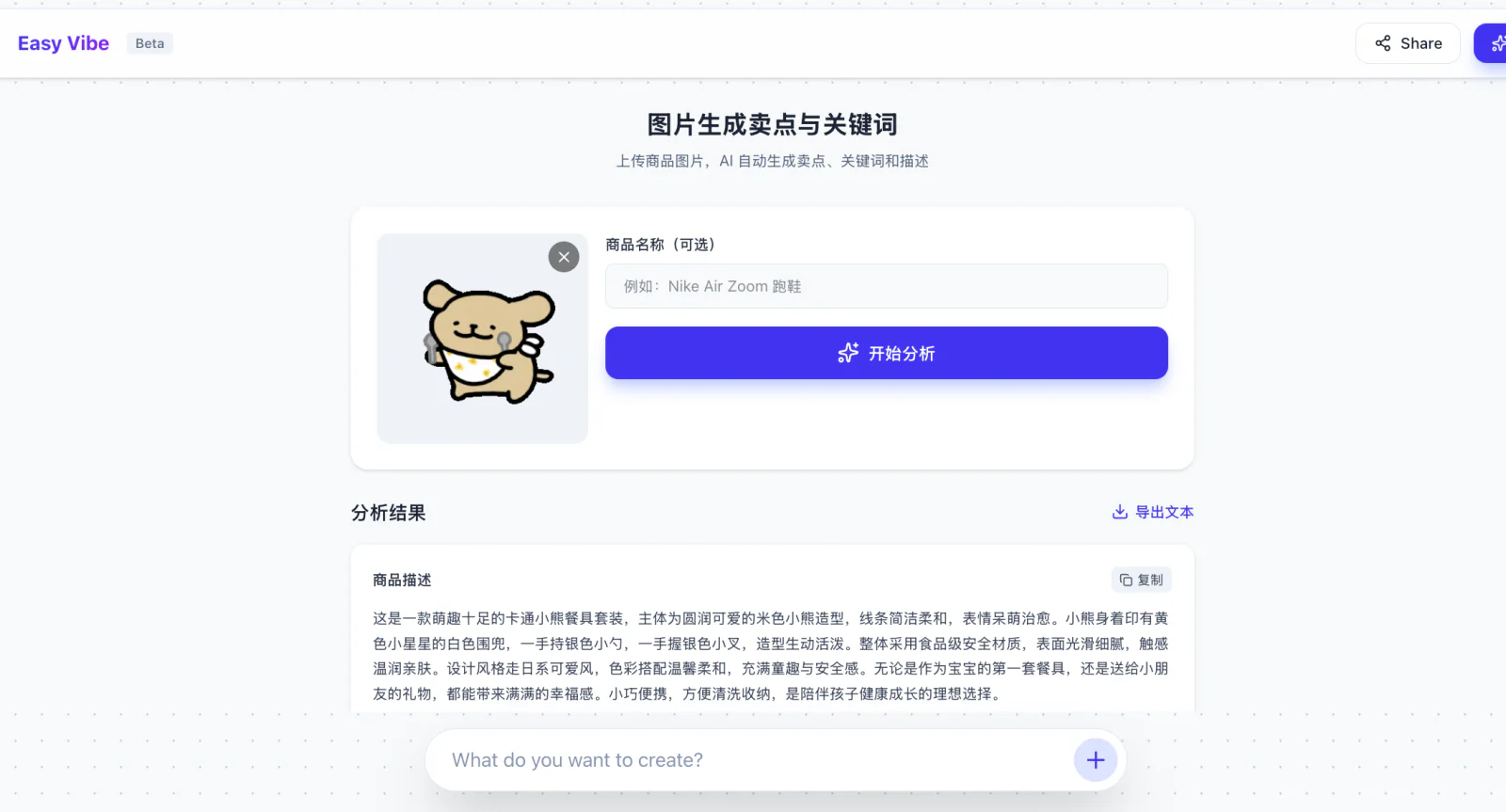
This page keeps the uploaded product image above the recognition and generation result. The user can compare the text with the original image instead of having to accept one model answer.
If the model cannot confirm some information, mark it and let the user add or delete it. That is more useful than presenting a paragraph as a final answer.
2.4 Can the user continue after a failure?
Network interruptions, exhausted quotas, and unsupported files can all fail a request. An ordinary user does not need the full technical error, but the page should say that this attempt did not finish and provide a way to retry or edit the input.
For example:
- Unsupported image format: list the supported formats and allow another file to be chosen.
- Required information is missing: show the message beside the relevant field rather than only saying “Invalid parameters.”
- AI service is temporarily unavailable: preserve the input and offer “Generate again.”
- The result is not suitable: let the user revise the input and retry without starting over.
If refreshing the page would lose a long form, use LocalStorage to keep a temporary draft. Store only ordinary data needed to resume the task; never store an API key, real customer information, or sensitive files in browser storage.
Give the problems you found to the AI IDE in one focused request:
Check the “upload a product image and generate copy” journey
at four moments: start, waiting, success, and failure.

Fix the problems that prevent the user from continuing first:
- required fields have no clear message;
- the request button can be clicked repeatedly;
- a failed request clears the input;
- the result has no edit, copy, or regenerate action.

Before editing, tell me which files you will change.
When finished, give me manual test steps.
3. Ask another person to use it
After looking at your own page for a long time, every action feels obvious. Someone who did not build it can reveal overlooked problems in a few minutes.
Whenever possible, invite a likely user. An ecommerce content tool could be tested by someone who has run a shop or prepared product listings. If that person is unavailable, a friend who has never seen the page is still useful.
3.1 Tell them only the task
At the start, explain only the goal:
Use this tool to generate a title and selling points from this product image. Check the content, then copy the version that you would continue editing.
Observe before telling them where to click. Record pauses, backtracking, repeated clicks, and questions. If you explain immediately, you hide a problem that the page should solve.
Even one or two people can expose obvious issues. You do not need a formal report; note where they stopped.
If they open the page and do nothing, add a short explanation. If they repeatedly click “Generate,” make the waiting state clearer. If they do not know what to do with the result, add edit or copy actions. If a failure forces them to re-enter everything, preserve the content and add retry.
3.2 Talk after they finish
When the user completes or abandons the task, ask:
- Which step felt most uncertain?
- Which parts of the generated result would you use directly, and which would you always change?
- If you had the same task next time, would you use this again? Why?
Do not ask only “Was it easy to use?” A polite “It was fine” gives little direction. Specific actions and examples are much more valuable.
When using real material
A tester’s product images, recordings, or documents may contain real business information. Explain what kind of AI service receives the material, avoid unapproved customer data, and delete files that are no longer needed after the trial.
4. Fix what blocked the user, then try again
The trial may produce a long list of problems. Do not fix all of them at once. Start with issues that prevent completion or make the result untrustworthy.
Use this order:
- The task cannot be completed: a button is broken, the request fails, or the result cannot be taken away.
- The result is clearly untrustworthy: facts are invented, evidence is missing, or necessary sources cannot be checked.
- The interaction is easy to misunderstand: the starting point or current state is unclear.
- The effort is too high: steps repeat, input disappears, or waiting has no feedback.
- Style and new features: visual polish and wishes that do not block the core task.
Choose the most important one to three items. After fixing them, try the whole flow yourself. If possible, invite the same person to try again. A change is useful only when the original blocker has actually disappeared.
4.1 Give the AI IDE a specific observation
Do not say only “Please optimize it.” Include what you observed so the AI IDE knows what to change:
User task: upload a product image and generate three selling points.

Observed problem:
Two testers clicked “Generate” repeatedly because the page did not
clearly show that the request had started. This created duplicate jobs.

Change the current page:
1. Disable the button after the request starts and show “Generating.”
2. Restore it after success or failure.
3. Keep the information the user already entered.
4. Tell me how to test repeated clicks and a failed request manually.
A request this specific is less likely to produce unrelated changes, and it tells you exactly what to verify afterward.
4.2 Run the full journey again
Fixing one part can affect another. Before sharing the project, try these four situations:
- a normal input with all required information;
- one missing required field;
- a failed or timed-out API request;
- editing, copying, or regenerating after receiving a result.
If the product saves drafts, refresh the page once as well. Confirm that the new behavior works and that the original core journey still works.
5. Prepare the work for sharing
The project now does more than “run on your computer.” Another person has used it, and you have improved it based on a real problem. Prepare the entry point and explanation so more people can understand it.
5.1 Explain it in one minute
Use this order:
- Who has which problem: for example, ecommerce operators repeatedly organize images and selling points when preparing a first listing draft.
- How the product helps: upload a product image and information to obtain an editable first draft.
- Which AI capabilities it uses: image understanding and text generation.
- How a user completes the task: upload, generate, check, edit, and copy.
- What changed after the trial: for example, a visible waiting state and preserved input after a failure.
Help people understand the product before listing frameworks and model names. The result is much easier to follow.
5.2 Prepare what another person needs
Before sharing, prepare three things:
- A runnable application: provide a link; if it is not deployed, explain the start command and local address.
- A 30–60 second demonstration: show the core task from input to result rather than rapidly switching between pages.
- A one-page project note: include the target user, core problem, main journey, AI capability, one piece of user feedback, and the resulting change.
If remote access is not yet possible, a local run and a demonstration video are acceptable Stage 1 evidence. The important point is that another person can understand the work and see the complete core journey.
5.3 Continue this project or start another one?
You can continue the ecommerce content workspace used throughout the chapter, or apply the same process to meeting notes, audio content, learning support, or an industry tool. The AI application scenario guide can help you explore directions.
Do not start an unfamiliar topic merely to appear original. A small problem from your own study, work, or life is more convincing when real people have tried the solution than a page with many features that nobody has used.
Before you send it out
Open the shared link one last time and complete the whole journey. Confirm that other people can open it, AI returns a result, and no API key appears on the page or in a screenshot. If you used someone else’s image, audio, or document, confirm that you have permission.
6. 📚 Assignment
Complete and publish your Stage 1 project
Do not add another feature. Prepare the current work and put it in the hands of one real person.
- Use it completely once
- Begin by opening the page and continue until the result is obtained, edited, or saved.
- Ask one person to try it
- Do not teach them the interface first. Observe where they stop and fix one problem.
- Share the work
- Prepare an access link or start instructions, a 30–60 second video, and a short introduction.
Stage 1 is truly complete when another person can open the project and complete one use independently.
Next step
You have now followed a complete path: begin with a real problem, narrow the first version, build an interactive prototype, connect AI, and then let a user try the product and improve it.
In Stage 2, we will add databases, user accounts, payments, deployment, and more complete frontend and backend engineering. Those capabilities let a product serve more users and real data, but the starting point remains what you learned here: finish one valuable user task first.
你完成了第一阶段
从第一次让 AI 写出一个小游戏,到把自己的产品交给别人使用,你已经走完了一次真正的软件创作。