
Clone from a Screenshot: Your First Imitation Exercise
In the previous lesson, we asked AI to write a program from one sentence. This time we will use something easier to see: choose a screenshot you like and ask AI to build from it.
It is a little like building blocks while looking at a picture. You do not have to describe every color, gap, and button position in advance; the screenshot already communicates much of that information.
What this lesson is for
1. Choose the kind of work you want
Before opening the tool, decide what kind of small result you want today.
The goal is not a full product with every feature. It is one page that opens, makes sense, and has one simple interaction. A smaller scope makes the first attempt more likely to succeed.
Choose one of these:
- Product homepage: a heading, introduction, image, and button
- SaaS dashboard: a sidebar, data cards, and charts
- Simple game: movement, clicking, or one small objective
When choosing the reference, check three things:
- Can you understand the main content from one screenshot?
- Is there something in the page that you genuinely like?
- After building, will you be able to tell quickly whether the result resembles it?
If you like a homepage's large heading and colors, capture its first screen. If you like the block world in a game, save one image that clearly represents it.
How close can you get?
The closer the result, the more carefully you have noticed the visual details and the better you have become at describing differences to AI. Place the final result beside the reference. Does it feel 50%, 70%, or 90% similar?
Make only one page
Do not begin with login, payment, chat, an admin panel, and a mobile app. This lesson is about reproducing the one screen in front of you.
2. Follow the teacher through one webpage
First watch the complete process. Once it makes sense, repeat it with your own screenshot.
The teacher created an empty folder and opened it in Trae. The project was named trae-screenshot-demo; at the beginning it contained no webpage or code.
2.1 Give the reference image to Trae
The reference comes from a Framer showcase page. The large heading, navigation, purple mountain scene, and small controls are all visible.
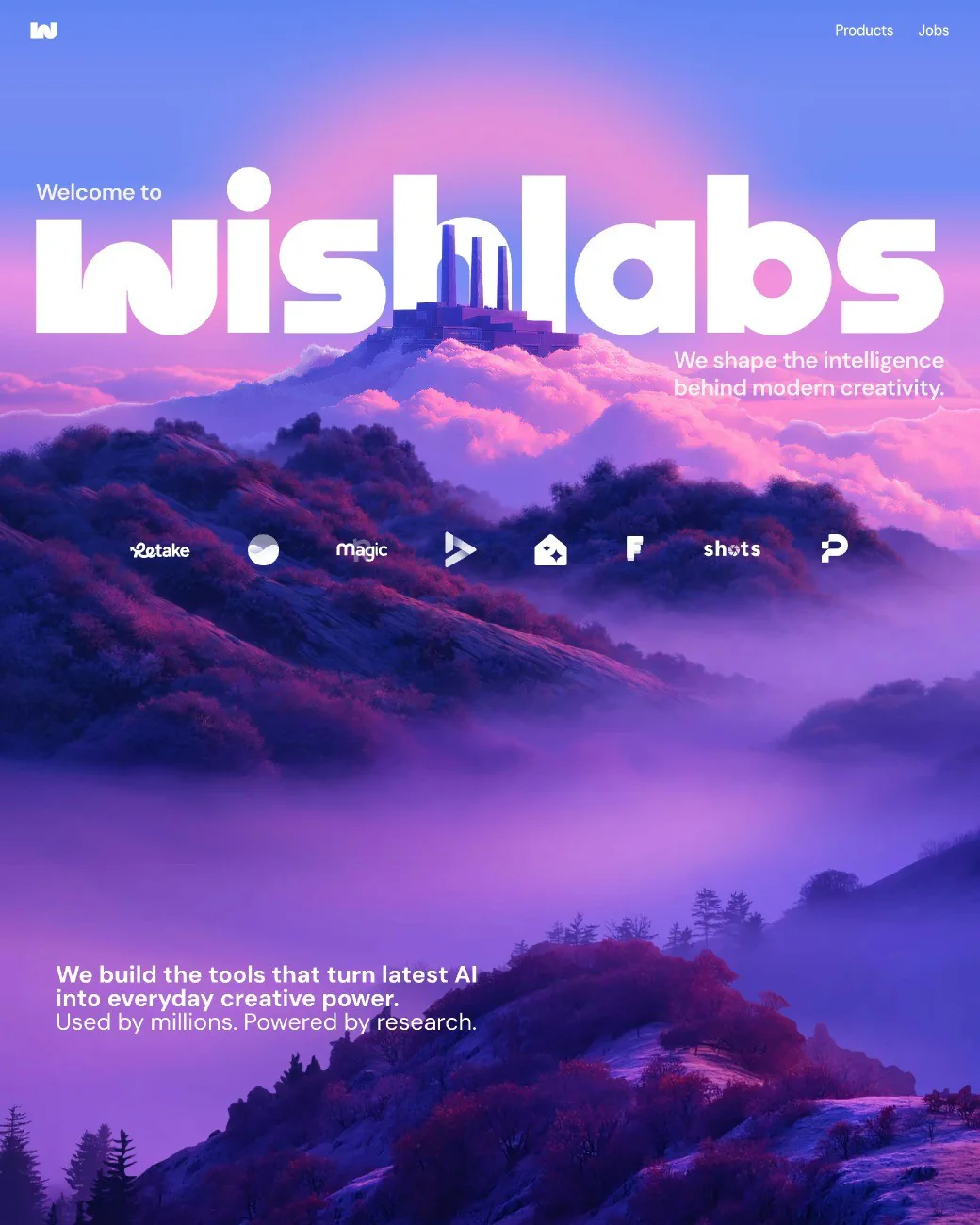
Screenshot source: Framer Website Builder
After dragging the image into Trae's chat, the teacher used a very short prompt:
Build a webpage that looks like this image. Open it for me when it is ready.The image tells Trae roughly how the page should look; the sentence says that the image should become a webpage.
After sending, wait while Trae creates the files. Do not send several more requests before the first one has finished.
2.2 Look at the first version
Trae created index.html, styles.css, and script.js, then opened the webpage in a browser. This animation is the result produced in the lesson:

Do not study the code yet. Look at the page and compare it with the reference:
- The purple sky and mountain atmosphere remain.
- A large heading still occupies the center.
- There is navigation at the top and a row of controls near the bottom.
- Text, buttons, and images form a complete first screen.
It is not an exact copy, but it captures the most visible structure and mood. That is a good first version.
2.3 The first version only needs to be visible
Do not throw everything away because the font or button position is slightly different. Confirm that the page opens, then choose the clearest problem.
If the heading is too small, say:
Make the heading in the center larger.Open the page again after the change. If it is closer to what you wanted, the iteration was useful.
Ordinary language is enough
You are making something with Trae, not taking a prompt-writing exam. Describe what you see in the words you normally use.
3. Try it yourself
Open Trae, create an empty folder, and open that folder in Trae. A simple name such as my-first-page is enough.
Then follow these steps:
- Find a webpage or game screenshot you like.
- Select the image button beside the chat and choose the screenshot.
- Check that the image appears in the message.
- Type one short request and send it.
Build a webpage that looks like this image.
Open it for me when it is ready.You do not need to specify a framework, directory structure, or file names for this first exercise. Let Trae choose them.
If you want only the visual style and not the original name and text, add:
Use the style of this image, but replace the name and content with something new.Wait until Trae finishes. Approve file creation or project execution if it asks. If the webpage does not open automatically, say:
Start this project for me. I want to see the result.When the page appears, spend ten seconds checking whether it opens, whether the main content is present, and whether the main button responds. Do not begin by changing five things at once.
4. The same method works for other products
The screenshot method is not limited to product homepages. To verify that, the teacher created two more empty projects: a data dashboard and a block game.
Example 1: SaaS dashboard
SaaS products often use dashboards for project progress, sales, or user data. In this Linear screenshot, navigation is on the left and the dashboard content is on the right.
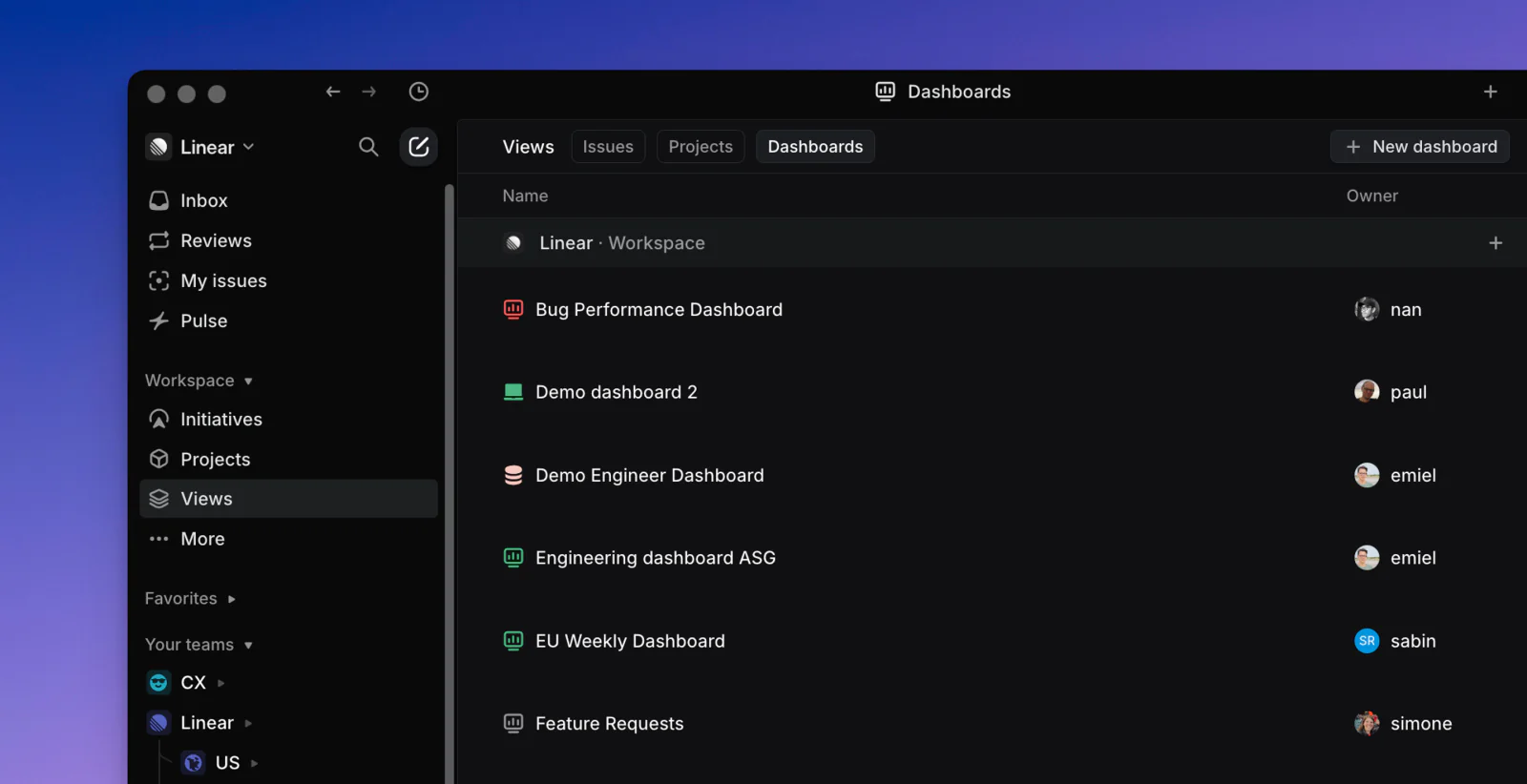
Class reference: Linear Dashboards
The teacher placed the image into Trae and said:
Build a data dashboard like this one.
Use sample data for now.
Trae produced a sidebar, data cards, and charts. This is the page running in the browser:

The numbers are not real business data, and that is fine. The first exercise is about building the dashboard structure. Replace the labels and figures only after the page is stable.
Example 2: block game
If an ordinary webpage does not interest you, use a game screenshot. The teacher chose a Minecraft block-world image.
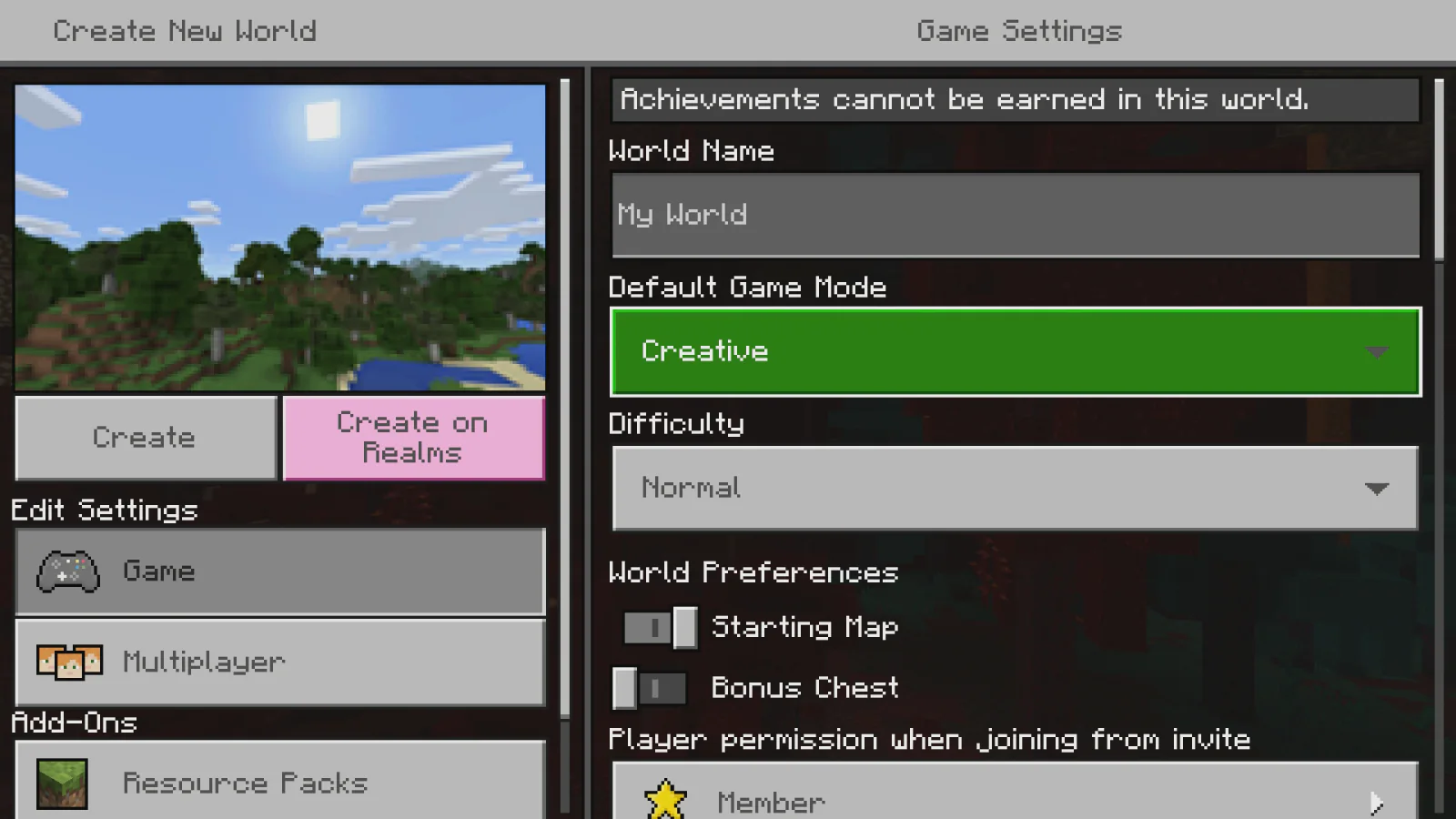
Class reference: Minecraft example on Microsoft Learn
The request was still short:
Build a block game like this one.
The character should move and place blocks.
Trae created a playable browser game in which the character can move and place or remove blocks:

Notice that this result is a 2D side-view game. The character moves on a flat plane and the picture has no forward or backward depth. Because the prompt only said “block game,” Trae chose the simpler interpretation.
Open the page, press the arrow keys, and click the scene. If the character moves and blocks can be placed, the first 2D version works.
Make another version in 3D
If you want a first-person view closer to Minecraft, include “3D” in the request. The teacher opened a new empty project, added the same screenshot, and said:
Build a 3D block game like this one.
Let the player walk, turn the camera, and place blocks.
This time Trae created an actual 3D block world:

After selecting “Start Game,” use WASD to walk and the mouse to turn. The left button removes a block, the right button places one, and number keys change the block type.
Neither 2D nor 3D is always better. 2D is easier for a first game. If walking forward and backward inside the world is central to your idea, say clearly that you want 3D.
Make it different
A reference is only a starting point. Change the color, theme, text, images, or interaction so the result gradually becomes your own work.
5. What if the first version is not good?
It is normal for the first version to look different or contain a button that does not respond. A project is rarely finished in one sentence. Look once, change a little, and look again.
A common beginner mistake is placing every problem in one message. When too many things change at once, you cannot tell which change produced the result.
Use a simpler rule: pick the clearest problem in each round.
The page looks wrong
If a card is too tall:
The card at the top is too tall. Make it shorter.If the main image is too small:
The image in the center is too small. Make it larger.If the background is too dark:
The background is too dark. Use a lighter color.The page behaves incorrectly
If a button does nothing:
This button does not respond when I click it. Please fix it.If the game character cannot move:
The arrow keys do nothing. Please fix the movement.You do not know how to describe the problem
Take a screenshot of the current page and say:
This is the current result. Compare it with the reference and fix the biggest difference.You do not need to know terms such as “margin” or “responsive layout.” “It feels crowded,” “the text is hard to read,” and “the mobile page is messy” are useful descriptions. Fix one problem, then continue to the next.
6. Classroom check
Do not inspect only a still image. Open the result and click or play it yourself.
Check four things:
- It opens: refreshing does not produce a blank page or error.
- It is understandable: another person can tell whether it is a homepage, dashboard, or game.
- It responds: the main button or basic game controls work.
- It stays readable: narrowing the window does not make text and images overlap badly.
If one item fails, tell Trae exactly what you observed and ask it to fix only that issue. When all four pass, the exercise is complete.
Finish one small work
Login, payment, group chat, and online multiplayer are not part of today's lesson. One finished small page is more valuable than ten unfinished beginnings.
📚 Assignment
Build your own page from one screenshot
Choose a webpage or game image you like, give it to AI, and reproduce only one screen.
- Keep the reference screenshot.
- Generate the page and improve one part you dislike.
- Save a screenshot of the revised work.
When presenting, place the reference and your work side by side and explain the change you made.
What to remember
We did not begin with code. We began with one screenshot. The entire exercise has four steps:
- Take or save a screenshot.
- Give it to AI.
- Describe the work in one sentence.
- Fix one visible difference at a time.
The image tells AI what the product should look like. Your words tell it what the product should do. Once the first version appears, clicking, observing, and taking screenshots help you explain the next change.
A prompt does not need to sound like a technical manual. Say one simple thing, get the work running, and continue the conversation based on what is in front of you. Building a project will begin to feel much less distant.