🦞 OpenClaw - Fully Private Local AI Agent Platform AMD ROCm Edition


OpenClaw is a unified message processing and AI agent platform. Through its Gateway, it aggregates user messages from multiple channels (Lark, Telegram, iMessage, Slack, etc.) and routes them to Agents for processing, all running in isolated Workspaces. The platform adopts a modular design where Agents can flexibly invoke various tools and services.
OpenClaw (ClawX) project address: Link

Next, I will guide you step by step to deploy OpenClaw locally on an AMD 395 Max AI PC, building a fully private personal AI assistant!
Highlights
- 🔒 Full Privacy: Local LLM + local OpenClaw, all data stays on your machine
- 🦞 Multi-Channel Gateway: Unified access via Lark, Telegram, DingTalk, Slack, iMessage
- 🧠 Agent Architecture: Modular design with memory, soul, skills context management
- 🏠 Local Deployment: Run 35B parameter models on AMD 395 Max, no internet required
OpenClaw Platform Overview
OpenClaw has become an industry benchmark with its comprehensive architecture and ambitious "OS endgame" vision, sparking phenomenal interest in the AI Agent space. With over 430,000 lines of code, it covers core capabilities including message gateway, Agent runtime, tool invocation, and memory management.
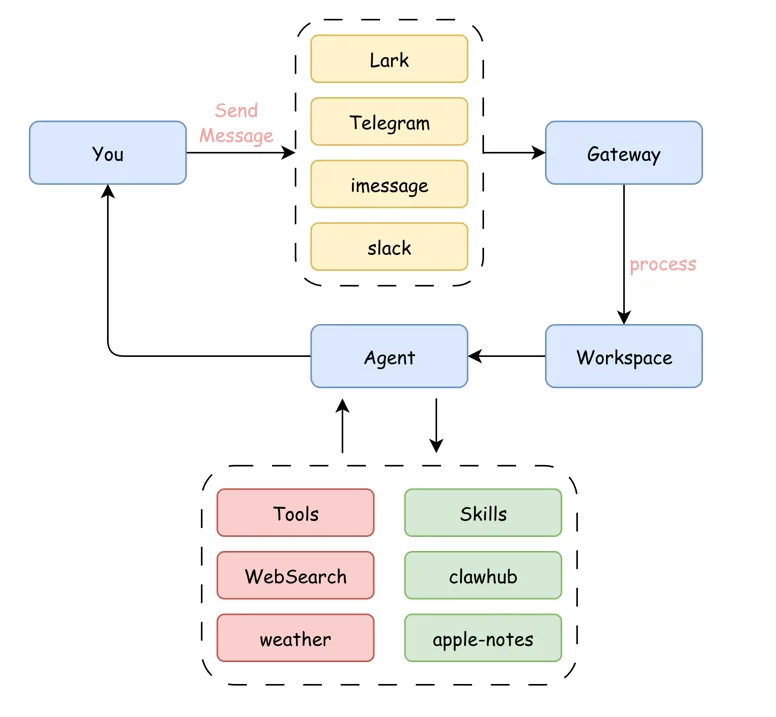
Figure 5.6.1 OpenClaw Platform Architecture
Ecosystem Comparison
OpenClaw's success has also spawned community-derived projects:
| Project | Positioning | Features |
|---|---|---|
| OpenClaw | Full-featured platform | 430K lines of code, OS-level architecture |
| Nanobot | Minimalism | By HKU team (HKUDS), lightweight approach |
| PicoClaw | Edge computing | Go language, single binary, minimal resource usage |
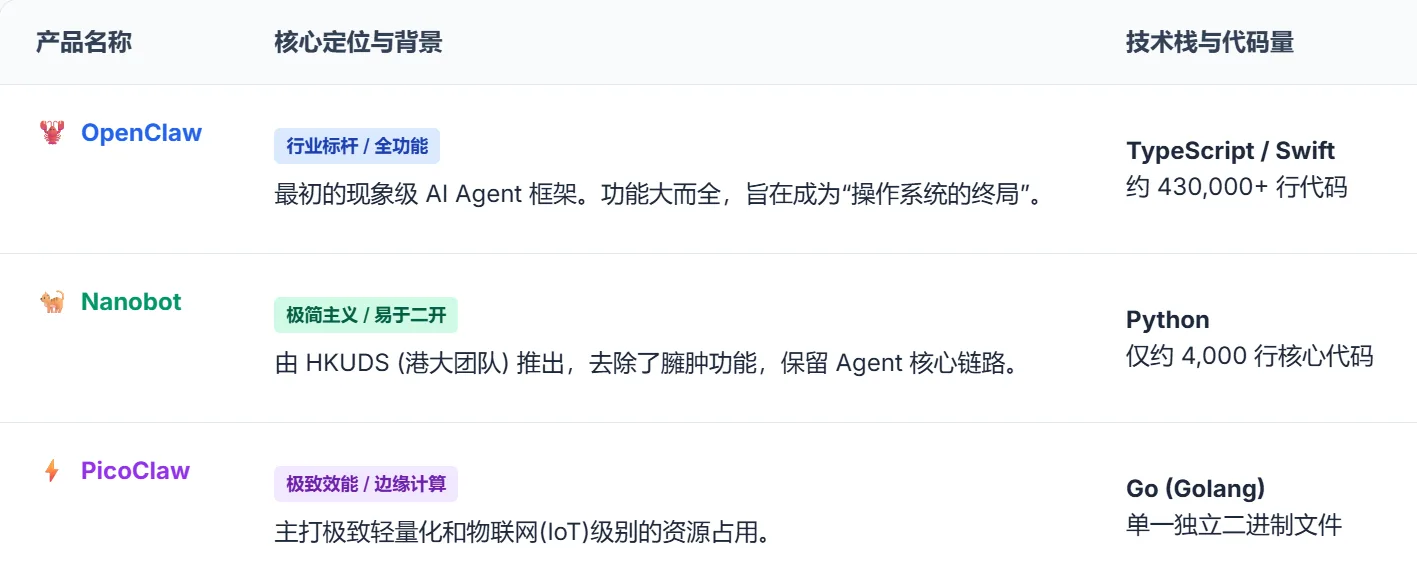
Figure 5.6.2 OpenClaw Ecosystem Comparison
Context Usage
Even starting a new conversation, OpenClaw consumes 39K tokens of context — it carries extensive memory.md, soul.md, user.md along with skills descriptions and tool descriptions. OpenClaw heavily tests an Agent's long-context tool invocation and planning capabilities, so local deployment requires a machine with substantial VRAM!
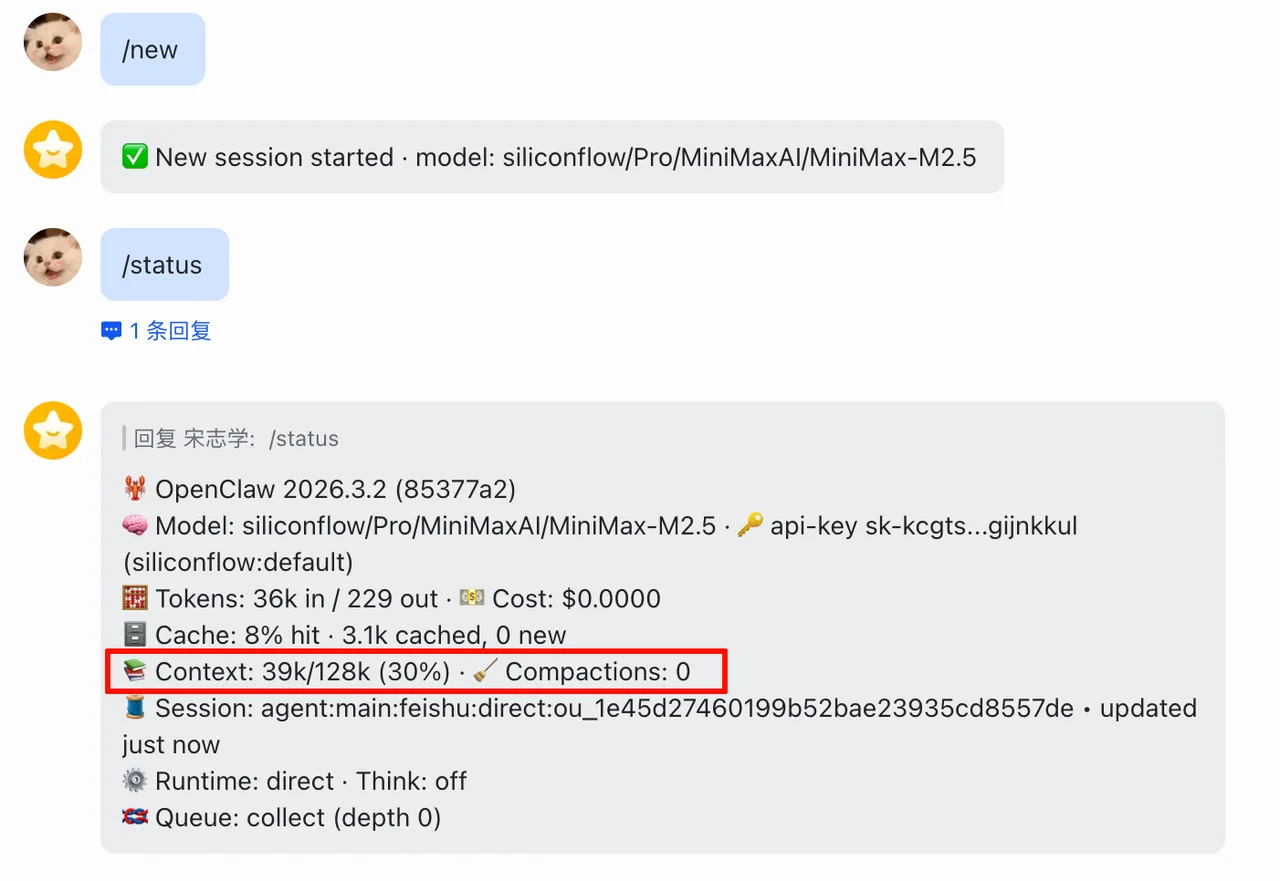
Figure 5.6.3 OpenClaw Context Usage (39K tokens for a new conversation)
Step 1: Hardware Preparation - AMD 395 Max
The AMD 395 Max is ideal for both gaming and serving as a home AI hub, ensuring both model performance and local chat privacy.
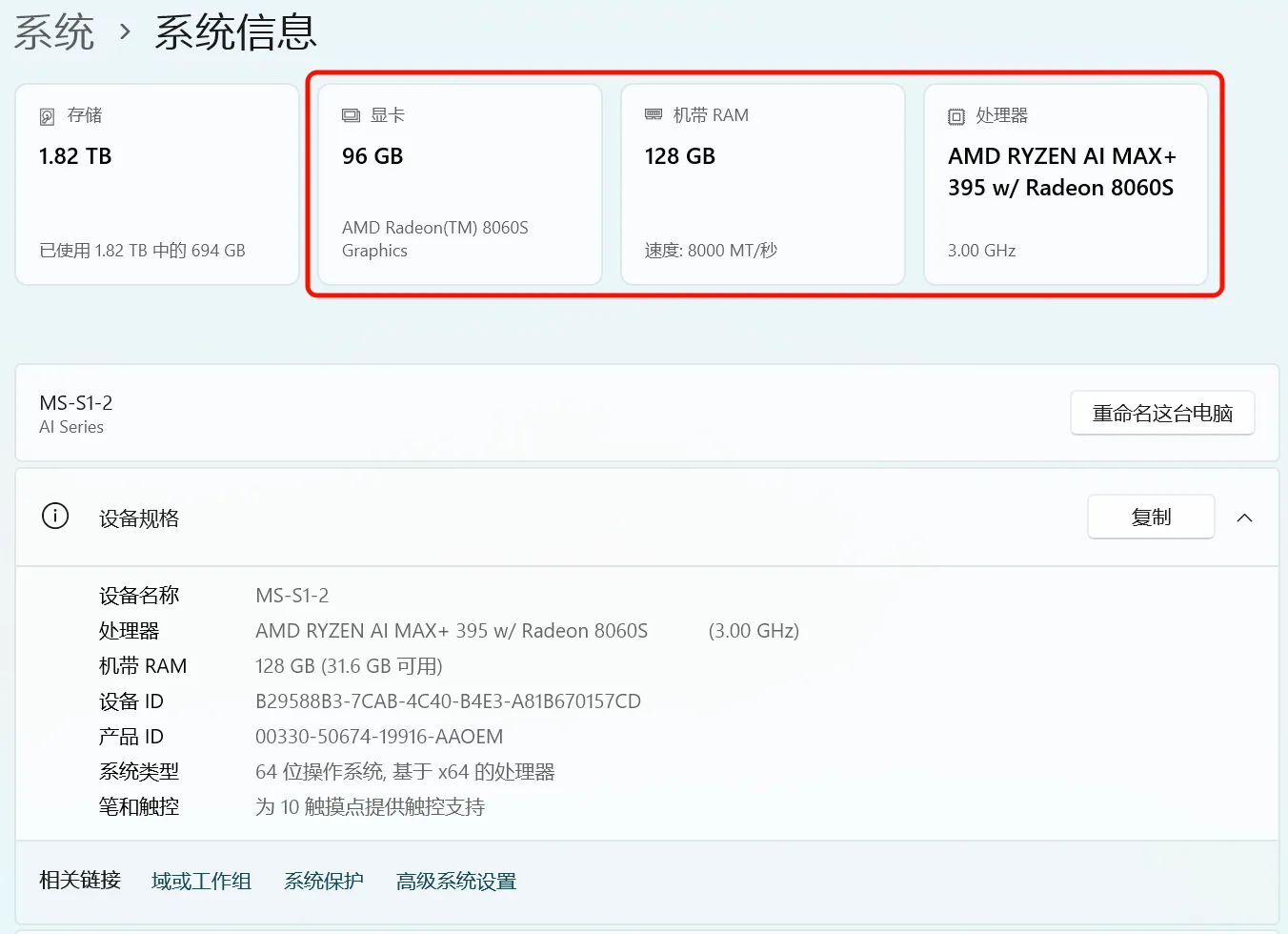
Figure 5.6.4 AMD 395 Max Hardware Specifications
The base environment for this guide is as follows:
----------------
AMD Ryzen™ AI 9 HX 395 Max
LM Studio
Windows 11 / Linux
----------------This guide assumes you are using an AMD 395 Max AI PC or other devices with AMD ROCm-supported GPUs.
Step 2: Deploy Local Model with LM Studio
LM Studio is a cross-platform desktop application designed for running large language models locally, supporting Windows, macOS, and Linux. It provides an intuitive GUI for searching, downloading, and managing open-source models (e.g., GGUF format), enabling offline conversations, inference testing, or API server hosting on personal devices without internet access.
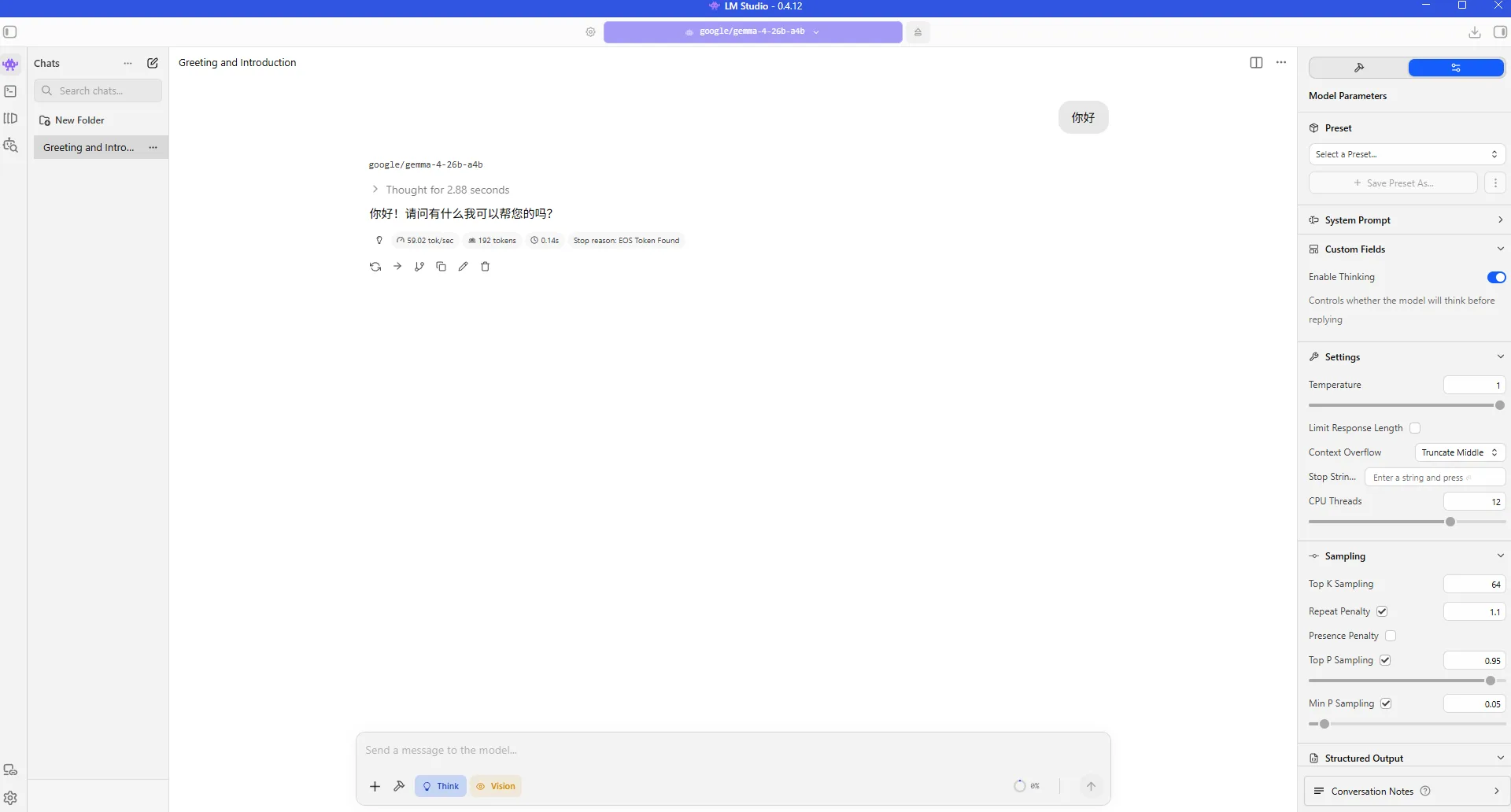
Figure 5.6.5 LM Studio Interface
2.1 Download and Install LM Studio
Visit LM Studio website to download and install.
2.2 Load Recommended Model
This tutorial recommends using the gemma-4-26b-a4b model (MoE architecture, only 3B active parameters, 35B total).
Search and download the GGUF version in LM Studio, then note:
- Base URL:
http://127.0.0.1:12345/v1 - Model ID:
gemma-4-26b-a4b
For detailed LM Studio configuration, refer to Getting Started with ROCm Deploy
Step 3: Install OpenClaw (ClawX)
3.1 Download Installer
Go to the ClawX Release page and download the installer for your system (Windows or Mac).
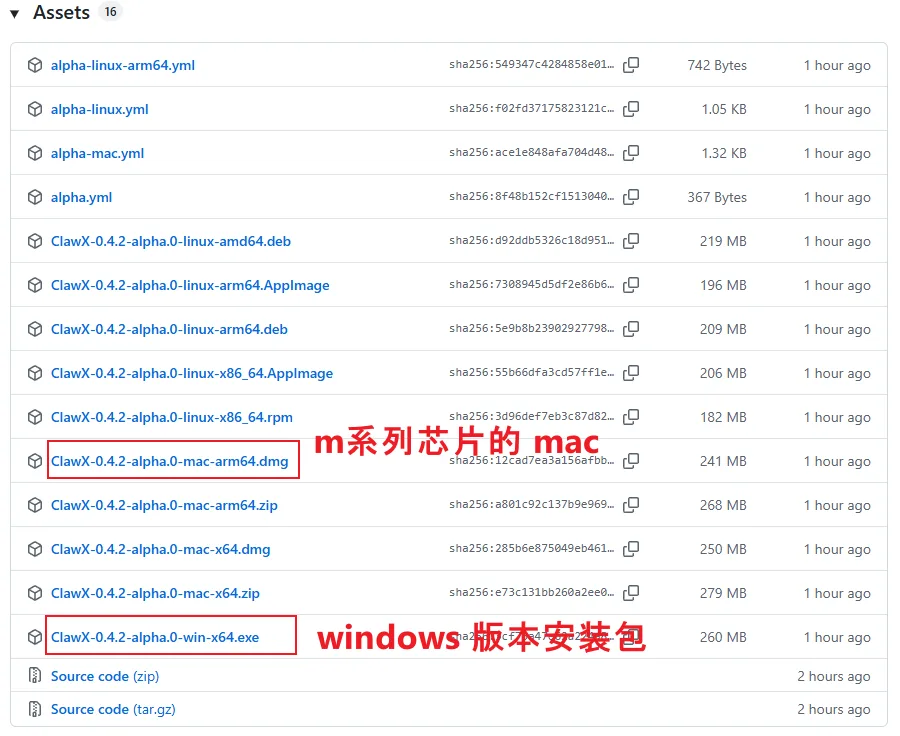
Figure 5.6.6 ClawX Release Download Page
3.2 Install ClawX
Double-click the installer and choose to install for the current user only:
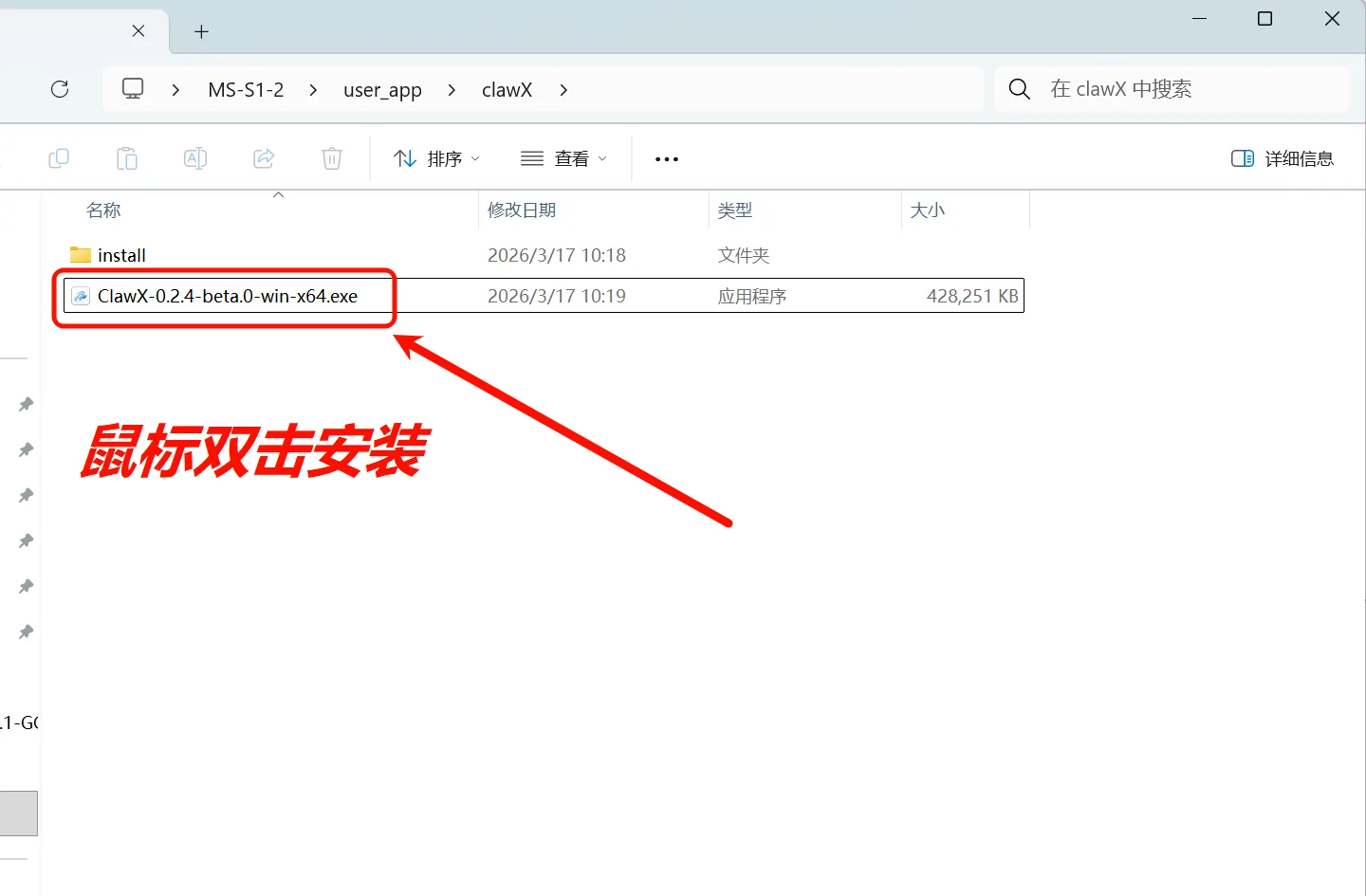
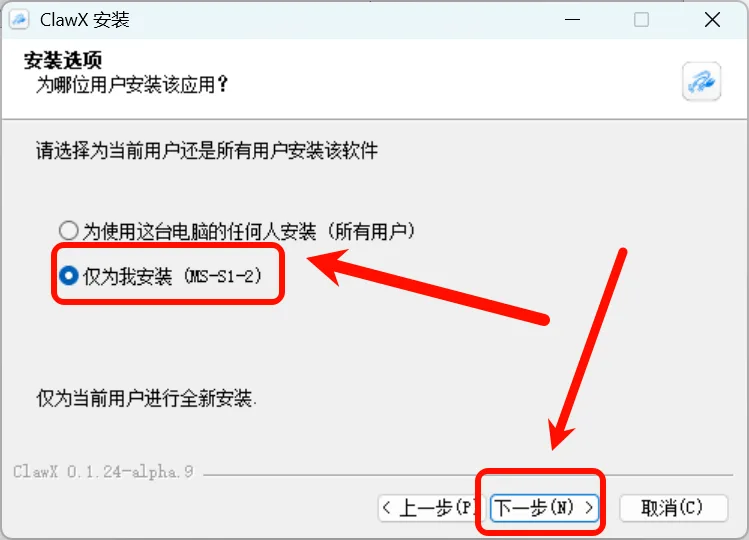
Figure 5.6.7 Double-click to install, select current user only
Choose the installation location and wait for completion:
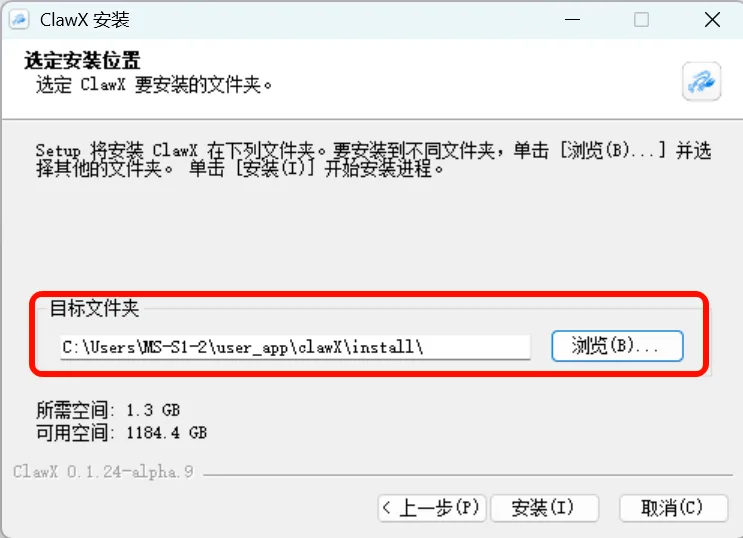
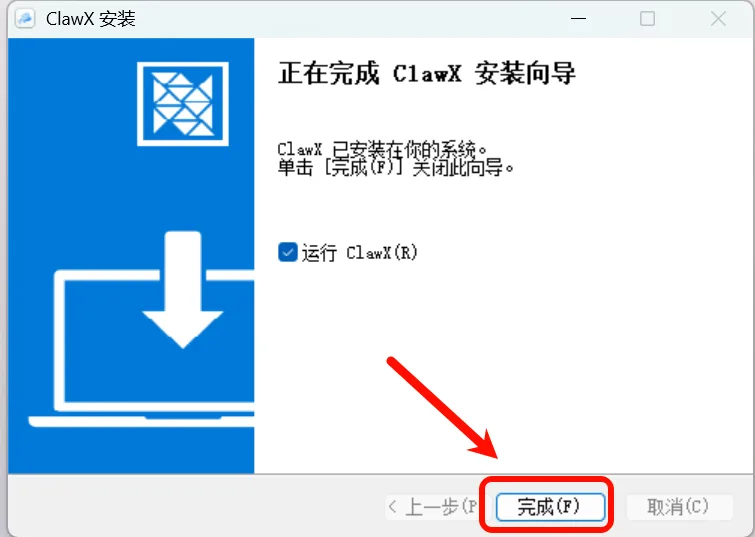
Figure 5.6.8 Choose installation location and wait for completion
3.3 Initial Configuration
After installation, launch the app, select your language, and click Next:
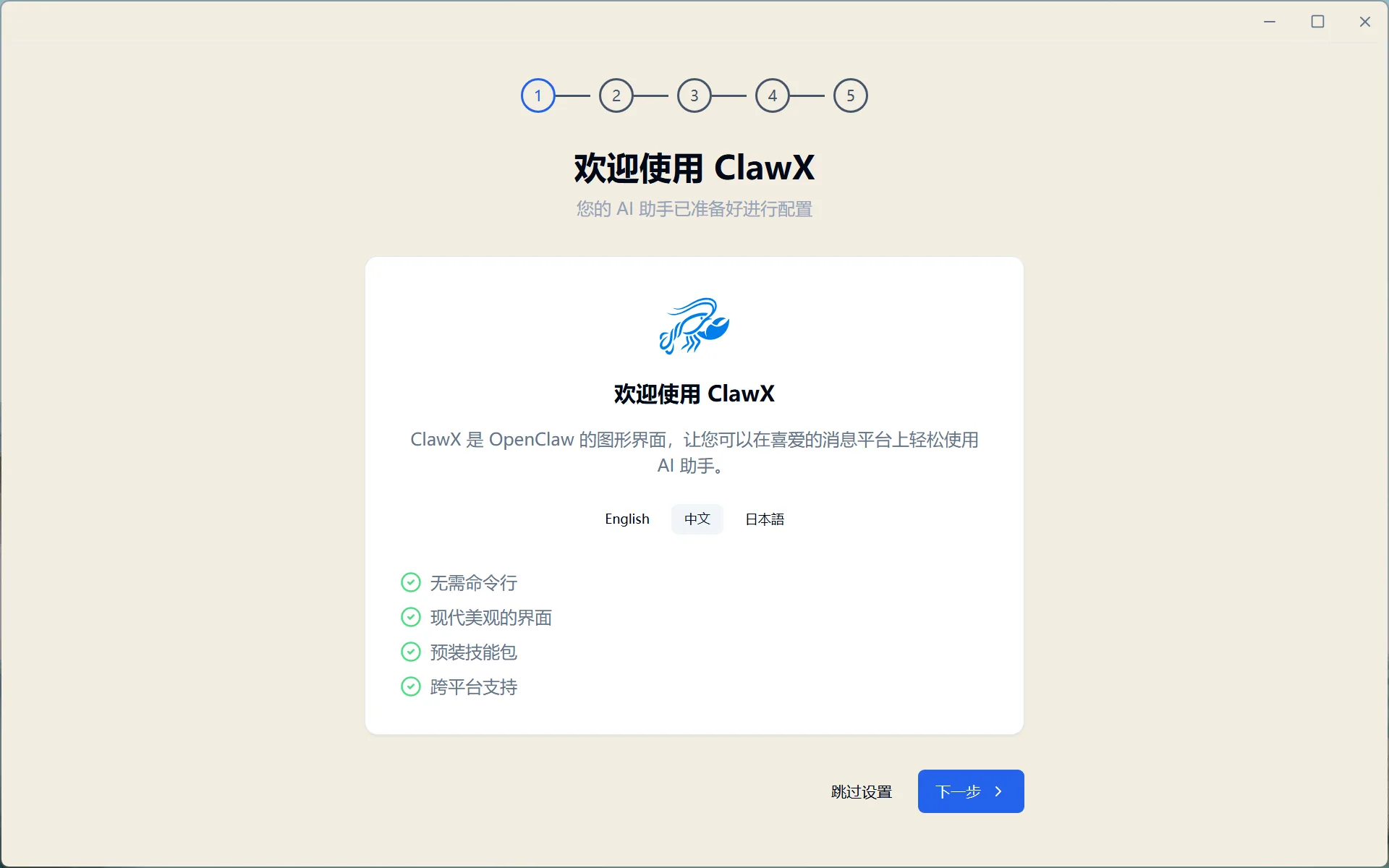
Figure 5.6.9 Select language and click Next
Wait for the environment check — any missing dependencies will be guided for installation, then click Next:
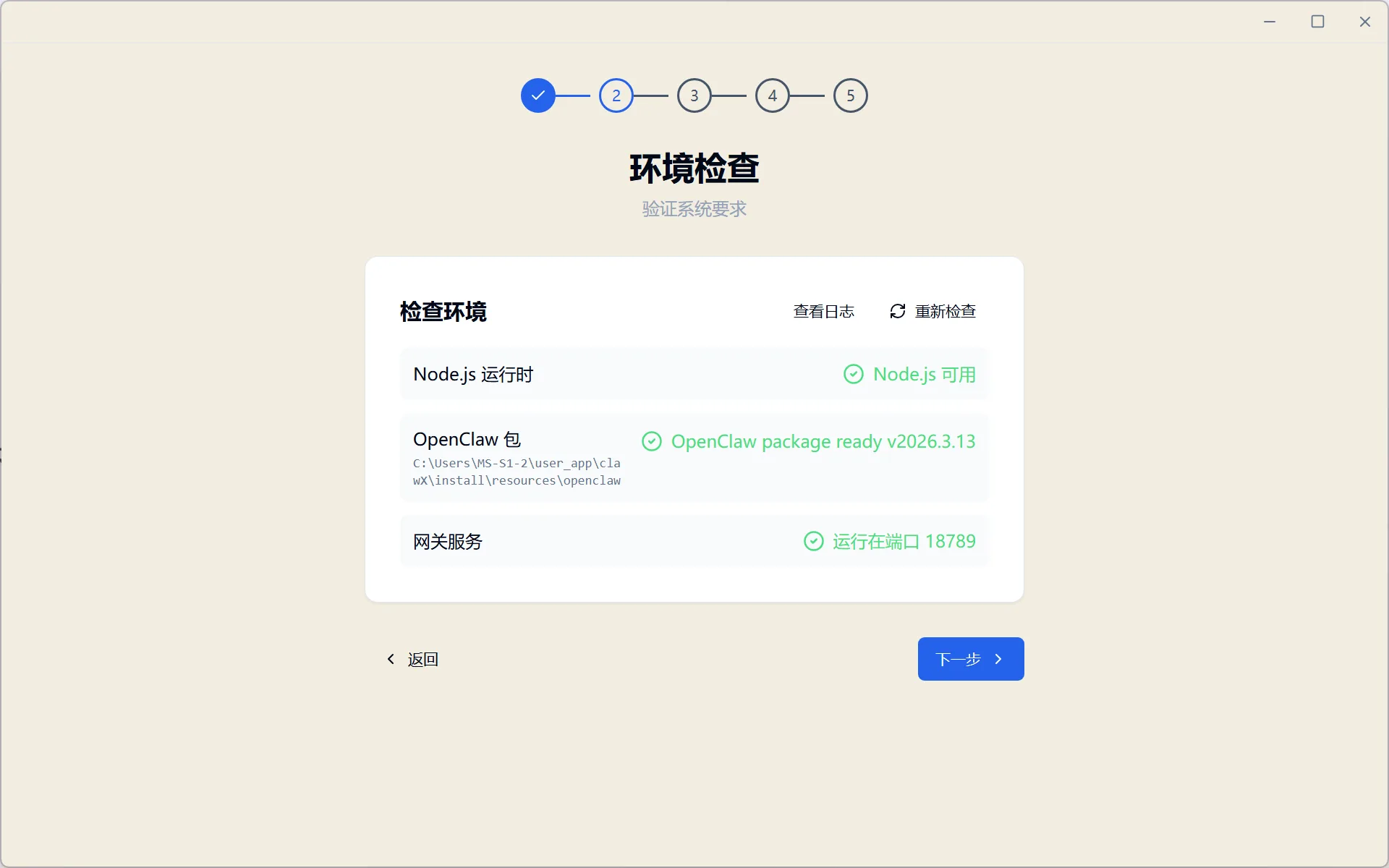
Figure 5.6.10 Environment check (missing components will be auto-guided)
3.4 Configure Local Model
Select Custom local model deployment and use the gemma-4-26b-a4b deployed via LM Studio:
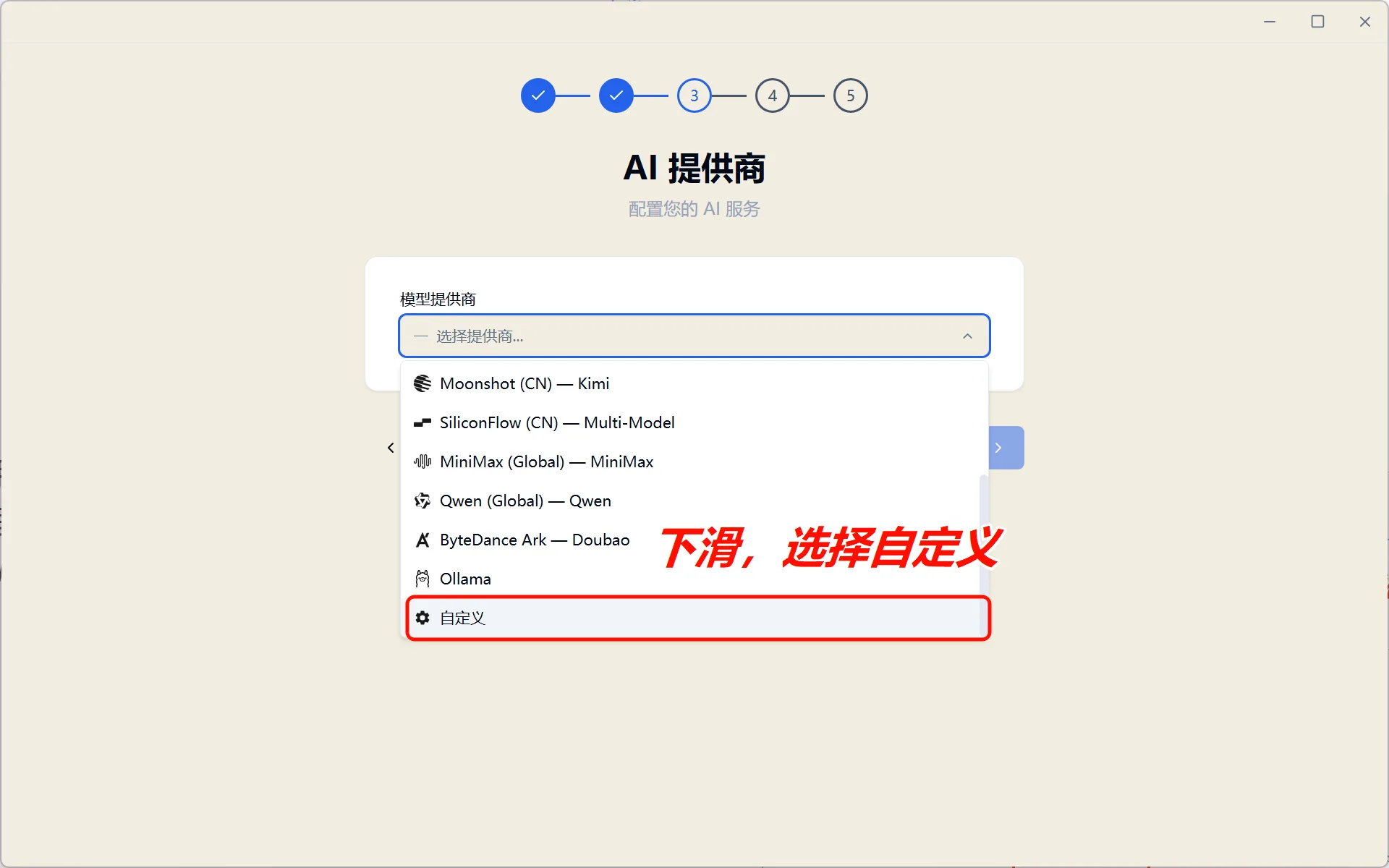
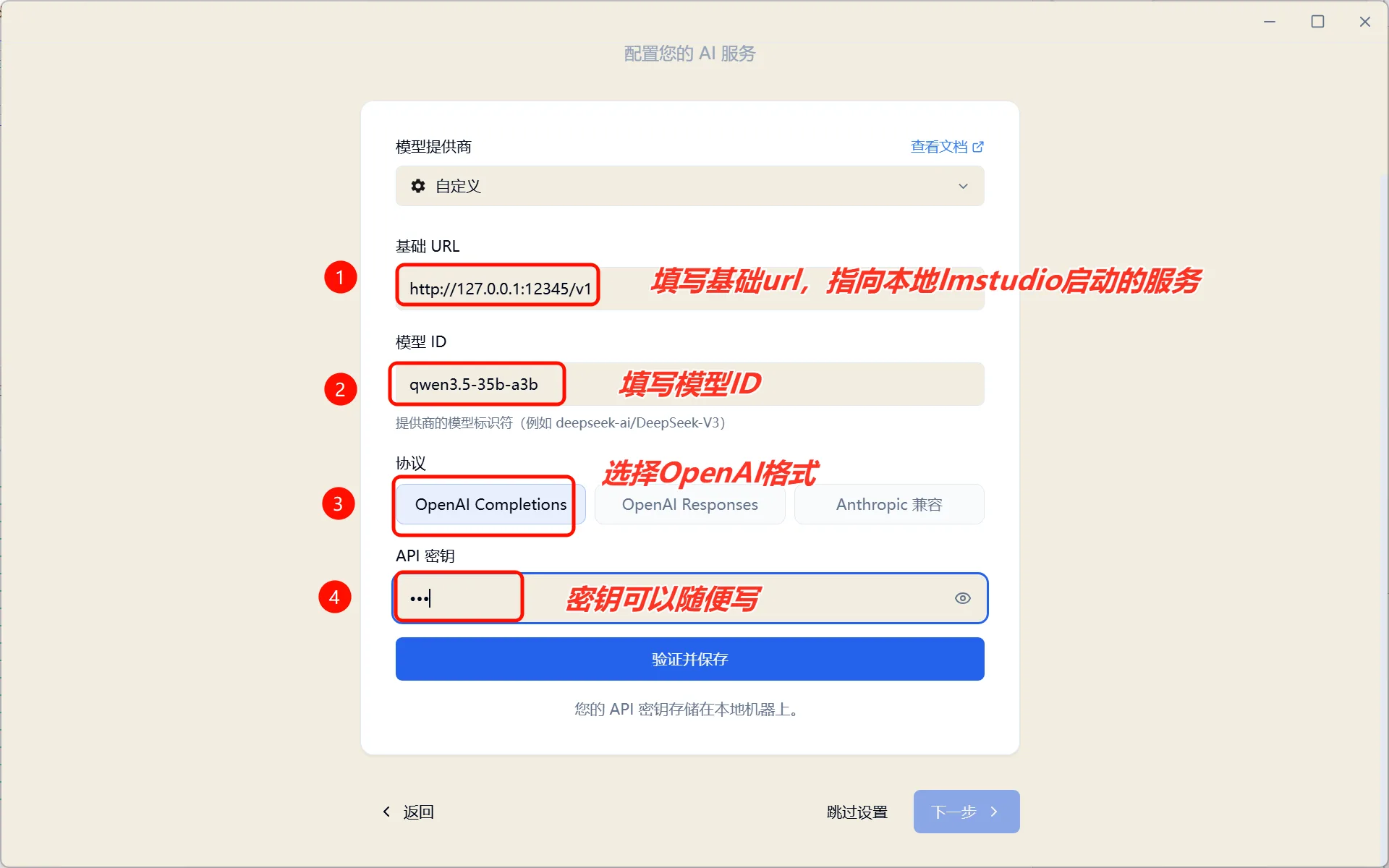
Figure 5.6.11 Select custom model and configure connection details
Enter the following configuration:
| Setting | Value |
|---|---|
| Base URL | http://127.0.0.1:12345/v1 |
| Model ID | gemma-4-26b-a4b |
After verification, click Next to complete the installation:
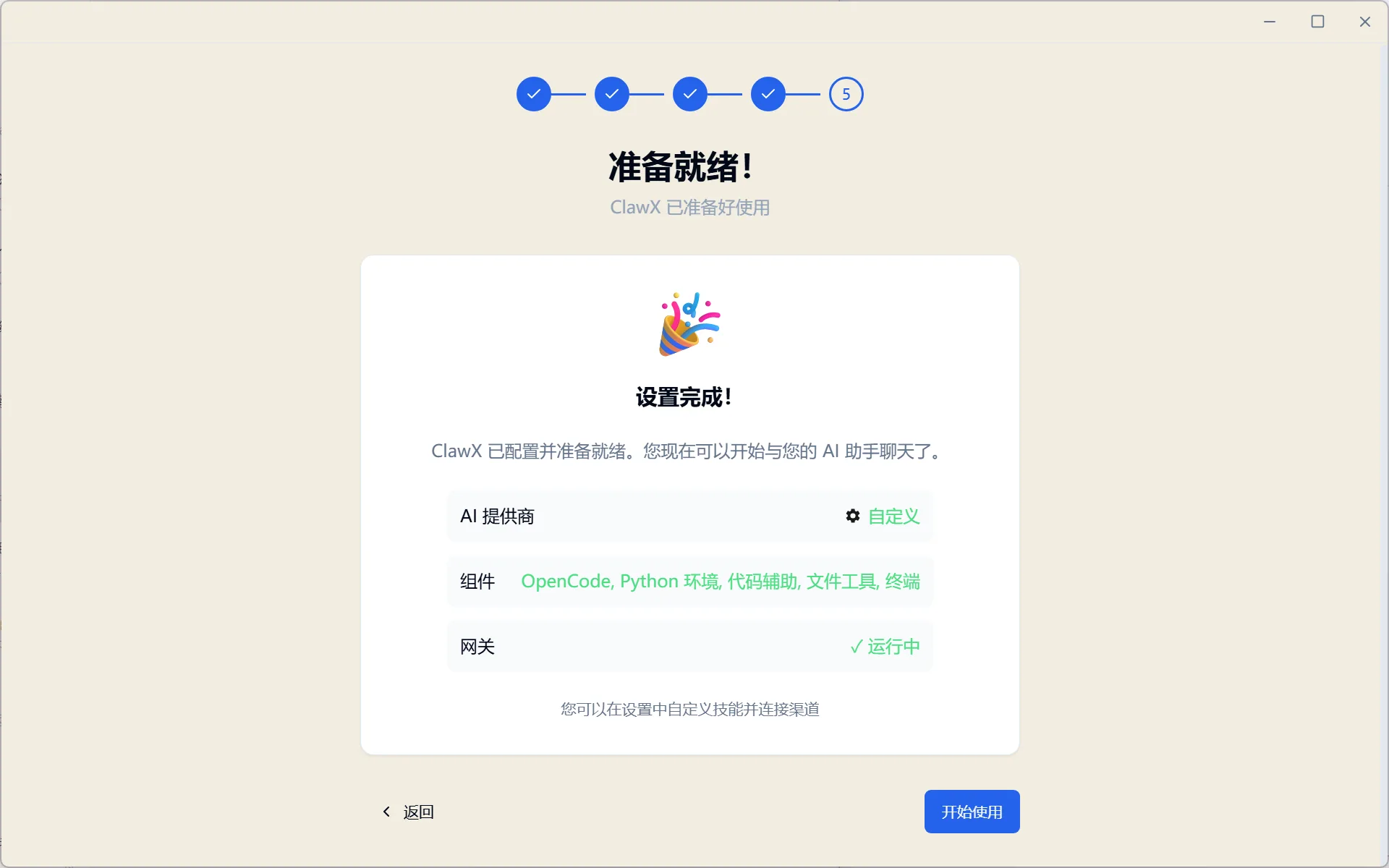
Figure 5.6.12 Click Next, installation complete
3.5 Installation Success
Congratulations! Your fully local "lobster" is ready! 🦞
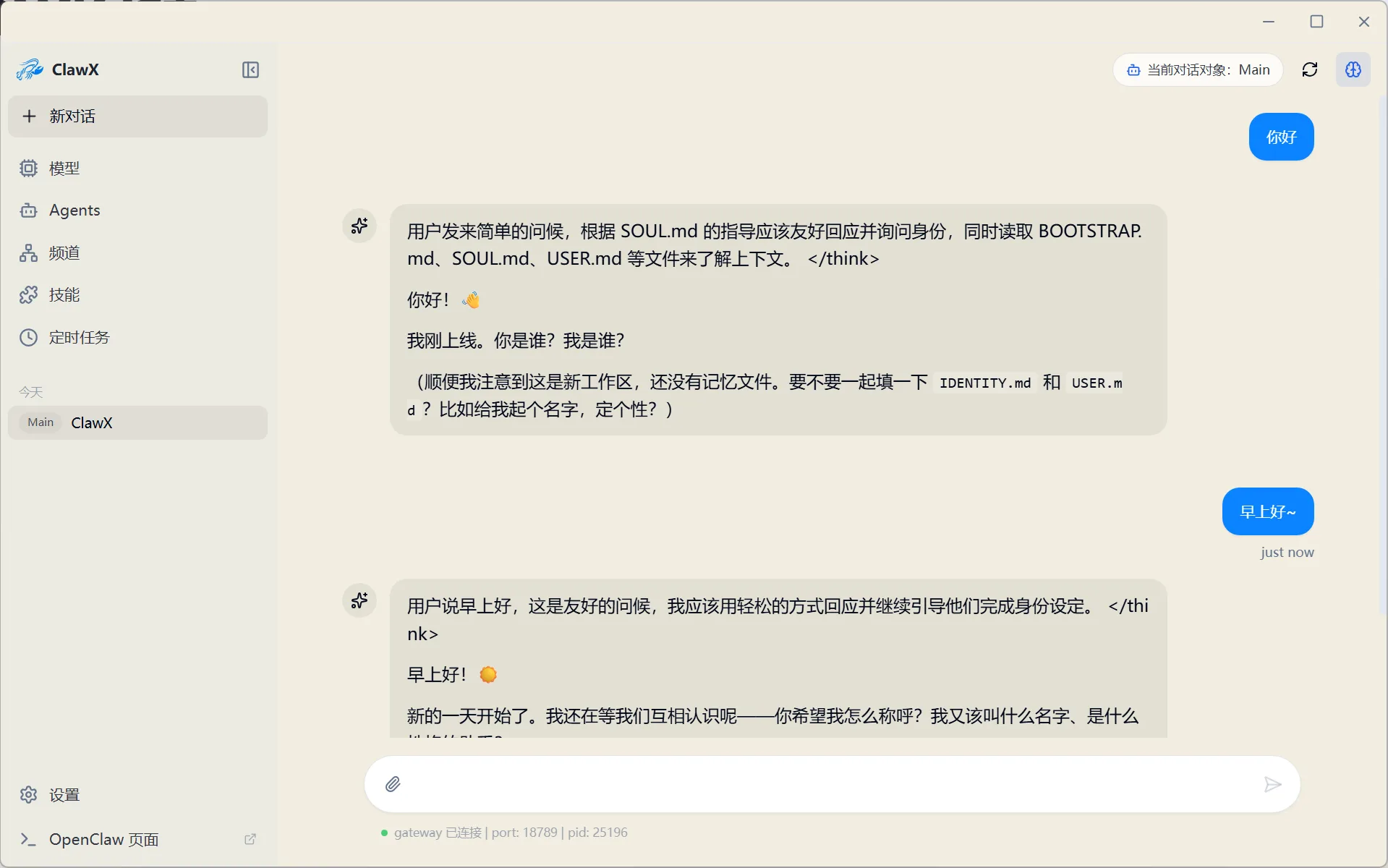
Figure 5.6.13 Local OpenClaw installation successful
Step 4: Using OpenClaw
4.1 Web Management Interface
Click "OpenClaw Page" in the bottom-left corner to access the web management interface, where you can chat and manage Agents. You can also chat and manage directly from the ClawX desktop client:
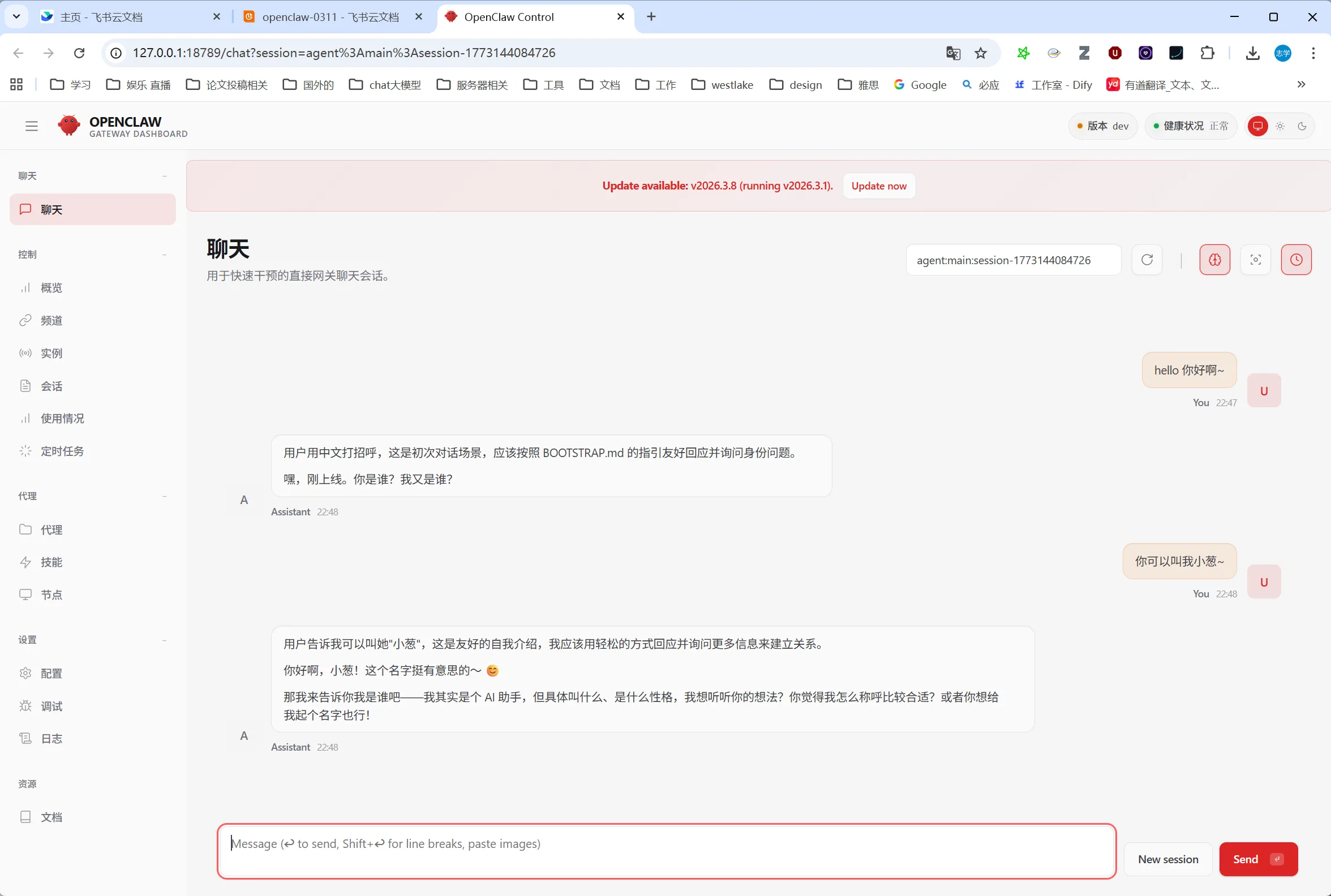
Figure 5.6.14 OpenClaw Web Management Interface
4.2 Configure Message Channels
In channel settings, you can configure Lark, DingTalk, and other messaging platforms step by step for unified multi-platform message access:
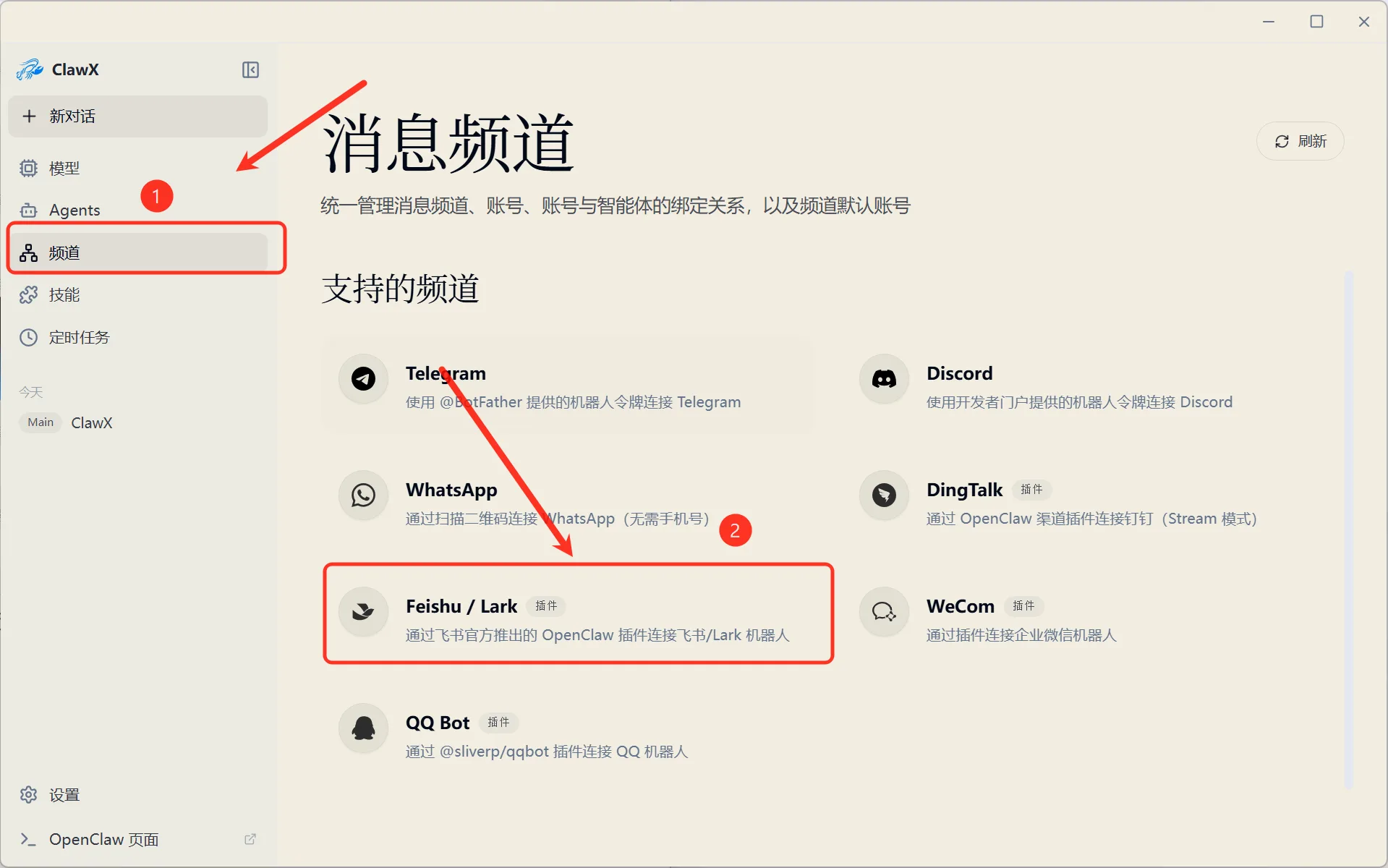
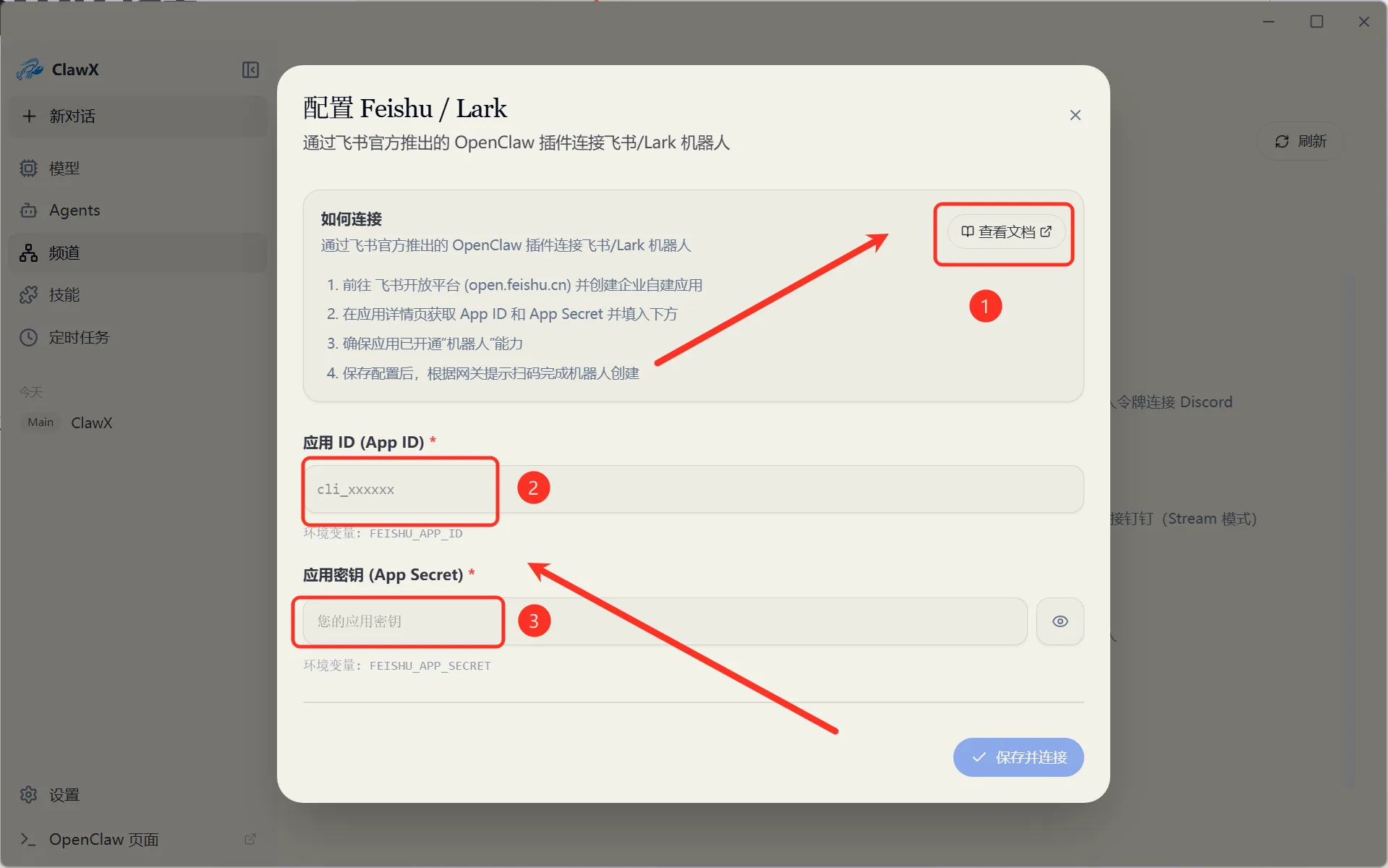
Figure 5.6.15 Configure Lark/DingTalk message channels
Summary
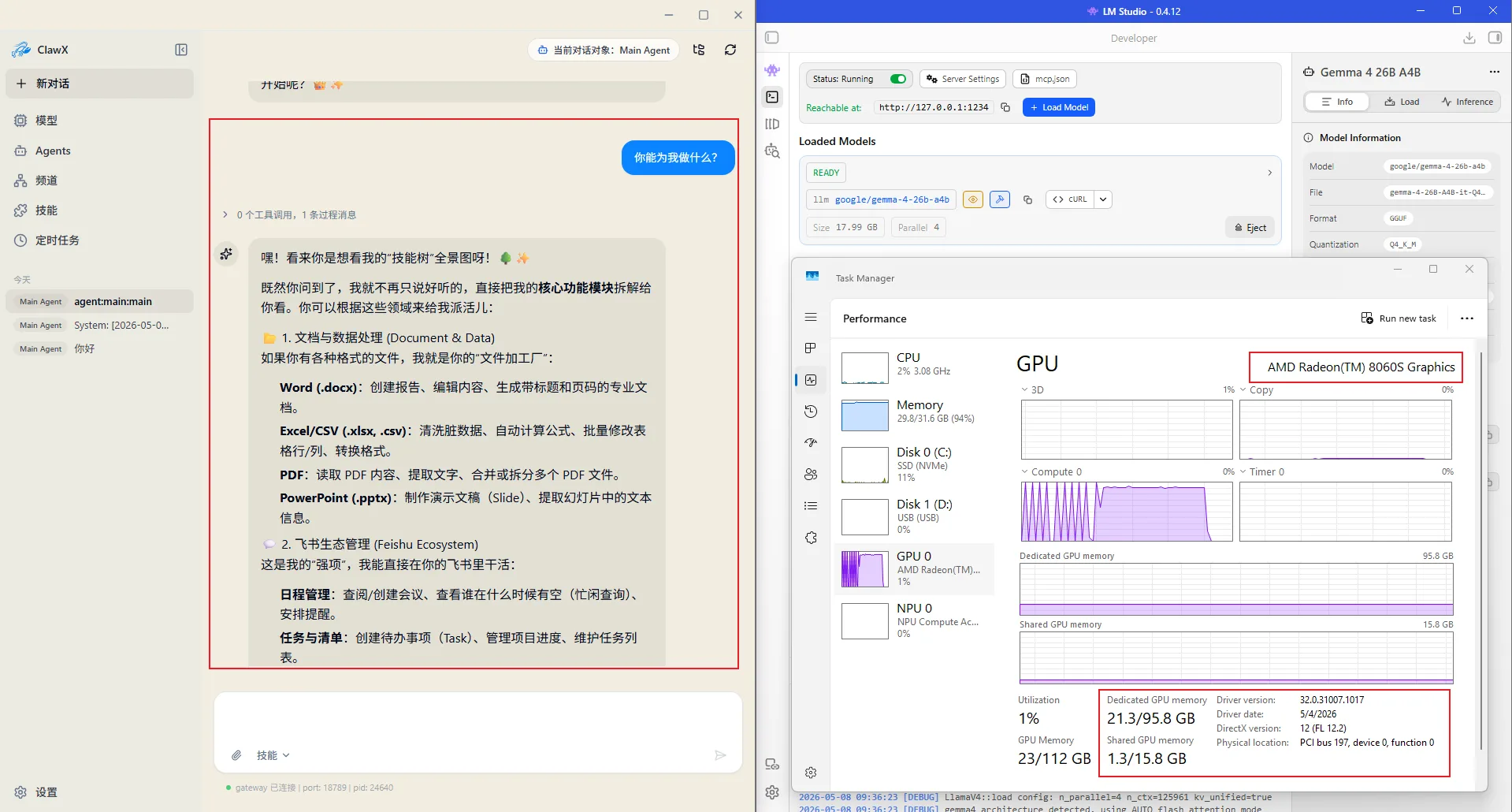
Figure 5.6.16 Local LLM + Local OpenClaw = Fully Private Personal Assistant
Through this tutorial, you have successfully built a fully localized AI assistant solution on AMD 395 Max:
- ✅ LM Studio running gemma-4-26b-a4b locally
- ✅ OpenClaw (ClawX) providing Agent platform and multi-channel message gateway
- ✅ All data stays on your machine, privacy fully under your control
FAQ
Q: How much VRAM is needed?
OpenClaw consumes 39K tokens of context for a new conversation. Combined with the model parameters, at least 24GB VRAM is recommended. The AMD 395 Max's shared memory architecture can meet this requirement.
Q: Which local models are supported?
Any local model compatible with the OpenAI API format can be used, including models deployed via LM Studio, Ollama, vLLM, etc. This tutorial recommends gemma-4-26b-a4b (MoE architecture, only 4B active parameters).
Q: Besides Lark and DingTalk, what other channels are supported?
OpenClaw supports Lark, Telegram, iMessage, Slack, DingTalk, and more. Configure them through the channel settings with guided setup.